A spin-to-win wheel for Shopify that runs on your own discount codes
ChilliPopup installs on a Shopify store as an app embed: one toggle in the theme editor, no Liquid, no theme edits. The wheel that follows is an overlay on your storefront pages, each slice carrying a discount code you created in Shopify, with the winner decided on our server rather than in the shopper's browser. This page is the whole setup for a store: the install, where the wheel shows, a first-order prize table, the copy for each screen, display rules that fit Shopify's URLs, and what to read in the report.
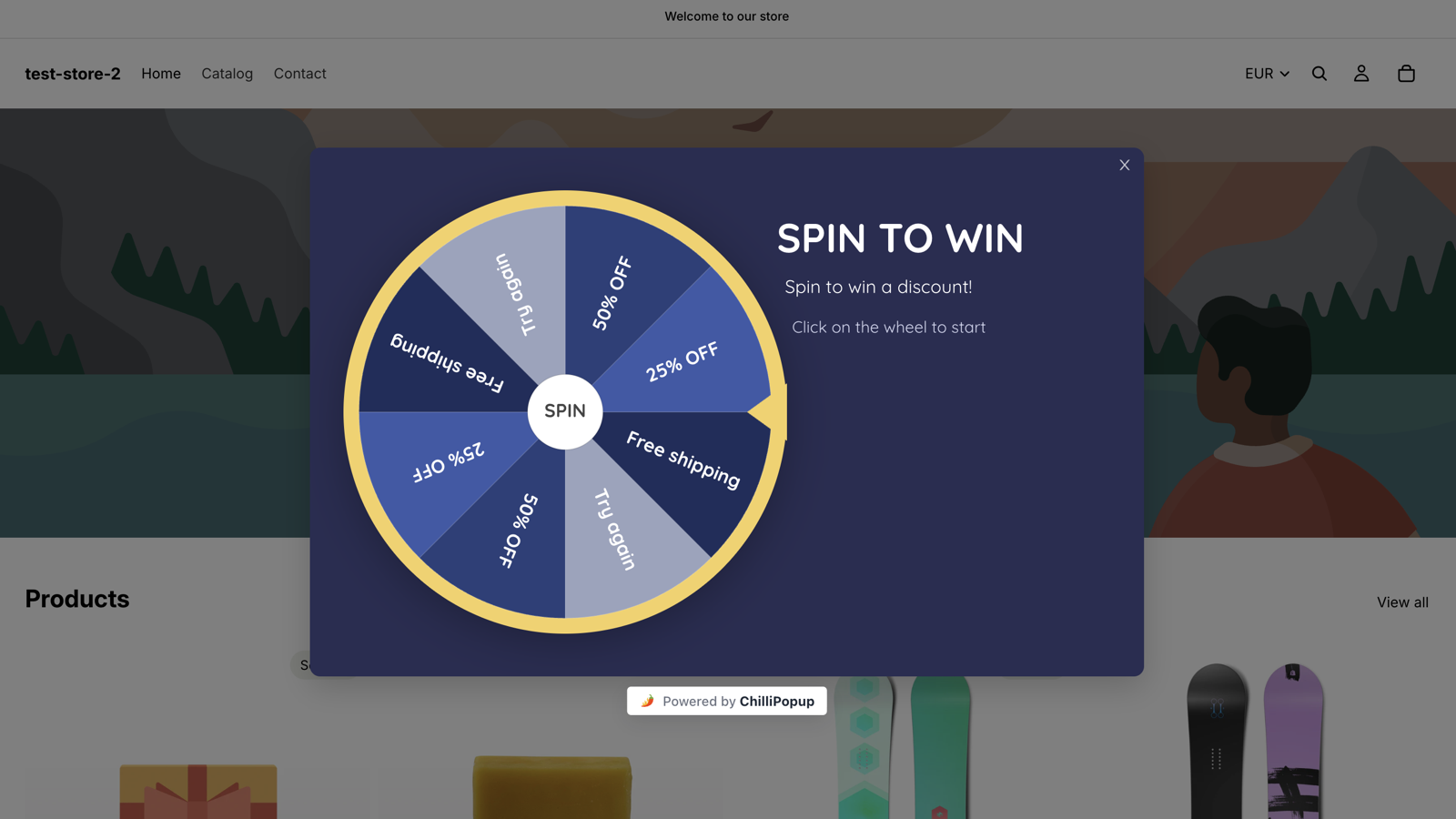
The Spin to Win theme live on a storefront. On Shopify the same overlay is drawn straight into your theme's pages by the app embed, with no iframe.
Why a wheel on a Shopify store
Shopify already has the codes. The wheel decides who gets them.
Shopify Discounts gives you the codes; ChilliPopup gives a shopper a reason to hand over an email before they see one. The wheel spreads a first-order discount across tiers, with a win chance you set per slice, and lives on your storefront pages without a line of Liquid.
Your Shopify codes, one per slice
Each prize on the wheel carries a code you created under Discounts in your Shopify admin. ChilliPopup never creates or applies a discount in your store; it reveals the code you pasted, only inside a winning result, and Shopify validates it at checkout as it would any other code.
Installed as an app embed
The ChilliPopup app adds one asynchronous script tag to your theme through Shopify's app embed. Toggle it on under Online Store → Themes → Customize → App embeds, click Save, and every wheel you publish afterwards appears on your storefront. Switch it off and the tag is gone; there are no Liquid edits to revert.
Odds a shopper cannot rig
Each slice has its own win chance in percent, and whatever is left of 100% is the chance of a Try again. The roll happens on our server and the wheel only animates to the result, so what reaches the browser holds labels and odds, never codes. If our server cannot be reached, the spin resolves as a loss.
Install on Shopify
From the App Store to a spinning storefront in three steps
The Shopify app binds your store to your ChilliPopup workspace for you, so there is no Workspace ID to paste. The step people miss is the second one.
1
Install the ChilliPopup app
Open the ChilliPopup app in the Shopify App Store, click Install and approve it in your Shopify admin; the app connects the store to your workspace and signs you in. Already in the ChilliPopup dashboard? Open Installation Code, choose Shopify, type your store domain (your-store.myshopify.com) and click Connect Shopify instead. Both routes end in the same place.
→
2
Turn on the app embed
In Shopify go to Online Store → Themes → Customize → App embeds (the puzzle-piece icon), toggle ChilliPopup on and click Save. App embeds are off by default after any install and are stored per theme, so do this again if you switch or duplicate your theme.
→
3
Build the wheel and publish
In ChilliPopup pick a wheel theme, type the prize table below into the Prizes panel, write the four screens, set the display rules and set the wheel to Published; drafts never serve. Open your storefront in an incognito window and trigger the rule. The dashboard's Shopify panel reads Connected & active once the storefront has loaded the pixel.
Storefront pages only: home, collections, products, cart and content pages. Shopify does not render app embed blocks on checkout pages, so the wheel can never interrupt payment, and you need no rule to keep it off /checkouts/.
Product and collection pages: two page-URL rules, contains /products/ and contains /collections/. A wheel shows on any page that matches at least one of its rules, so these two cover both page types and leave the home page and cart alone.
The cart is your call: add a third rule, contains /cart, if you want the wheel to catch a shopper on the cart page too. Without it the cart matches nothing and stays quiet.
URL, not cart contents: ChilliPopup targets by URL and does not read the cart total or the items in it, so write the wheel's copy to stand on its own, with a fixed free-shipping threshold rather than a live counter.
The prize table
A first-order prize table for a Shopify store
Five prizes and a leftover, built around a first order. Each code is created in Shopify first; then the labels, codes and chances go into the Prizes panel exactly like this, and the wheel draws itself, Try again slice included.
Slice
Reward code
Win chance
Why it is there
10% off
WELCOME10
40%
The welcome offer you would have shown in a plain popup. Most spins land here, and it costs nothing extra.
15% off
WELCOME15
22%
A visible step up on a first basket that still leaves margin on full-price items.
Free shipping
SHIPFREE
18%
Created as a free shipping discount in Shopify. A fixed cost to you, and the prize small baskets like most.
20% off
WELCOME20
8%
The tier shoppers tell friends about. Rare enough to protect margin; give the code a minimum purchase amount in Shopify.
30% off
WELCOME30
2%
The headline slice. Two spins in a hundred, capped in Shopify with a minimum purchase amount and one use per customer.
Try again
none
10% (leftover)
Added by the editor as a grey slice because the prizes total 90%. Ten shoppers in a hundred see the Losing screen, which is what keeps the other ninety codes worth having.
The arithmetic reads straight off the table: with these odds, every hundred spins hand out roughly forty 10% codes, twenty-two 15% codes, eighteen free-shipping codes, eight 20% codes and two 30% codes, and ten shoppers see the Losing screen. Change any percentage and the editor shows the new chance of not winning as you type.
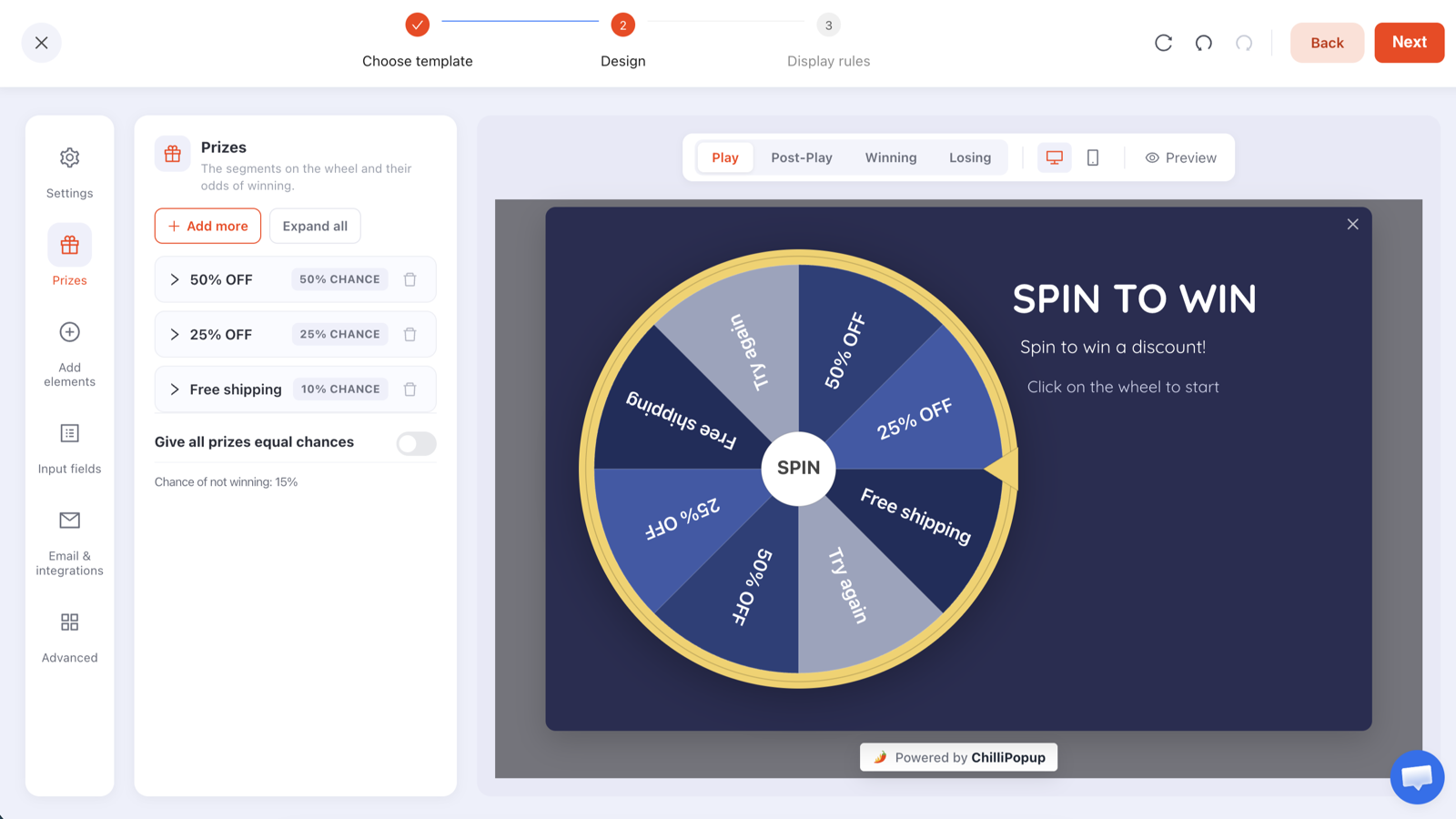
The Prizes panel where the table goes: a label, a reward code and a win chance per prize, with the chance of not winning computed for you as you type.
Create the codes in Shopify first: in your Shopify admin open Discounts and create one discount code per prize, an amount-off-order code for the percentage tiers and a free shipping discount for SHIPFREE. Give each the same end date as the wheel, and give the 20% and 30% codes a minimum purchase amount and a one-use-per-customer limit.
ChilliPopup never creates or applies codes: it does not touch your Shopify Discounts. It reveals the code you pasted into the Prizes panel, only inside a winning result, and the shopper types it into the discount field at checkout like any other code.
Redemptions are counted in Shopify: each code's usage sits in your Shopify discount report, which is where you match wins to orders. ChilliPopup counts the claims; Shopify counts the checkouts.
Prefer no losers? Raise the chances until they total 100%, or flip on "Give all prizes equal chances", and the Try again slice disappears. Or mark a prize as a Losing option: it keeps its own label and colour, counts as a loss and never returns a code.
Copy for the four screens
What the wheel says to a first-time shopper
A wheel has four screens: Play, Post-Play, Winning and Losing, each its own canvas in the editor. Write {{prize_label}} and {{prize_code}} anywhere in the Post-Play or Winning copy and the won prize fills them in.
Play
Spin for your welcome offer
Headline: New here? Spin for your first-order discount.
Sub-line: One spin, one code, up to 30% off your first order.
The disc itself is the button, so a hint like "Click the wheel to start" is all the instruction it needs.
Post-Play
You landed on {{prize_label}}
Headline: {{prize_label}} on your first order.
Sub-line: Enter your email and your code appears right here.
One email field and one button. This screen only appears after a win, so nobody is asked for an email in exchange for nothing.
Winning
Your code is {{prize_code}}
Headline: Use {{prize_code}} at checkout for {{prize_label}}.
Sub-line: Paste it into the discount code box at checkout on your first order.
Confetti is on by default here. Add a "Shop now" button pointing at the collection you want first orders to come from.
Losing
Not this time
Headline: No prize on this spin.
Sub-line: New arrivals are in the shop this week, and shipping is free over $60 for everyone.
Give the shopper a button to a collection. The Losing screen is the one part of the wheel a visitor sees with nothing in return, so make it worth the click.
Display rules
Rules that fit Shopify's URLs
A wheel carries the same display rules as every ChilliPopup popup: six triggers, targeting, frequency caps and a schedule. Shopify's URL structure is predictable, which makes the page rules the easy part.
Pages: contains /products/ and contains /collections/. A wheel shows where at least one page rule matches, so these two cover product and collection pages and leave the home page, cart and content pages alone. The checkout never renders app embeds, so there is nothing to exclude.
Triggers: exit intent for desktop shoppers who are leaving, and a time delay of about ten seconds so mobile shoppers, who have no cursor to leave with, see it too. The first trigger to fire opens the wheel.
Audience: new visitors only. These are first-order codes, and a returning visitor has already had the chance.
Frequency: once every 30 days, plus "hide from visitors who already claimed", so each shopper gets one spin and one code.
Schedule: none for an always-on welcome wheel. If your Shopify codes carry an end date, give the wheel the same end date in your time zone so it retires with them.
Display rules
🔗
Page URLContains /products/
🔗
Page URLContains /collections/
⏏
Exit intentWhen the cursor leaves the page
⌛
Time delayAfter 10 seconds on page
🧑
AudienceNew visitors only
🔁
FrequencyOnce every 30 days
🎁
Already claimedHidden after a claimed prize
Design
Your theme's colours, your fonts, the top prize in the headline
There is no Shopify-specific wheel template, and you do not need one. Both wheel themes are fully editable, and a wheel that looks like part of your Shopify theme is a few minutes of recolouring.
Start from The Deal Is Right if most of your store's traffic arrives on phones: it is a portrait, mobile-first card. Spin to Win is the landscape alternative, wheel on the left and headline on the right, for desktop-heavy stores.
Match the theme: set the popup background to your theme's background colour, the rim, pointer and hub to your accent colour, and alternate the slices between the accent and a neutral so the labels stay legible. Pick the Google font your theme uses, or upload your own font files.
Lead with the top prize: "Up to 30% off your first order" in the headline is what stops the scroll; the slices tell the truth about the odds.
A/B test one thing: one click creates a Variant B, you choose the split, every visitor keeps their version and the results sit side by side with a confidence indicator. Test free shipping against 15% off as the mid-tier, or exit intent against the time delay.
The same editor for all four games: Play, Post-Play, Winning and Losing are tabs, Prizes is a panel, and every colour, block and font is yours to change.
After the first week
What to read next to your Shopify analytics
A wheel gets two reports: the popup report every ChilliPopup campaign has, and a game report built from the server's own record of each spin. Read them next to Shopify's discount report and the economics of the wheel are plain.
Opens against submissions: how many shoppers saw the wheel on product and collection pages, how many spun and how many left an email, by day and by device.
Claimed wins by prize: whether the codes were claimed in the proportions the table predicted, and which tier drove the claims.
The claims table: each winner's email, prize, code, device and time. It lives in your ChilliPopup dashboard; ChilliPopup does not send emails and has no Klaviyo, Mailchimp, Shopify Email, HubSpot, Zapier or CSV export connector, so the welcome email goes out from your own tool.
Redemptions: each discount code's usage count in Shopify. Matching it to the claims table tells you what the wheel cost in discounts and what it brought in first orders.
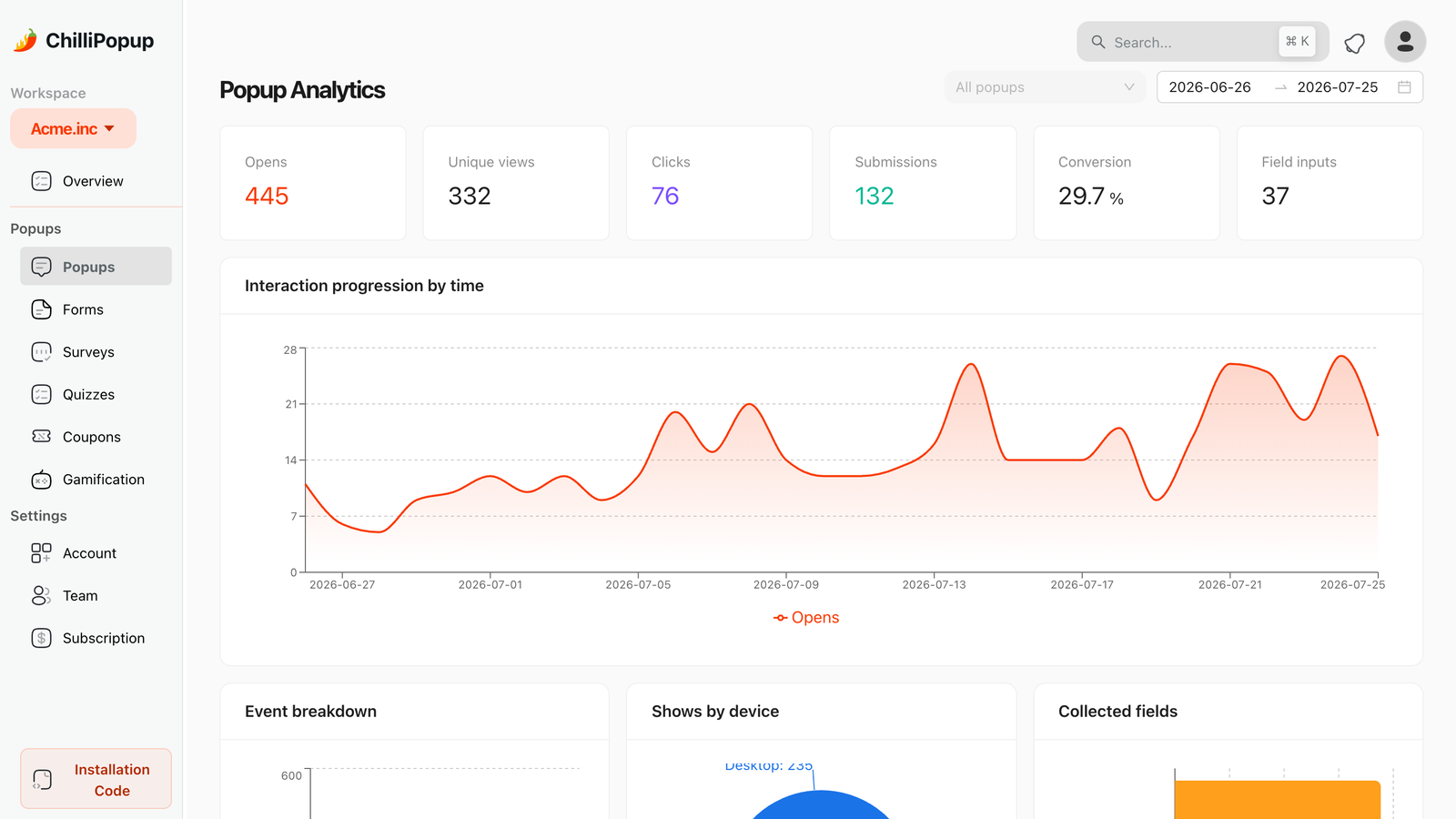
The popup report every wheel gets. The game report adds spins, wins, losses and claimed wins by prize.
The step-by-step guide to popups on a Shopify store: the app embed, the campaigns that belong on each storefront page, and the rules that keep them off the checkout.
Do I need to edit my Shopify theme to add the wheel?
No. ChilliPopup ships as a Shopify app embed. Install the app from the Shopify App Store, or connect your store from the dashboard's Installation Code screen, then in Shopify go to Online Store, Themes, Customize, App embeds, toggle ChilliPopup on and click Save. There are no Liquid edits, and switching the embed off removes the script again. App embeds are stored per theme, so toggle it on again if you switch or duplicate your theme.
Can the wheel hand out my Shopify discount codes?
Yes, and that is the intended setup. Create each code under Discounts in your Shopify admin, with the end date, minimum purchase amount and usage limits you want, then paste it as the prize's reward code in the Prizes panel. ChilliPopup never creates or applies a discount in your store: it reveals the code you gave it, only inside a winning result, and Shopify validates it at checkout like any other code. Redemptions are counted in Shopify's discount report.
Will the wheel show on my Shopify checkout?
No. Shopify does not render app embed blocks on checkout pages, so the wheel runs on storefront pages only: home, collections, products, cart and content pages. You do not need a rule to keep it off /checkouts/. To keep it off the cart as well, give it page rules that name product and collection pages; a wheel shows only where at least one of its page rules matches, and the cart matches neither.
How do I pay for ChilliPopup on Shopify?
Inside Shopify. Stores that install through Shopify choose their plan in the Shopify admin and are billed through Shopify, and uninstalling the app cancels it. The plans are the same as everywhere else: Free at $0 a month, forever, with no credit card and no time limit, covering 1,000 visitors a month on one domain with all four prize games, the full editor, A/B testing and analytics; Pro at $29 a month and Business at $79 a month, each with a 14-day free trial. A small "Powered by ChilliPopup" badge shows under the wheel on every plan. See the plans →
Why is the wheel not showing on my store?
Almost always because the app embed is not toggled on or was not saved: go to Online Store, Themes, Customize, App embeds, switch ChilliPopup on and click Save, and repeat it after switching or duplicating a theme. Then check that the wheel is Published rather than a draft, that you are on a page its URL rules match, and test in an incognito window, since ad-blocking extensions can hide it in your own browser. If the embed is on and nothing shows, copy your Workspace ID from Installation Code, Shopify in the dashboard and paste it into the ChilliPopup app embed's Workspace ID field in the theme editor, then save. Full troubleshooting list →
Where do the winners' emails go, and can the wheel email them the code?
Into your ChilliPopup dashboard. The game report's claims table lists each winner's email, prize, code, device and time, next to spins, wins, losses and claimed wins by prize. ChilliPopup does not send emails or SMS and has no Klaviyo, Mailchimp, Shopify Email, HubSpot, Zapier or CSV export connector, so the shopper reads the code on the Winning screen and any follow-up email goes out from your own tool.
Put a wheel on your Shopify store today
Install the app, toggle the embed, type your Shopify codes into the prize table and publish. The wheel opens on your product and collection pages, the server decides every spin, and every code you give away comes with an email.