To add a popup to your Shopify store: install the ChilliPopup app, enable its app
embed in your theme, build the popup in the editor and hit Publish — no Liquid,
no theme.liquid edits, no developer. The whole thing takes about twenty minutes,
and most of that is deciding what your offer says.
The mechanics are the easy part, though. What separates a Shopify popup that quietly compounds your email list from one that annoys shoppers into bouncing is everything around the install: the popup type, the pages it fires on, who stops seeing it, and whether it costs you page speed. That's what this guide covers.
Key Takeaways
- Two steps that matter: install the app, then enable and save the app embed in your theme — the embed toggle is the switch that puts popups on your storefront.
- Speed is a non-issue done right. One async script, no iframe — your theme renders exactly as before, and Shopify's app embed system keeps the install reversible.
- Four popup types earn their place on a store: the welcome discount, the exit-intent saver, spin-to-win, and email/SMS capture. Start with the first.
- Display rules are where stores win or lose: page-target product and cart URLs, exclude checkout, go lighter on mobile, and always stop showing after conversion.
- Measure before you tweak. Views, submissions and conversion rate per campaign tell you whether to change the offer, the trigger or nothing at all.
Why popups matter for a Shopify store
Most first-time visitors to your store leave without buying and without leaving any way to reach them — every bounced ad click is money spent on someone you'll never talk to again. A popup is the one tool that converts a fraction of that leaving traffic into something durable: an email address, a phone number, a saved cart, a first order pulled forward by a discount.
Stores are also the environment where popups work hardest, because a store funnel has natural moments where an interruption is genuinely useful rather than merely tolerated:
- Arrival — a welcome offer changes the maths on a first order and builds your list either way.
- Browsing — someone three product pages deep is interested but undecided; the moment for a nudge, not a demand.
- Leaving with a full cart — the highest-intent, highest-waste moment in ecommerce. An exit-intent popup is the last word before they go.
- Checkout — the one moment where the correct number of popups is zero. Nothing may compete with the payment form.
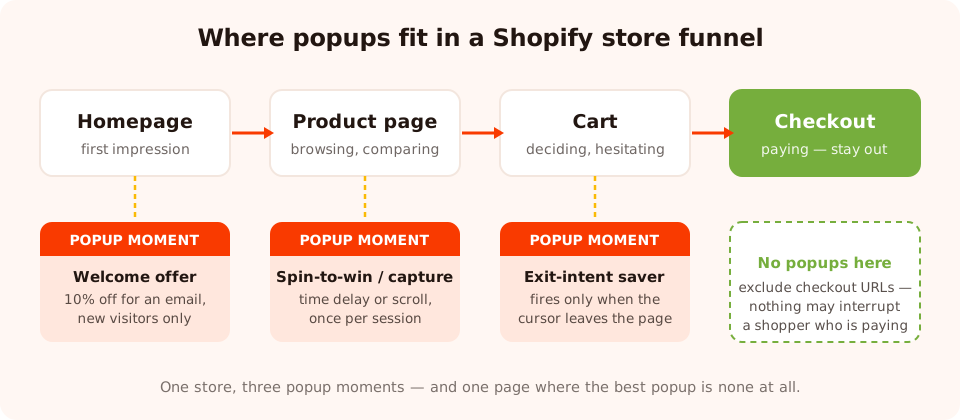
Match the popup to the moment — and leave checkout alone.
Will a popup slow down your Shopify theme?
The first question every merchant should ask — slow themes lose sales, and Shopify stores already carry their share of app scripts. The honest answer: it depends entirely on how the popup tool loads. Check three things:
- Async loading. The script tag must load asynchronously, so the browser keeps rendering your theme — hero image, product grid, buy button — without waiting for the popup code. ChilliPopup's pixel is one lightweight script that loads async; your theme paints exactly as it did before.
- No iframe. Some tools render each popup inside an embedded iframe — a second page loading inside your page, with its own document and its own overhead. ChilliPopup renders popups directly into your storefront's DOM instead, so a popup is just a few elements styled on your page.
- App embed, not theme edits. On Shopify the script arrives through the
theme's app embed system — a toggle in the theme editor — not by pasting code
into
theme.liquid. Nothing in your theme's files changes, and switching the embed off removes the script as cleanly as it arrived.
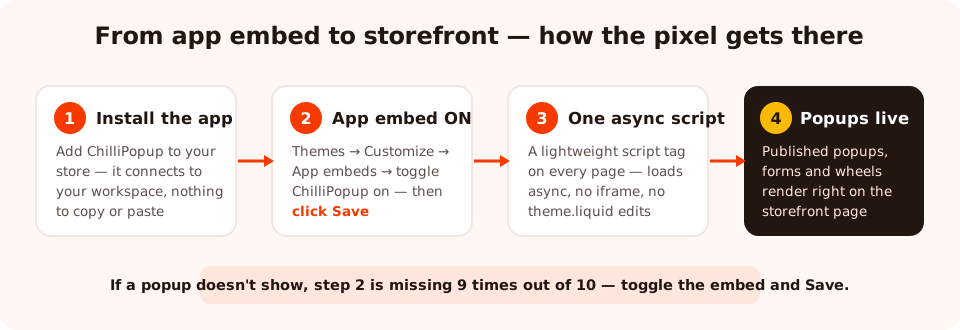
The app embed is the bridge between your ChilliPopup workspace and your storefront.
What actually slows stores down isn't the popup script — it's popup behaviour: overlays that fire instantly everywhere, autoplay media, three campaigns competing on one URL. Keep one popup per page, trigger it deliberately, and speed stays a non-issue.
How to add a popup to Shopify, step by step
Five steps, about twenty minutes — condensed from the full Shopify install walkthrough.
1. Install the ChilliPopup app on your store
Add the ChilliPopup app to your store — from the Shopify App Store, or from the
Install screen in your ChilliPopup dashboard by choosing Shopify and entering
your your-store.myshopify.com domain. Either way, approve the install in your
Shopify admin and the app connects the store to your workspace automatically. There's no
Workspace ID to copy, no snippet to paste.
2. Enable the app embed in your theme
This is the step people miss. In Shopify, go to Online Store → Themes, click Customize on your live theme, open App embeds (the puzzle-piece icon in the left panel), toggle ChilliPopup on — and click Save. That save inserts the pixel into every page of your storefront.
App embeds are stored per theme. If you later switch or duplicate your live theme, the new theme starts with the embed off — re-enable it there and save again. If popups ever vanish after a theme change, this is why.
3. Build your popup in the editor
In the ChilliPopup dashboard, start from a template in the popup gallery or a blank canvas, then drag in what the offer needs: a headline, an email input, a button — and for a discount popup, the coupon code block on the thank-you screen. Create the discount itself in Shopify first (Discounts → Create discount) so the code your popup reveals actually works at checkout.
4. Set store-specific display rules
Pick a trigger (a time delay, scroll percentage or exit intent), target the pages it should run on by URL, exclude checkout, and choose devices. Turn on the display frequency rule and switch off "show again after conversion" so buyers and subscribers stop seeing the popup once they've converted. The store-critical rules get their own section below.
5. Publish and verify on your storefront
Set the popup to Published — drafts never serve — then open your storefront in an incognito window and trigger the rule you set. If nothing appears, re-check the app embed toggle first, then the popup's status, then your browser extensions — ad blockers can hide it on your machine only.
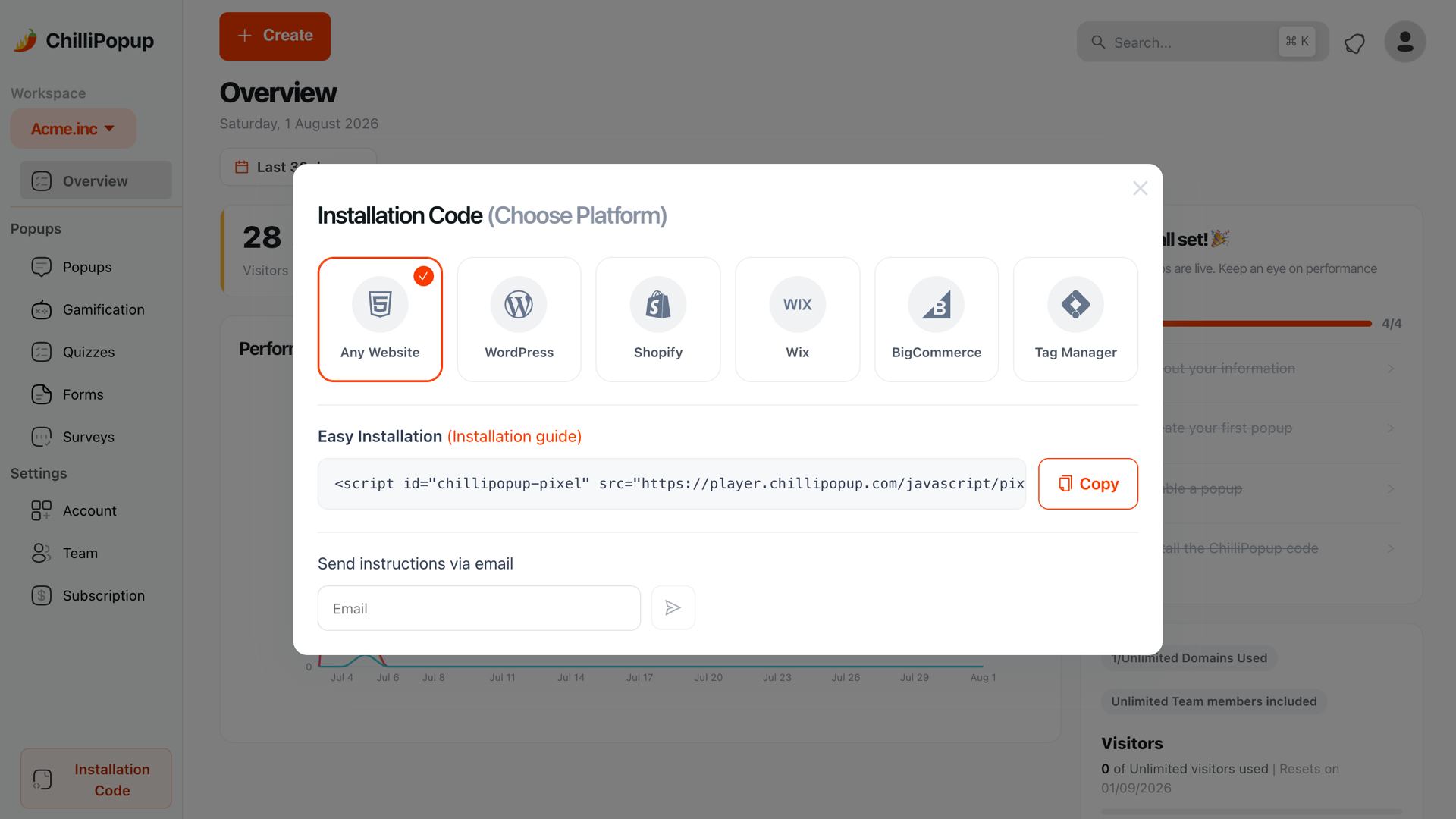
The dashboard's Install screen — connect Shopify from here, or grab the one-line script for any other site.
The four popup types that work for ecommerce
The welcome discount popup
The workhorse: a percentage off the first order in exchange for an email. It converts twice — the shopper who uses the code today, and the subscriber you can bring back next month. Show the code immediately on the thank-you screen with the coupon block — a shopper mid-browse shouldn't have to dig through an inbox.
The exit-intent cart saver
Fires only when the cursor moves to leave the page — zero interruption while someone is actually
shopping. Page-target it to /cart and your product URLs, and make the message about
the cart, not about you: a reminder, a reassurance (shipping, returns), or your best remaining
offer. This is the popup for the moment your abandonment
problem is most fixable.
The spin-to-win wheel
A spin wheel turns the same email-for-discount trade into a game: enter an email, spin, win one of the prizes you configured — each winning slice carrying a Shopify discount code. Two things make it work: the prize feels earned rather than handed out, and in ChilliPopup the winning slice is decided server-side, so the outcome can't be rigged from the browser.
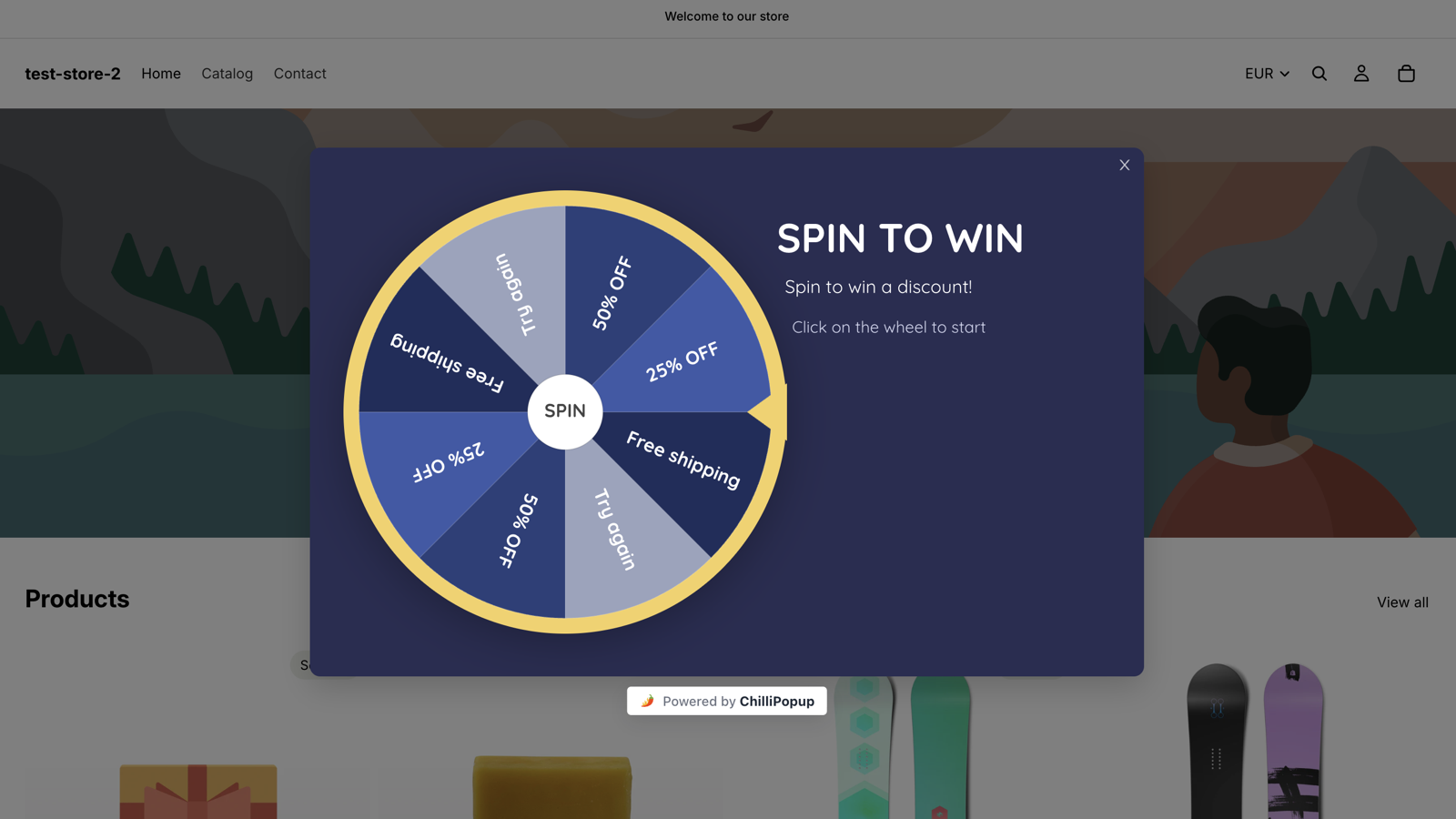
A spin-to-win wheel live on a storefront — same trade as a welcome popup, better story.
The email & SMS capture popup
Not every store wants to lead with a discount — margins, brand, or a product people research before buying. A plain capture popup offers something else: early access to drops, restock alerts, a size guide. Add a phone input if SMS is your channel — see our SMS popup examples for the consent wording that matters. Either way, ChilliPopup collects the submissions in your dashboard and you send the actual campaigns from your own email or SMS tool.
| Popup type | Best trigger | Best pages | What it wins you | Watch out for |
|---|---|---|---|---|
| Welcome discount | Time delay (5–10 s), new visitors | Homepage, collections, product pages | Emails + first orders pulled forward | Training regulars to expect a code — cap it to new visitors |
| Exit-intent saver | Exit intent (desktop) | /cart and product pages |
Recovered carts, last-chance emails | Exit intent is unreliable on mobile — use scroll % there |
| Spin-to-win | Time delay or exit intent | Homepage, collections | Higher engagement on the same offer | Prizes must be real — honour every slice you show |
| Email/SMS capture | Scroll % or pages viewed | Blog, lookbook, product pages | A list you own, no margin given away | The offer must beat "10% off" on interest alone |
The display rules that matter on a store
A store isn't a blog — the same popup shown everywhere to everyone actively costs you sales. Five rules do most of the work:
- Page targeting. Match URLs with contains, is exactly,
starts with and friends. Run the welcome offer on the homepage and collections, the
cart saver only where
/cartmatches — and exclude checkout URLs from everything. Shopify's predictable paths (/products/,/collections/,/cart) make these rules easy to write. - Device targeting. Desktop and mobile deserve different popups: exit intent reads cursor movement, so on mobile trigger by scroll percentage instead, and keep the mobile version lighter — fewer fields, bigger tap targets. Our mobile popup guide covers the details.
- Stop after conversion. The single most important switch. Turn off "show again after conversion" and anyone who submitted the popup never sees it again — because nothing says "we don't know who you are" like offering a signup discount to yesterday's customer.
- Frequency caps. A dismissed popup shouldn't reappear on the next page view. Once per session or once every few days is plenty for an offer that didn't land.
- Date ranges and schedules. Set a start and end date (down to the hour) on sale campaigns so the Black Friday popup dies at midnight without you logging in — plus a weekly schedule if an offer should only run on certain days.
One popup per page, ever. If the welcome offer and the spin wheel can both fire on the same URL, they will — and two overlays fighting for one shopper reads as desperation. Use page targeting to give each campaign its own territory.
Worked example: a 10%-off welcome popup
Here's a complete welcome popup you can rebuild in about fifteen minutes, copy included.
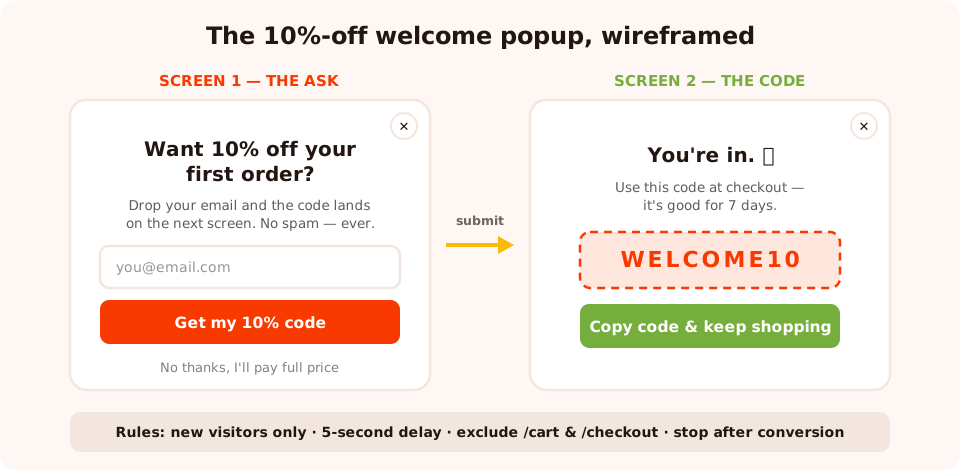
Two screens: the ask, then the code — revealed instantly, no inbox required.
First, the discount. In Shopify, create a code — say WELCOME10,
10% off, one use per customer, minimum purchase if your margins need it. The popup only reveals
the code; Shopify enforces it.
Then the popup. One headline, one line of support text, one field, one button, one decline link:
- Headline: "Want 10% off your first order?" — a question invites a yes.
- Support line: "Drop your email and the code lands on the next screen. No spam — ever." It kills both objections in one sentence: when do I get it and what happens to my email.
- Field: email only. Every extra field costs signups; you can ask for more later.
- Button: "Get my 10% code" — first person, restates the value. Never "Submit".
- Decline link: "No thanks, I'll pay full price." A visible, honest way out makes the popup feel like an offer instead of a trap.
The thank-you screen carries the coupon block showing WELCOME10,
one line of instruction ("Use it at checkout — it's good for 7 days"), and a button back
to shopping. The expiry isn't decoration: a code that's always valid is never used today. More
formulas like these live in the
popup copywriting guide.
Finally, the rules: new visitors only · 5-second time delay (scroll trigger on
mobile) · all pages except /cart and checkout · once per session · stop after
conversion. Publish, test in incognito, done.
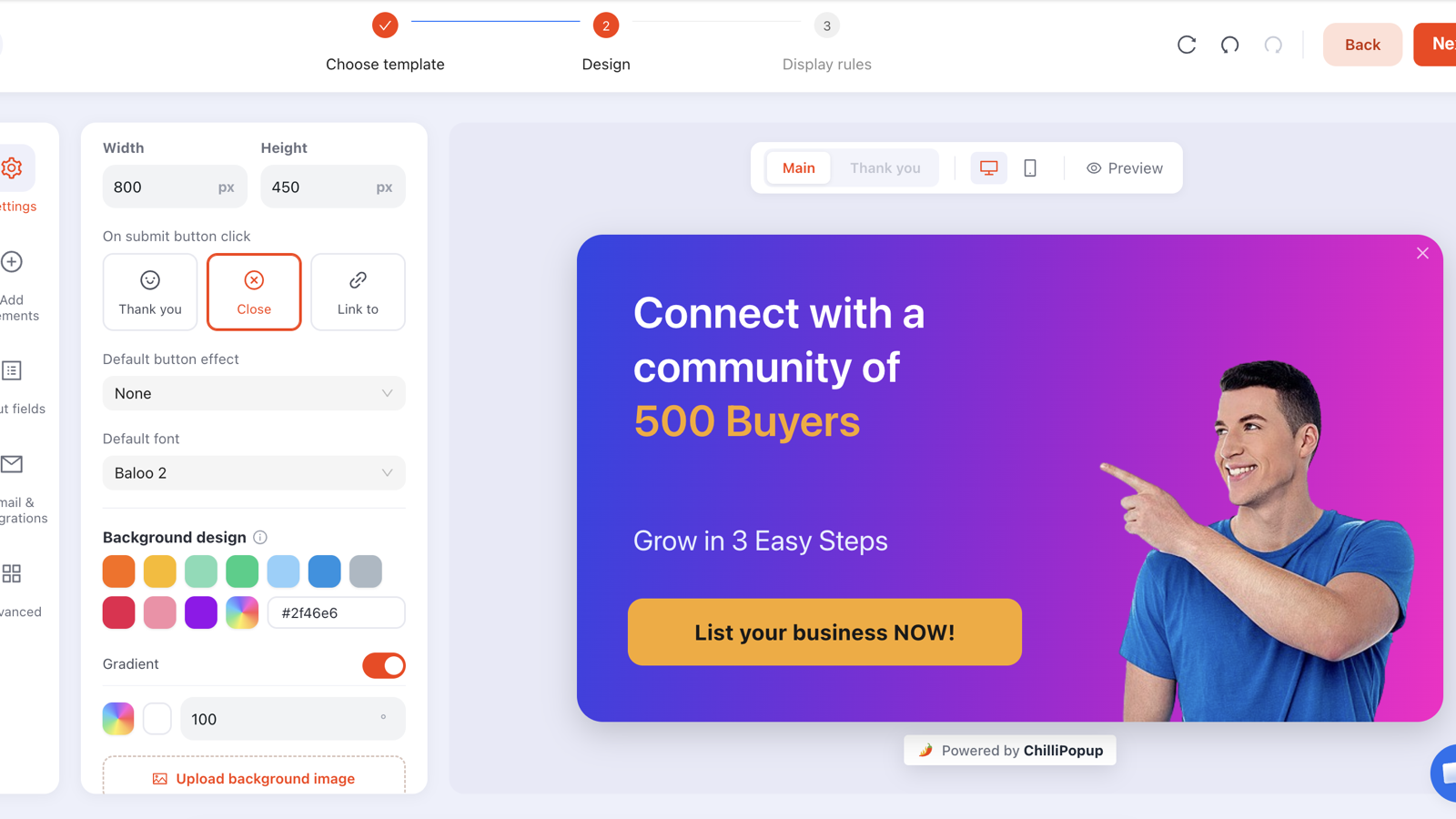
The whole popup is drag-and-drop — text, input, button and coupon blocks on a canvas.
Seven Shopify popup mistakes to avoid
- Firing instantly on first paint. A popup that beats your hero image to the screen is asking strangers who haven't seen a product to commit. Give it five seconds or a scroll.
- Running popups on checkout pages. Nothing — not even a good offer — may interrupt someone entering payment details. Exclude checkout URLs from every campaign.
- Forgetting the app embed after a theme change. Embeds are per theme. New theme, republished theme, seasonal theme — re-toggle and save, or your popups silently vanish.
- Showing the welcome discount to everyone forever. Returning customers learn to wait for codes, and subscribers get nagged with an offer they already took. New visitors only, stop after conversion.
- Making shoppers wait for an email to get the code. Mid-browse is when they want to use it. Reveal it on the thank-you screen; the email is a backup, not the delivery mechanism.
- Using desktop exit intent on mobile. There's no cursor on a phone — give mobile its own scroll-triggered variant, fewer fields, bigger targets.
- Redesigning on gut feel. "I don't like the colour" is not data. Change one thing at a time and let an A/B split decide.
Measuring whether your popup actually works
Every ChilliPopup campaign reports four numbers: views, clicks, submissions and conversion rate (submissions ÷ views). Read them as a funnel and each stage tells you what to fix:
- Low views? The rules are too tight, or the trigger rarely fires. A popup nobody sees has a targeting problem, not a design problem.
- Views but few submissions? The offer or the copy. Rewrite the headline, cut a field, or sweeten the deal — one change at a time.
- Submissions but no orders? The popup did its job; the follow-through is leaking. Check that the code works at checkout and that your welcome email actually sends.
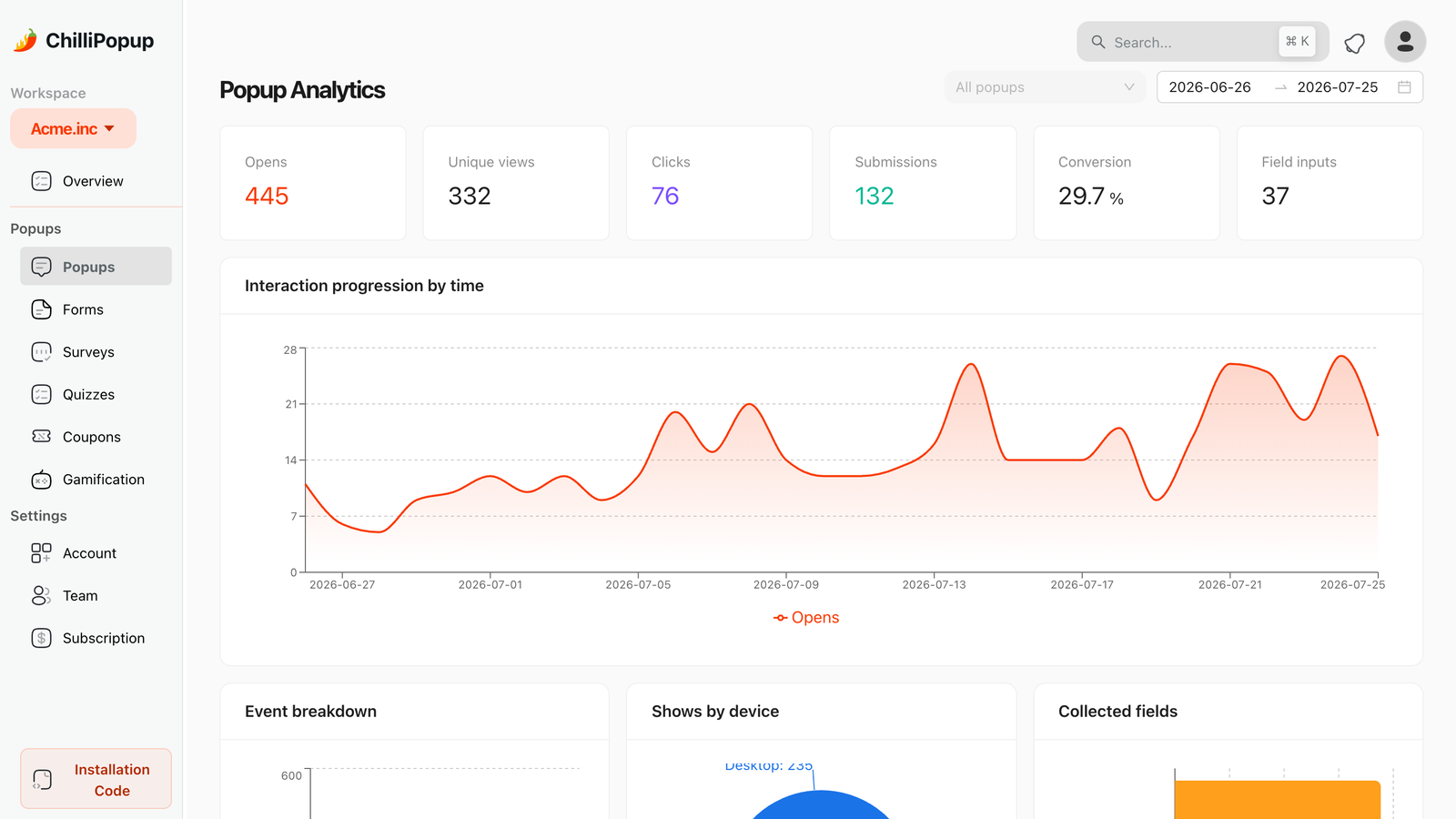
Views → clicks → submissions → conversion rate, per campaign — the funnel that tells you what to fix.
When you want to know rather than guess, A/B test it: split traffic between two variants — 10% off vs free shipping, five seconds vs exit intent — and let the conversion rates settle the argument over a couple of weeks, not a weekend.
Put your first popup on your store today
Install the Shopify app, flip the app embed, and launch a welcome popup, exit-intent saver or spin-to-win wheel from one editor — no theme code, free plan included.
Start free with ChilliPopup →Related reading
Frequently asked questions
How do I add a popup to Shopify without editing code?
Install the ChilliPopup app, enable the app embed in your theme (Online Store → Themes → Customize → App embeds → toggle ChilliPopup on → Save), then build and publish your popup from the dashboard. There are no theme code or Liquid edits — the app embed inserts the script on every page for you.
Do popups slow down a Shopify store?
A well-built popup script shouldn't. ChilliPopup loads one lightweight script asynchronously, so it doesn't block your theme from rendering, and popups draw directly on the page rather than inside an iframe. Your theme, product images and apps keep loading exactly as they did before.
Why isn't my popup showing on my Shopify store?
The most common cause is the app embed: it must be toggled on in Online Store → Themes → Customize → App embeds and saved — and it's stored per theme, so re-enable it if you switch or duplicate themes. Also check that the popup is Published rather than a draft, and test in an incognito window, since ad-blocking extensions in your own browser can hide it on your machine only.
What is the best popup for a Shopify store?
Start with a welcome discount popup for new visitors — around 10% off in exchange for an email. It builds your list and gives first-time shoppers a reason to order now. Once that converts, add an exit-intent popup on product and cart pages, and test a spin-to-win wheel when a flat discount stops feeling special.
Can I show a popup only on product or cart pages?
Yes. Page targeting matches your URLs with conditions like contains, is exactly or starts with, so a popup can run only on /products/ URLs, only on /cart, or everywhere except checkout. Combine it with device targeting to run a different, lighter popup on mobile.
Does ChilliPopup send the discount emails for me?
No. ChilliPopup collects the submissions — every email lands in your dashboard, and you send the welcome email from your own email tool. The discount code itself can appear instantly on the popup's thank-you screen using the coupon block, so shoppers don't have to wait for an email to get their code.
Can I run a spin-to-win popup on Shopify?
Yes. Build a spin wheel in ChilliPopup, assign a Shopify discount code to each winning slice, and publish it like any popup. The winning slice is decided server-side, so the outcome can't be rigged from the browser, and the shopper trades an email for their spin.