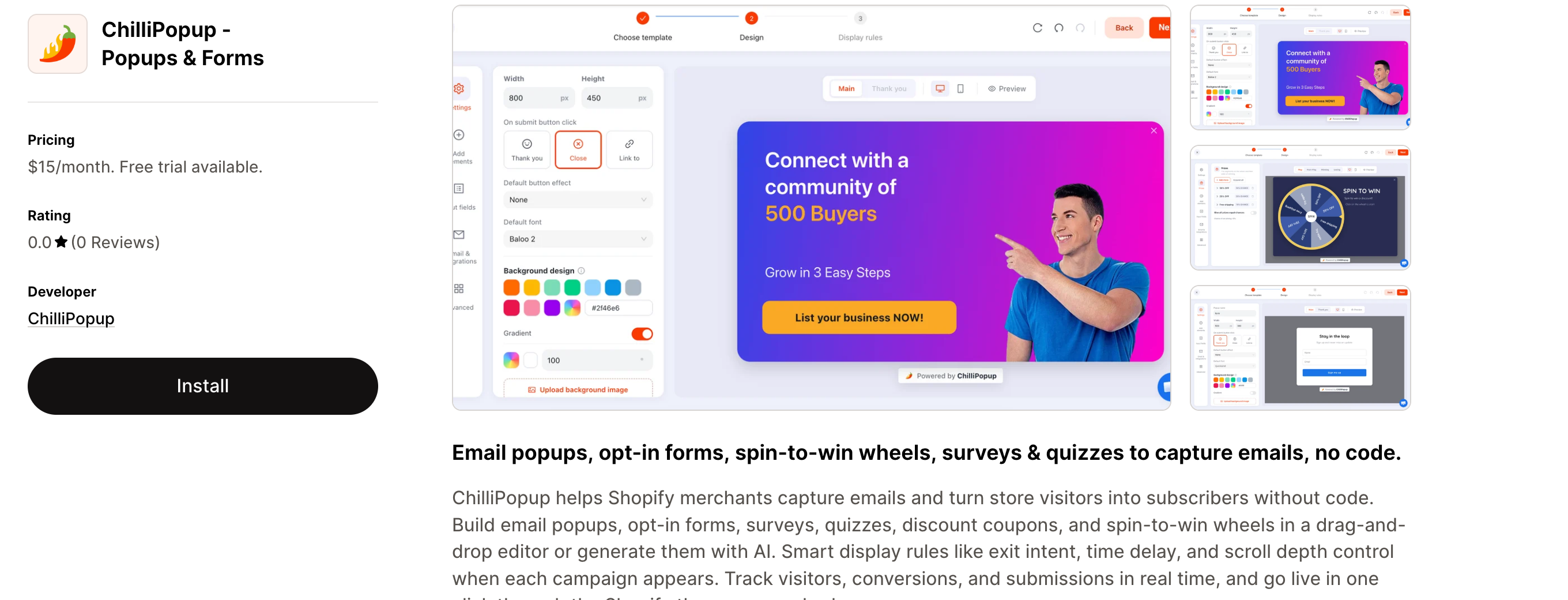
Shopify is the smoothest platform to install ChilliPopup on: there's no Workspace ID to paste. You connect your store once, enable the ChilliPopup app embed in your theme, and every popup, form and spin-to-win wheel you publish shows on your storefront.
The quickest way is to install the ChilliPopup app from the Shopify App Store — one click, and the app connects your store and signs you in automatically. Prefer to start from your dashboard? There's an equivalent Connect flow below. Both end at the same app embed step.
Key Takeaways
- One-click install. Add the app from the Shopify App Store — it connects your store to your ChilliPopup workspace automatically.
- No code, no ID. There's no Workspace ID to copy or paste; the app binds your store for you.
- Two steps that matter: install the app, then enable and save the app embed in your theme.
- The app embed is the switch. If popups don't show, it's almost always because the embed isn't turned on or wasn't saved.
- Per theme. Switching or duplicating themes? Re-enable the embed in the new one.
Method 1 — Install from the Shopify App Store (recommended)
Install the app from the Shopify App Store
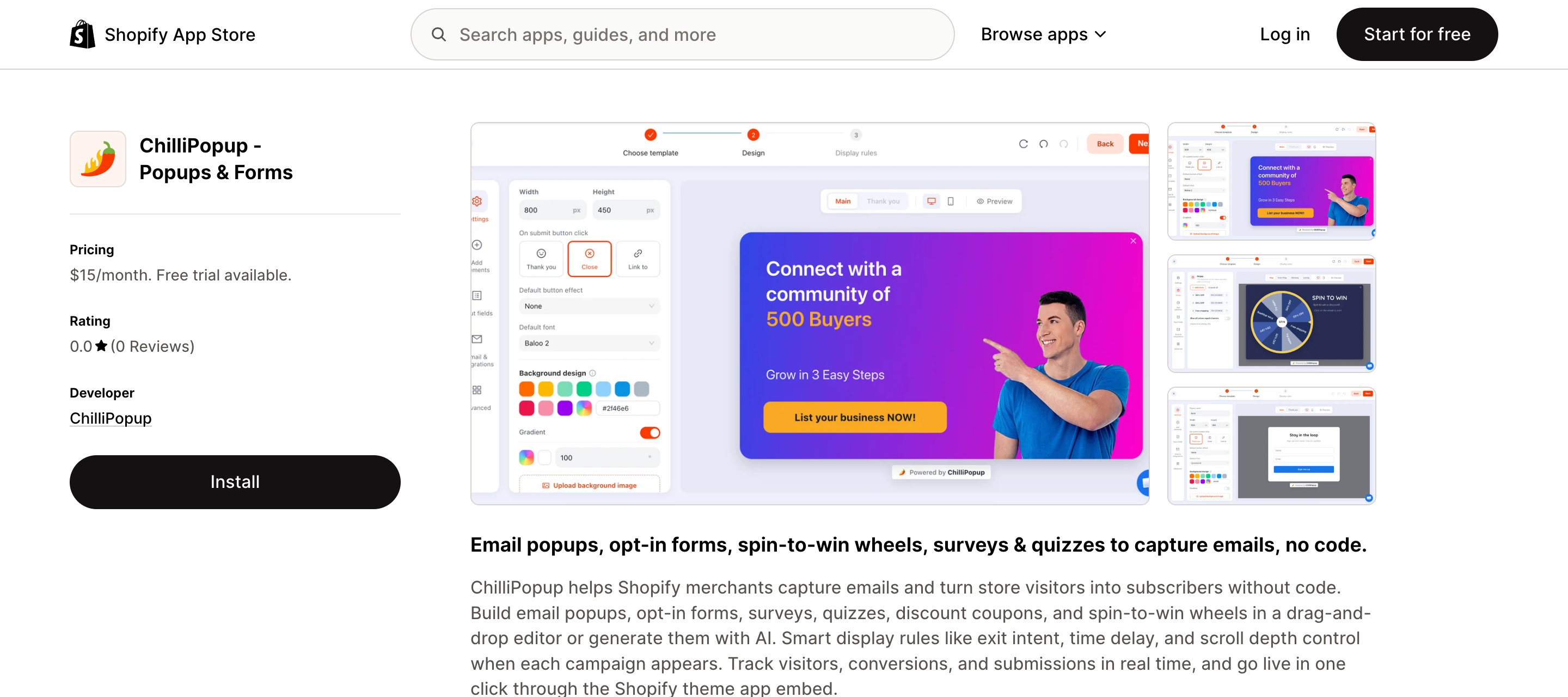
Open the ChilliPopup app on the Shopify App Store and click Install. Approve the install in your Shopify admin. ChilliPopup connects the store to your workspace and signs you straight in — there's nothing to copy or paste. From the app's welcome screen, click Open ChilliPopup to jump into your dashboard and build your first popup or form.
Enable the app embed in your theme
This is the step people miss. In Shopify, go to Online Store → Themes, click Customize on your live theme, then open App embeds (the puzzle-piece icon in the left panel). Toggle ChilliPopup on and click Save. This inserts the pixel into every page of your storefront. ChilliPopup's onboarding gives you a one-click "Complete setup" link that opens this panel with the embed pre-selected.
Publish your content and verify
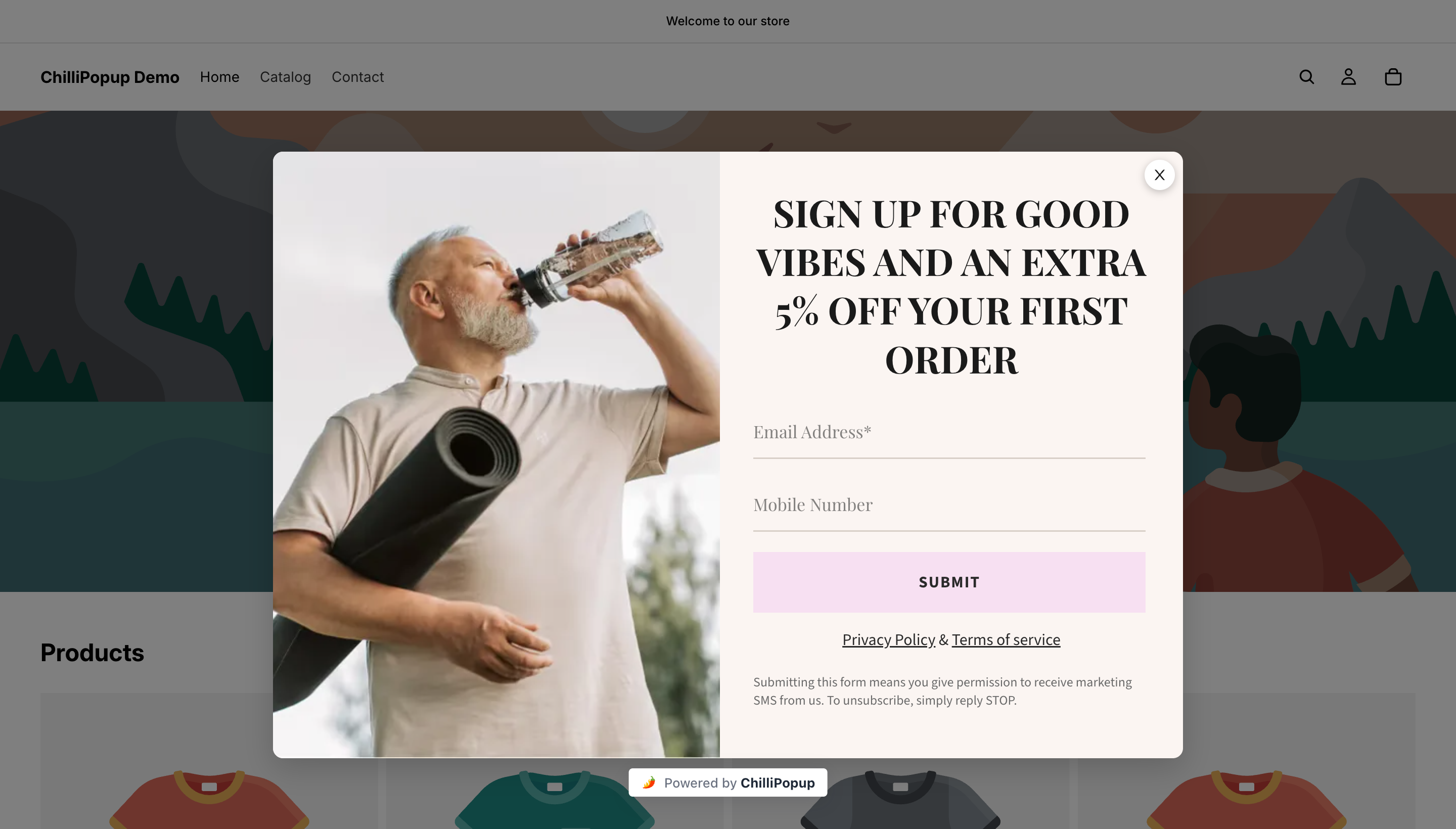
In ChilliPopup, set the popup or form you want to show to Published. Open your live storefront and confirm it appears. Back in the app, the status line flips to "Popups are live on your storefront" once the embed is on and serving.
Installed but popups aren't showing yet? If the app says your store is connected but "not live on your storefront yet," you've completed step 1 but not step 2 — go back to Online Store → Themes → Customize → App embeds, toggle ChilliPopup on, then Save.
Method 2 — Connect from your ChilliPopup dashboard
Already signed into your ChilliPopup dashboard? You can connect a store from there instead:
Connect your store from the dashboard
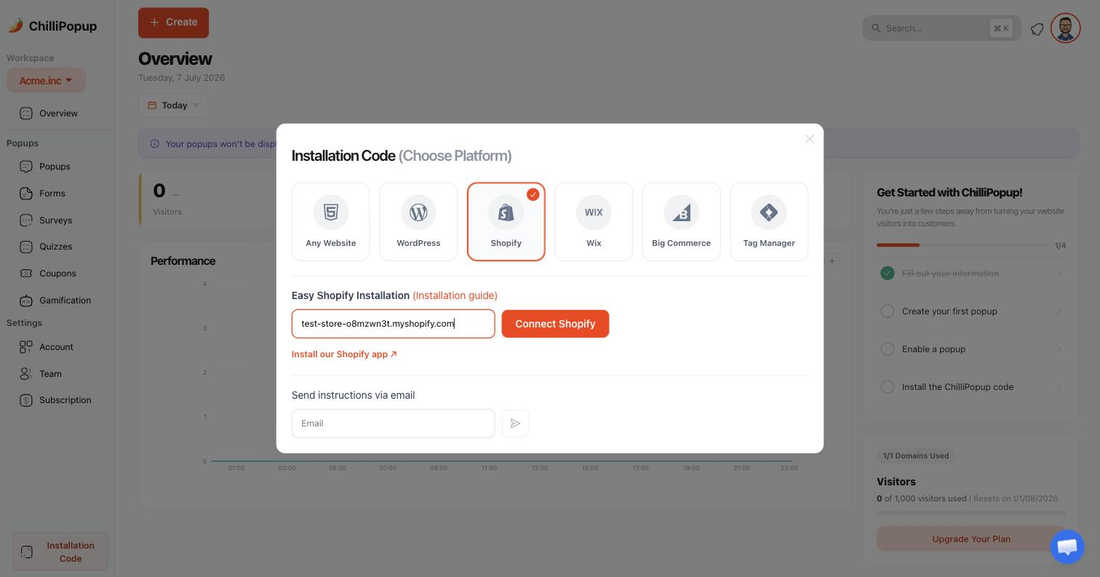
In your ChilliPopup dashboard, open the
Install screen and choose Shopify. Enter your store domain
(your-store.myshopify.com) and click Connect Shopify. You'll be taken to
your Shopify admin to approve the app, and ChilliPopup links the store to your workspace automatically —
same result as installing from the App Store.
Then finish with the same two steps as above: enable the app embed in your theme and publish your content.
How to verify it's live
| Check | How | What you should see |
|---|---|---|
| App status | Open the ChilliPopup app in your Shopify admin after enabling the embed | "Popups are live on your storefront" |
| App embed toggle | Online Store → Themes → Customize → App embeds | ChilliPopup toggled on, changes saved |
| Your popup shows | Open your storefront in an incognito window and trigger the rule | The published popup appears on the store |
Troubleshooting on Shopify
The app embed isn't enabled (most common)
If nothing shows, the embed is almost certainly off or wasn't saved. Go to Online Store → Themes → Customize → App embeds, switch ChilliPopup on, and click Save. The Save step is easy to skip.
The embed is on but the popup still doesn't appear
In rare cases the app embed can't read your workspace automatically. As a quick fix, open Install → Shopify in the ChilliPopup dashboard and copy your Workspace ID, then in the theme editor open the ChilliPopup app embed, paste it into the Workspace ID field, and click Save. That binds your popups directly.
You switched or duplicated your theme
App embeds are stored per theme. If you changed your live theme after connecting, enable the ChilliPopup embed again in the new theme and save.
The popup is still a draft
ChilliPopup only serves Published content. Open the popup in the dashboard and publish it, then reload your storefront.
You're testing in your own browser
Ad-blocking or privacy extensions can hide the popup on your machine only. Test in an incognito window with extensions disabled to see what shoppers actually get.
Related install guides
Frequently asked questions
Do I need to paste a Workspace ID on Shopify?
No. When you connect through the ChilliPopup dashboard, the Shopify app links your store to your workspace automatically, so there's no ID to copy or paste. You only need to enable the app embed in your theme.
Why is my Shopify popup still not showing after connecting?
The most common reason is that the app embed isn't enabled or wasn't saved. Go to Online Store → Themes → Customize → App embeds, switch ChilliPopup on, and click Save. Also make sure the popup itself is Published in ChilliPopup.
What is the Shopify app embed?
An app embed (or app embed block) is Shopify's official, no-code way for an app to add code to your storefront. Enabling the ChilliPopup app embed inserts the pixel into every page of your theme without editing theme files.
Do I have to re-enable the embed if I change themes?
Yes. App embeds are stored per theme. If you switch to a different theme or duplicate one, enable the ChilliPopup app embed again in the new theme and click Save.
How much does the ChilliPopup Shopify app cost?
Installing the app is free, and ChilliPopup has a permanent free plan (1,000 visitors a month, unlimited popups, forms and spin-to-win wheels). Paid plans start at $29/month and include a 14-day free trial. For stores that install through Shopify, billing is handled by Shopify's own App Pricing — you choose and manage your plan from inside your Shopify admin, and uninstalling the app cancels it.