
If your popup is not showing, it is almost certainly not broken. In practice there are only four reasons a published popup stays invisible: the script is not on the page, the content is still a draft, your browser already counted it as seen, or one display rule is quietly excluding you. Work through them in that order and you will find the cause in a couple of minutes.
The instinct is to start editing the popup. Resist it. Nothing about the design decides whether a popup appears — the install script, the publish state and the display rules do, and each one can be tested independently.
Key Takeaways
- Test the pixel first. Type
window.ChilliPopupin the browser console. If it isundefined, every other check is wasted effort. - Force it open to split the problem in two.
ChilliPopup.open('UUID')bypasses every rule — if it appears, the design is fine and a rule is to blame. - Drafts never serve. Only content that is published and enabled is sent to your site, no matter how finished it looks in the editor.
- Display rules are an AND gate. Device, page, audience, frequency, schedule and the conversion gate must all pass at the same moment.
- "It only showed once" is the default, not a bug — a popup with no frequency rule appears once per browser session.
The two-minute triage
Before you read anything else, run these three commands on the page where the popup should appear. Open your browser's developer tools (F12, or right-click → Inspect) and switch to the Console tab.
// 1. Did the script load and read your workspace id?
window.ChilliPopup

// 2. What did your site actually receive?
window.ChilliPopup.popups.map(function (p) { return p.name + ' — ' + p.uuid; })

// 3. Force this one open, ignoring every display rule:
window.ChilliPopup.open('PASTE_THE_UUID_HERE');
Three outcomes, three completely different problems:
| What you see | What it means | Go to |
|---|---|---|
undefined on command 1 |
The script never ran on this page, or it ran without a workspace id | Check 1 |
| An object, but your popup is missing from the list | The server did not send it — it is a draft, disabled, or bound to another domain | Check 2 and check 7 |
| It appears when you force it open | The design and the install are both fine. A display rule is filtering you out | Checks 3 to 6 |
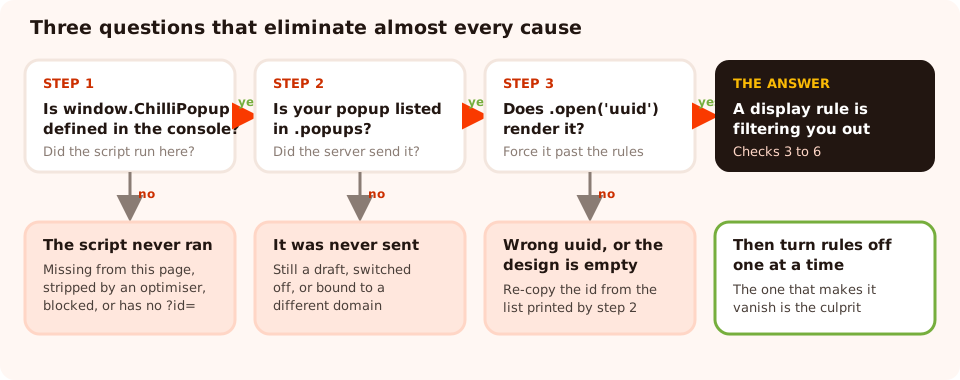
Follow the branches rather than editing the popup — each answer eliminates half of the possible causes.
Check 1 — Is the script actually on the page?
A popup is rendered by one script tag on your site. If that tag is missing from the page you are
looking at, nothing else matters. The tag looks like this, and it belongs in the
<head> of every page you want popups on:
<script id="chillipopup-pixel"
        src="https://player.chillipopup.com/javascript/pixel.js?id=YOUR_WORKSPACE_ID"
        data-api="https://api.chillipopup.com" async="true"></script>
Four things go wrong here, and they are easy to tell apart:
- The tag is only on the home page. Themes and page builders often have a
"header code" box that is per-template rather than site-wide. View source on the page that is
failing and search for
chillipopup-pixel. If it is not there, that is your answer. - The
?id=is missing or truncated. The script reads your workspace id straight out of its ownsrc. Without an id it stops immediately and quietly — no error, no popup. Copy the snippet again rather than retyping it. - An optimisation plugin mangled it. "Combine JavaScript", "defer all scripts",
"remove unused JavaScript" and similar options can strip the
idattribute or move the tag somewhere it never executes. Add the pixel to the plugin's exclusion list. - A blocker is stopping the request. Open the Network tab, reload, and filter for
pixel.js. A blocked or failed request means the script never arrives. Try the same page in a clean browser profile to confirm.
Installing it twice is harmless. The player guards against double-loading, so a duplicate tag will not produce two popups. If you suspect a duplicate install, that is not your bug — keep looking.
If you are not sure how the script is meant to reach your pages, the install guide for any website covers the raw tag, and there are dedicated guides for WordPress, Shopify, Wix and Google Tag Manager.
Check 2 — Is it published and enabled?
This is the single most common cause, and the most frustrating, because the popup looks completely finished in the editor. Two separate switches have to be right:
- Status: Published. A draft is never sent to your website. Not to a preview URL, not to a "test" page, not to you. Publishing is the gate.
- Enabled: on. Published content that has been switched off is also skipped. Think of published as "finished" and enabled as "currently running".
Both conditions are evaluated on the server, which is why a draft never even appears in
window.ChilliPopup.popups. That list is the ground truth for what your site received —
if the popup is not in it, stop looking at display rules and look at its status.
Edits are cached for about a minute. Live content is served with a short cache, so a change you just published can take up to 60 seconds to reach visitors. Wait a minute, then reload with the cache bypassed (Ctrl/Cmd + Shift + R). If your own site sits behind a CDN or a caching plugin, purge that too.
Check 3 — Have you already seen it?
Here is the behaviour that generates more "it stopped working" reports than any other: a popup with no display-frequency rule shows once per browser session. You saw it on your first page view, closed it, kept browsing, and now it will not come back until the session ends. That is working as designed.
The player remembers what it has shown you in your own browser's storage. Nothing is stored on your server, and nothing is shared between browsers or devices — which is exactly why the popup keeps appearing for your colleague and never for you.
| What is remembered | Where | How to clear it |
|---|---|---|
| "Seen this session" | Session storage, cleared when the tab session ends | Close and reopen the browser, or use a private window |
| Last shown at / last shown on visit N | Local storage, survives restarts | ChilliPopup.reset() in the console |
| "This visitor already converted" | Local storage, survives restarts | ChilliPopup.reset(), or a fresh browser profile |
| Pages viewed this session | Session storage, resets with the session | Close and reopen the browser |
The fastest reliable test is a private window: it starts with empty storage, so it behaves like a brand-new visitor every time. Just remember that a brand-new visitor is also the wrong audience for anything targeted at returning visitors — see check 5.
If you want it to reappear, say so. Turn on the display-frequency rule and pick an explicit cadence — every visit, every session, once a day, once every few days, once every few visits, or all pages all the time. Once that rule is on, it replaces the default once-per-session behaviour entirely.
Check 4 — Display rules are an AND gate
This is the mental model that fixes most of the remaining cases. Every rule you enable is a gate the visitor has to pass, and they are combined with AND, not OR. Device and page and audience and frequency and schedule and the conversion gate — all at the same moment, for the same person.
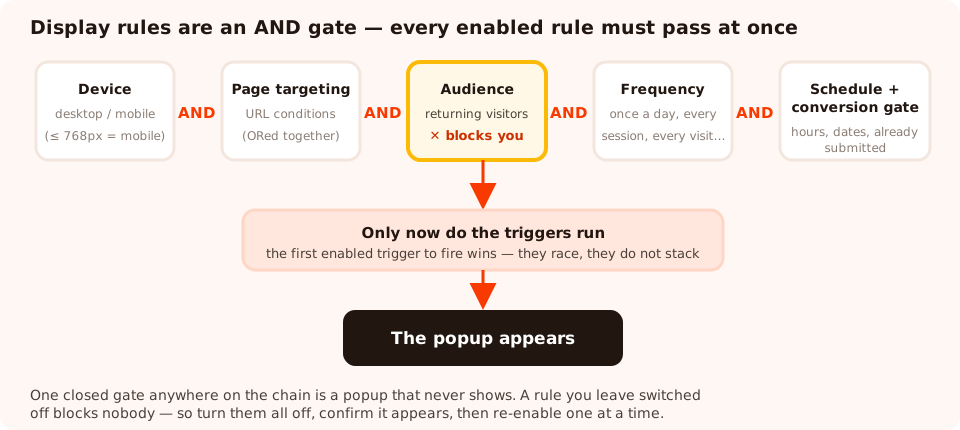
Every enabled rule is a gate. One closed gate anywhere on the chain is a popup that never appears.
A rule that is switched off is a no-op — it never blocks anyone. So the debugging method is blunt and effective: turn every rule off, confirm the popup appears, then re-enable them one at a time. The one that makes it vanish is your culprit. It takes three minutes and it always works, which is more than can be said for staring at the configuration.
Two gates catch people out because they are invisible in the summary:
- The audience rule. "Returning visitors" means someone whose previous visit is recorded in this browser, within the number of days you set. In a private window, or on a device that has never been to the site, nobody is ever a returning visitor — so the popup correctly shows to nobody during your test.
- Show again after conversion. When this is off, anyone who has already submitted that popup never sees it again. If you filled it in once while testing, you have opted yourself out permanently until you reset your storage.
The audience and conversion controls only apply when the frequency rule is on. They live inside the display-frequency block, so switching that block off disables them along with the cadence — which is usually what you want while debugging, and never what you want in production.
Check 5 — Page targeting that matches nothing (or everything)
Page targeting restricts a popup to URLs matching your conditions: contains, does not contain, is exactly, is not, starts with and ends with. Two behaviours explain nearly every page-targeting bug.
The rules inside page targeting are ORed together
Multiple page rules are combined with OR: the URL only has to match one of them. That is intuitive when you list three product URLs. It is deeply counter-intuitive when you try to subtract a page:
The classic mistake. "Contains /products" plus "does not contain
/checkout" does not mean "product pages, except checkout". Because the two are ORed,
every page that is not the checkout matches the second rule — so the popup shows up almost
everywhere. To exclude a page, use a single "does not contain" rule on its own.
Exact matching is stricter than it looks
Is exactly compares against the full URL or the path — so a trailing slash, a
?utm_source= parameter or an anchor can all mean "no match" when you were expecting one.
For anything with query strings, use contains or starts with instead. When you are
debugging, paste the value you typed and the real URL side by side; the difference is usually visible
immediately.
There is more on building targeting that behaves in the popup targeting rules guide.
Check 6 — The trigger that can never fire
Triggers decide when a popup appears once every rule has passed. The content shows as soon as the first enabled trigger fires — they race, they do not stack. If you have set several and it appears "too early", that is why.
The failure modes are physical rather than logical:
| Trigger | Fires when | Why it silently never fires |
|---|---|---|
| Exit intent | The mouse leaves through the top edge of the window | There is no mouse on a phone or tablet. Never use it as the only trigger on mobile |
| Page scroll | The visitor scrolls past your percentage | The page is shorter than the screen, so there is nothing to scroll |
| Page count | The visitor has seen N pages this session | The counter is per session — closing the browser resets it to one |
| Click count | The visitor has clicked N times on the page | The count restarts on every page load, so a high number rarely lands |
| Inactivity | N seconds with no mouse, key, scroll or touch | Any movement restarts the timer — a long delay never completes on a busy page |
| Time delay | N seconds after load | The most reliable of the six. Use it as your control when testing |
Debugging trick. Temporarily set a two-second time delay and turn the other triggers off. If the popup appears, your rules are all fine and the original trigger was simply never firing — which is a much smaller problem to solve.
Check 7 — Device, schedule and domain
Device targeting uses the window width
A visitor counts as mobile when the browser window is 768 pixels wide or less. That has two consequences worth knowing: a popup limited to desktop disappears if you narrow your desktop window to test responsiveness, and a large tablet in landscape is treated as desktop. If your popup is missing on one device class, this rule is the first thing to check.
Schedules run on the offset you picked, not your clock
Date windows and day-and-hour schedules are anchored to the GMT offset configured in the rule, deliberately, so a campaign starts at the same real moment for every visitor on earth. If you set "9:00–17:00" while leaving the offset at GMT+0 and you are sitting in GMT+2, the popup will look broken for the first two hours of your working day. Set the offset to your own before you decide it is a bug.
The end of a date window is exclusive, too — a campaign ending at 18:00 stops at 18:00 sharp.
The domain field is a substring match
If a popup is bound to a domain, the site's host has to contain that value. example.com
happily matches www.example.com and shop.example.com, which is the point — but
a typo, a stray https:// or a trailing slash means it matches nothing, anywhere. When a
popup is missing from window.ChilliPopup.popups or refuses to show on a staging URL, look
here.
Platform-specific traps
- Shopify. The app embed has to be enabled and saved in the theme editor — toggling it without pressing Save changes nothing. And a workspace connected to a Shopify store only serves content to that store, so testing the same workspace on an unrelated domain returns an empty list by design.
- WordPress. Page caches and JavaScript optimisation plugins are the usual suspects. Purge the cache after installing, and exclude the pixel from any "combine", "defer" or "delay JavaScript" feature.
- Wix. The app's script only becomes active once the app has been installed and turned on for the site, and changes to site-wide code often need a republish before they reach visitors.
- Tag managers. A tag that fires on a trigger you forgot to publish, or that is scoped to one page rule, will silently never inject the script. Use the tag manager's own preview mode to confirm it fires on the failing page.
Build it once, rule it properly
Popups, forms, surveys, quizzes and prize games from one editor and one script tag — with display rules you can read at a glance. Free plan, no credit card required. Paid plans from $29/month.
Start free →It shows — but the numbers say zero
A different symptom with a different cause. If the popup renders normally but its views and conversion rate stay flat, the content is fine and the measurement is being blocked. Analytics beacons are a far more common target for blocklists than the script itself, and they are deliberately fail-silent so that a blocked beacon never breaks the host page.
Two sanity checks: does the number move when you open the popup in a clean browser profile with no extensions, and does it move for traffic from mobile Safari and Chrome, where blockers are rarer? If the answer is yes to both, you are looking at under-reporting rather than a broken popup. The popup analytics guide covers which numbers to trust and how to compare them.
The full checklist
Run down this list before you ask anyone for help — it is ordered by how often each cause is the real one.
- Is
window.ChilliPopupdefined on the page that is failing? - Is the popup in
window.ChilliPopup.popups? If not, it is a publish, enabled or domain problem. - Does
ChilliPopup.open('UUID')render it? If yes, it is a rule, not the design. - Have you already seen it this session? Test in a private window.
- Did you submit it once while testing, with "show again after conversion" off?
- Is the audience set to returning visitors while you are testing as a new one?
- Does the page targeting really match this URL, including query strings?
- Can the trigger physically fire on this device and this page length?
- Is the device rule excluding the window width you are testing at?
- Is the schedule's GMT offset the one you assumed?
- Have you waited a minute and hard-reloaded after publishing?
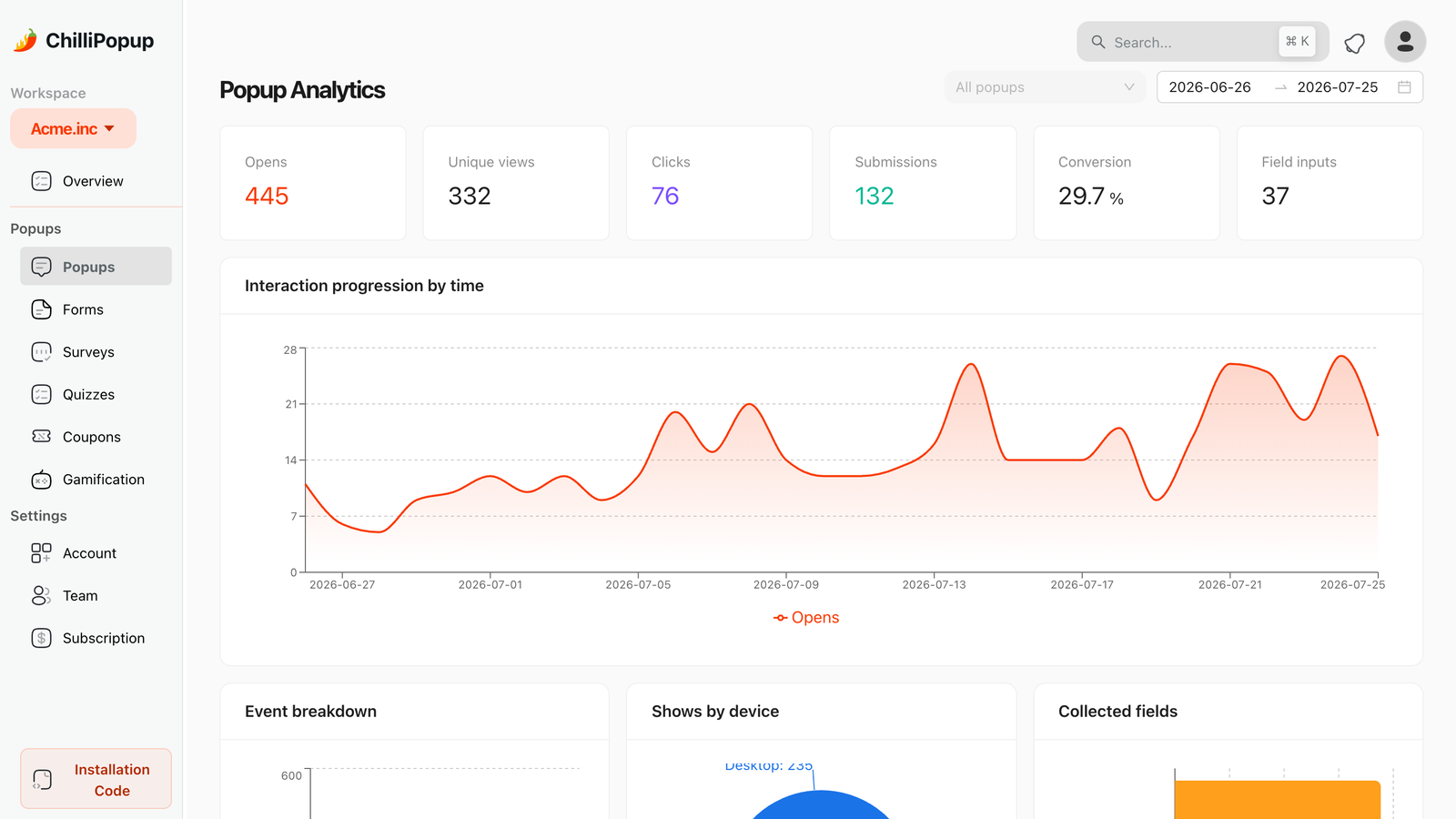
Once it is fixed, the view count is your proof: a popup that is genuinely showing starts accumulating views within minutes of real traffic.
How to stop it happening again
Four habits that remove most of these incidents permanently:
- Publish first, rule second. Build the popup with no rules at all, confirm it appears on the live site, and only then add targeting. You will never again wonder whether it is the design or the rules.
- Keep one always-on test popup with a two-second delay and no other rules. When something else stops working, that popup tells you in one page load whether the install is healthy.
- Test in a private window, always. Your everyday browser is the worst possible test environment — it has seen everything, converted on half of it, and remembers all of it.
- Write the intended audience in the popup's name. "Exit — new visitors — product pages" is self-documenting; "Popup 3" guarantees this article gets read again in six weeks.
And when you are building the next one, the popup launch checklist covers the pre-flight checks that catch these problems before they reach your visitors.
Related reading
Frequently asked questions
Why is my popup not showing on my website?
In order of likelihood: the install script is missing from that page, the popup is still a draft rather than published, you have already seen it in this browser session, or one of its display rules is excluding you. Open the browser console and type window.ChilliPopup — if that is undefined the script is not running, and every other check is a waste of time.
Why does my popup only show once?
That is the default. When a popup has no display-frequency rule, it shows once per browser session and stays hidden until the session ends. Call window.ChilliPopup.reset() in the console, open a private window, or set an explicit display frequency such as once a day if you want it to reappear.
My popup works in preview but not on my site. Why?
Preview renders the design directly, bypassing every display rule and the publish gate. The three usual causes are that the content is still a draft, that the script tag is missing from the live page, or that a targeting rule excludes the URL you are testing. Force it open with window.ChilliPopup.open('UUID') to prove the design is fine and narrow the problem to the rules.
Why is my popup not showing on mobile?
Check the device rule first — device targeting treats any viewport of 768 pixels or less as mobile, so a popup restricted to desktop disappears on phones and on a narrowed desktop window. After that, look at the trigger: exit intent depends on a mouse pointer leaving the top of the window, which never happens on a touchscreen. Use scroll depth, a time delay or inactivity for mobile instead.
How long does it take for a change to go live?
Published content is served with a one-minute cache, so give an edit up to a minute and reload with the cache bypassed. If it still shows the old version after that, you are probably looking at a page cached by your own site or CDN rather than by ChilliPopup.
Could an ad blocker be hiding my popup?
It can. Some blocklists block third-party scripts wholesale, and if the pixel itself never loads nothing renders — window.ChilliPopup will be undefined in that browser but defined in a clean one. Analytics beacons are blocked far more often than the script, which shows up as a popup that appears normally while its view count stays low.