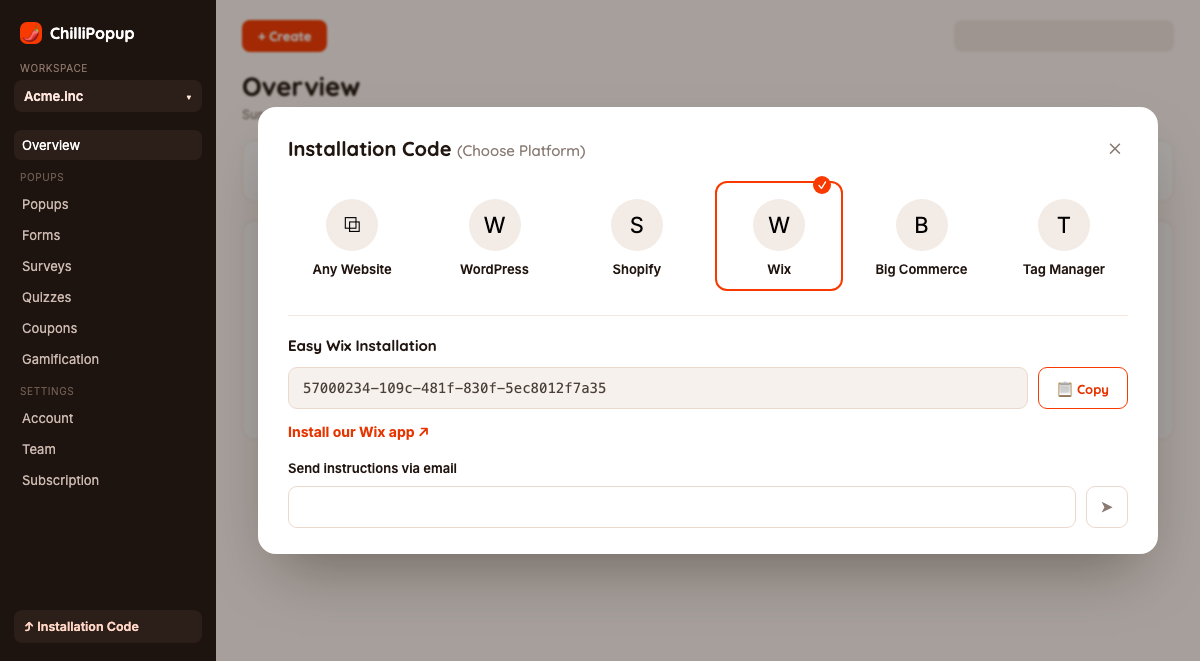
The free ChilliPopup Wix app does the setup for you. When you add it to a site, it creates a ChilliPopup account for that site, adds the ChilliPopup script to every page, and signs you in to your ChilliPopup dashboard in one click. You design and publish popups in ChilliPopup, and they show on your published Wix site.
Key Takeaways
- Setup is automatic. Adding the app creates your account and adds the script to every page. There's no Workspace ID to copy and no code to paste.
- One click to your dashboard. Click Open ChilliPopup on the app's page in your Wix dashboard and you're signed in.
- Plans are billed by Wix. Start on the free plan and upgrade from the app's page in your Wix dashboard.
- Test on your live site. Popups run on your published Wix site, not in the Wix Editor or its preview.
Method 1 — The ChilliPopup Wix app (recommended)
Four short steps, and the app handles the setup. This is the right choice for most Wix sites.
Add the ChilliPopup app to your Wix site
Sign in to Wix and open the ChilliPopup install link. Click Add to Site, choose the site you want popups on, and approve the permissions Wix asks for.
Let the app connect your site
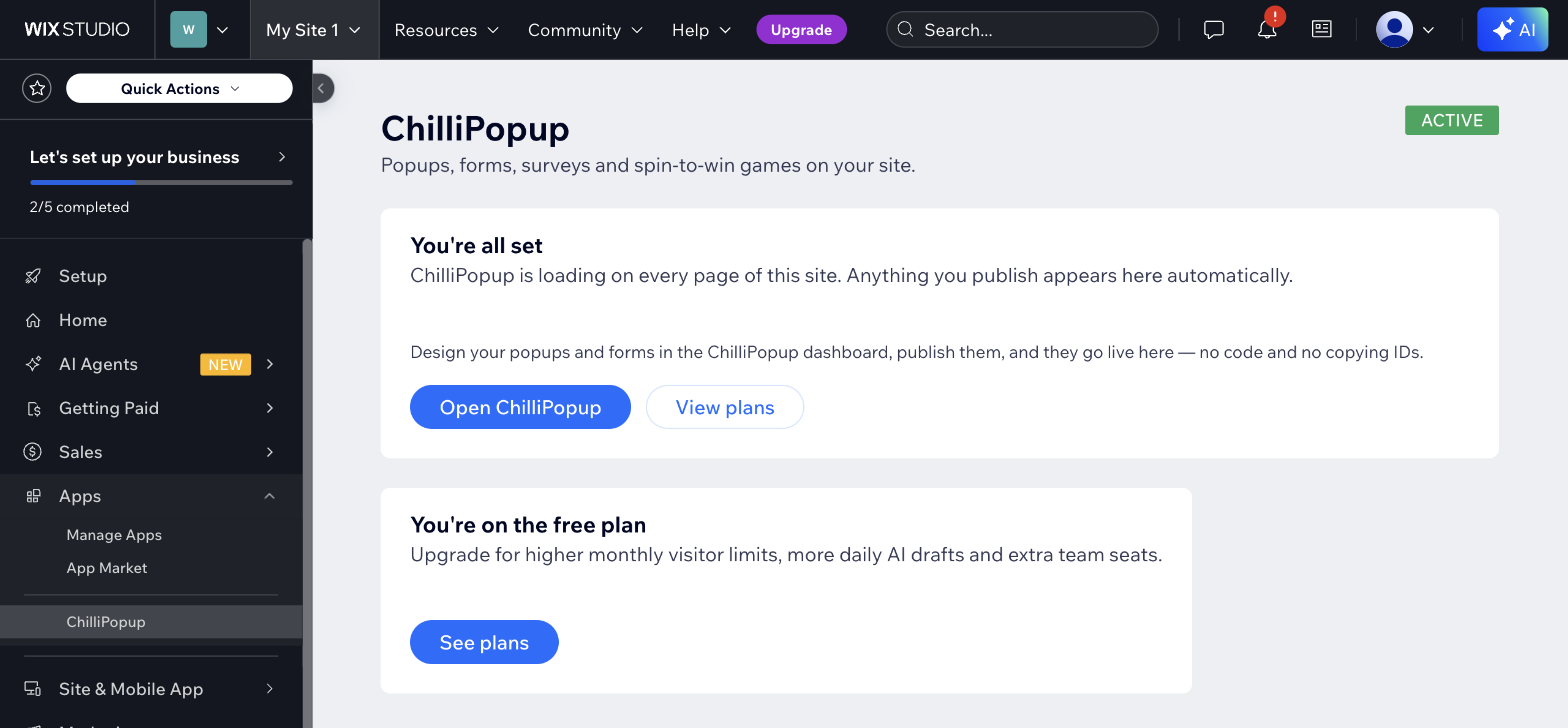
Wix opens the ChilliPopup page in your Wix dashboard. You can find it again anytime under Apps → ChilliPopup. The app sets everything up on its own. After a few seconds the page shows a green Active badge and You're all set, which means the ChilliPopup script is loading on every page of your site.
Open ChilliPopup and publish a popup
Click Open ChilliPopup. Your ChilliPopup dashboard opens in a new tab, already signed in. Create a popup, form, survey, quiz or prize game, publish it, and make sure it's switched on. Drafts never show on your site.
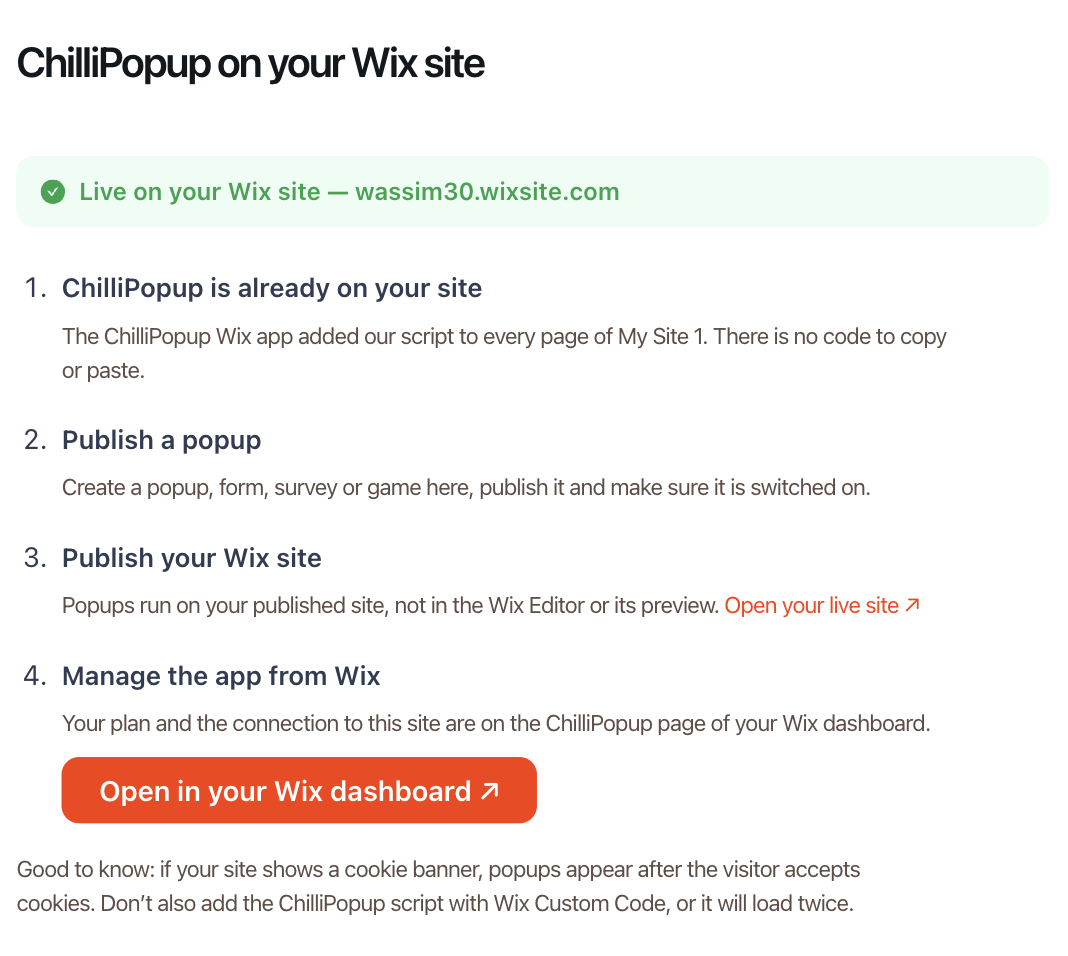
To check the connection from ChilliPopup, click Wix Installation at the bottom of the dashboard's left menu. It shows whether ChilliPopup is live on your Wix site, and at which address.
Publish your Wix site and check it live
ChilliPopup runs on your published site, not in the Wix Editor or its preview. If you haven't published your site yet, click Publish in the Wix Editor. Then open your site's live address. Your popup shows according to its display rules, for example after a few seconds, after some scrolling, or when a visitor is about to leave.
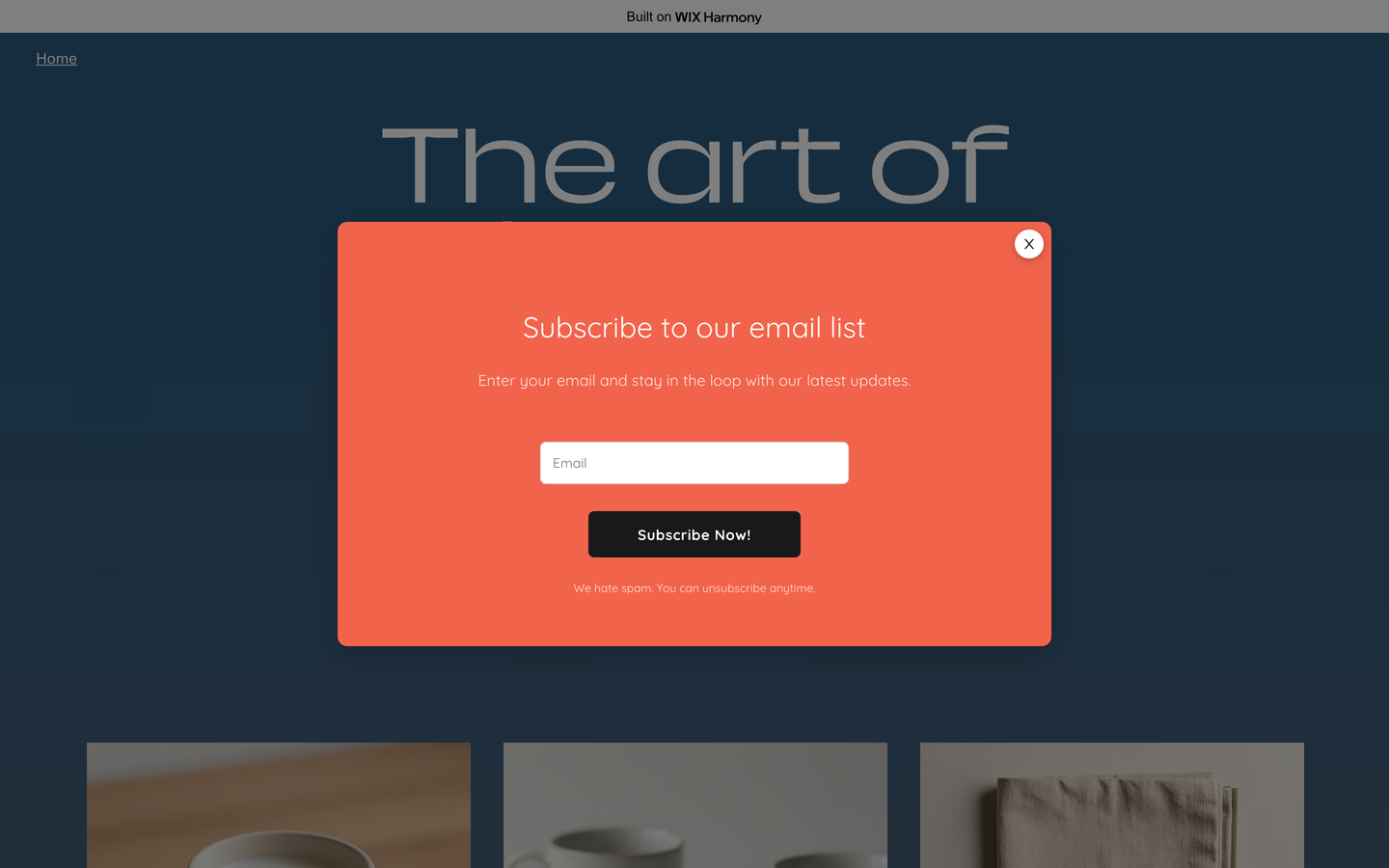
You're done. From now on, whatever you publish in ChilliPopup shows on your Wix site automatically, and whatever you switch off stops showing. You don't need to change anything in Wix again.
Plans and billing on Wix
On Wix, your ChilliPopup plan is bought and billed through Wix, and it covers the site the app is installed on. You start on the free plan, which includes up to 1,000 visitors a month. To upgrade, click View plans on the ChilliPopup page in your Wix dashboard. Paid plans raise the monthly visitor limit and add more daily AI drafts and team seats.
Wix handles the payment, invoices, plan changes and cancellations. Once you're on a paid plan, the button reads Manage your plan.
Duplicating a Wix site
When you duplicate a Wix site that has ChilliPopup, the copy gets its own ChilliPopup account and plan, and your popups, forms, surveys and quizzes are copied into it automatically. Published content stays published, so the copied site shows the same popups. Statistics start from zero on the copy.
Removing or reinstalling the app
When you remove ChilliPopup from your site in Apps → Manage Apps, Wix takes the script off your pages and your popups stop showing. Your ChilliPopup content is kept, so if you add the app to the same site again, your popups and forms are still there. Removing an app doesn't cancel a paid plan on its own, so cancel it in your Wix account if you no longer need it.
Method 2 — Use an existing ChilliPopup account with Custom Code
The Wix app always creates a new ChilliPopup account for the site, billed through Wix. If you already use ChilliPopup at chillipopup.com and want to keep that account, add its script with Wix Custom Code instead of installing the app. Wix only offers Custom Code on sites with a Premium plan and a connected domain.
In your ChilliPopup dashboard, open Installation Code, select Any Website, and copy the snippet. It looks like this:
<script id="chillipopup-pixel"
  src="https://player.chillipopup.com/javascript/pixel.js?id=YOUR_WORKSPACE_ID"
  data-api="https://api.chillipopup.com"
  async="true"></script>
In your Wix dashboard, open Settings → Custom Code and click Add Custom Code. Paste the snippet, choose All pages and place the code in the Head, then click Apply.
Use one method, not both. If the ChilliPopup app is installed, don't also add the script with Custom Code. The script would load twice, and popups could show or be counted twice.
Troubleshooting on Wix
The popup isn't showing
Check these in order: the popup is published and switched on in ChilliPopup, your Wix site is published, and you're looking at the live site rather than the Wix Editor or its preview. Then check the popup's display rules: its trigger, the devices and pages it targets, and how often it shows. A popup you already closed may not show again during the same visit, so test in a private window.
My site has a cookie banner
ChilliPopup counts views and clicks, so Wix loads it as an analytics script. On a site with Wix's cookie banner, popups show once a visitor accepts analytics cookies. Accept cookies when you test.
The app page stays on "Setting up…" or shows an error
Click Try again on the error message, or reload the page. If it still doesn't connect, contact us through the chat button on this page and include your site's address.
"Open ChilliPopup" shows the login page
Each click creates a single-use sign-in link that expires after a few minutes. Go back to the ChilliPopup page in your Wix dashboard and click Open ChilliPopup again.
It shows for me but not for someone else
Ad blockers and privacy extensions can hide popups in one browser only. Test with them turned off, and on a phone if the popup targets mobile visitors.
Related install guides
Frequently asked questions
Is the ChilliPopup Wix app free?
Yes. The app is free to install and includes a free plan with up to 1,000 visitors a month. Paid plans are bought through Wix, from the View plans button on the app's page in your Wix dashboard.
Do I need a Workspace ID or any code?
No. The Wix app creates your ChilliPopup account and adds the script to every page of your site by itself. There's nothing to copy or paste, and no Velo or Custom Code.
How do I get back to my ChilliPopup dashboard?
In your Wix dashboard, go to Apps, then ChilliPopup, and click Open ChilliPopup. Each click signs you in with a new single-use link.
I already have a ChilliPopup account. Can the Wix app use it?
No. The Wix app always creates its own account for the Wix site, billed through Wix. To use an existing chillipopup.com account on Wix, add your account's script with Wix Custom Code (Method 2). Wix offers Custom Code on sites with a Premium plan and a connected domain.
What happens if I duplicate my Wix site?
The copy gets its own ChilliPopup account and plan, and your popups, forms, surveys and quizzes are copied into it automatically, so the copied site shows the same content. Statistics start from zero on the copy.
My popup is not showing on Wix. Why?
Check that the popup is published and switched on in ChilliPopup, that your Wix site is published, and that you're testing the live site rather than the Wix Editor or its preview. If your site shows a cookie banner, accept cookies first. Ad blockers can also hide popups in your own browser.