Google Tag Manager (GTM) lets you add scripts to your website without editing its code. If GTM is already running on your site, it's a clean way to install ChilliPopup: you add the ChilliPopup code once as a Custom HTML tag, fire it on all pages, and publish — done.
Prerequisite: this method assumes the GTM container snippet is already installed on your site. If it isn't, add GTM first, or use the standard one-line ChilliPopup install instead.
Key Takeaways
- Custom HTML tag. Paste the ChilliPopup script into a Custom HTML tag in GTM.
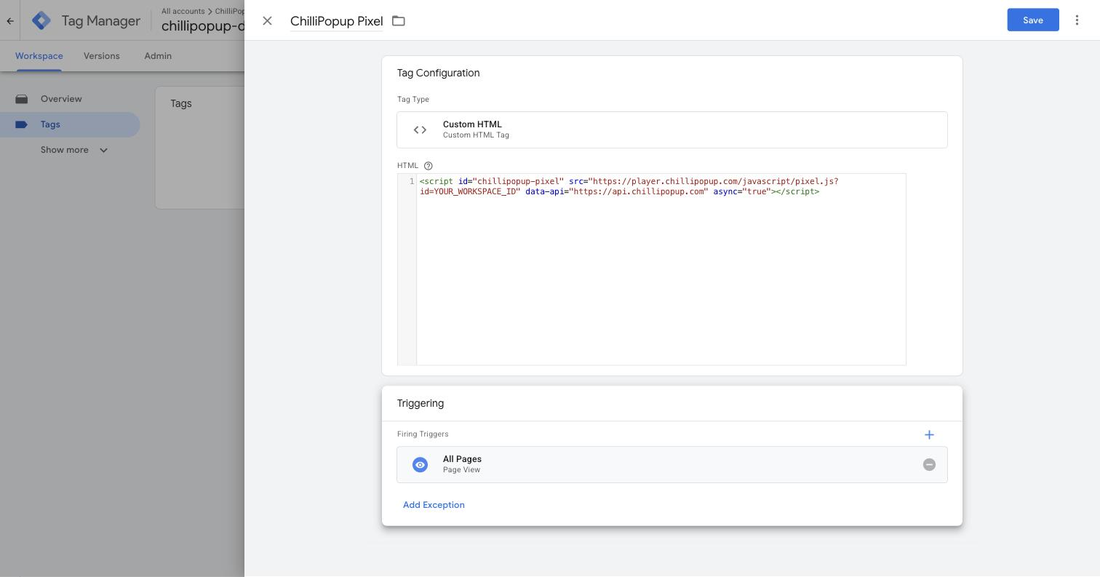
- Trigger: All Pages. So the pixel loads everywhere on your site.
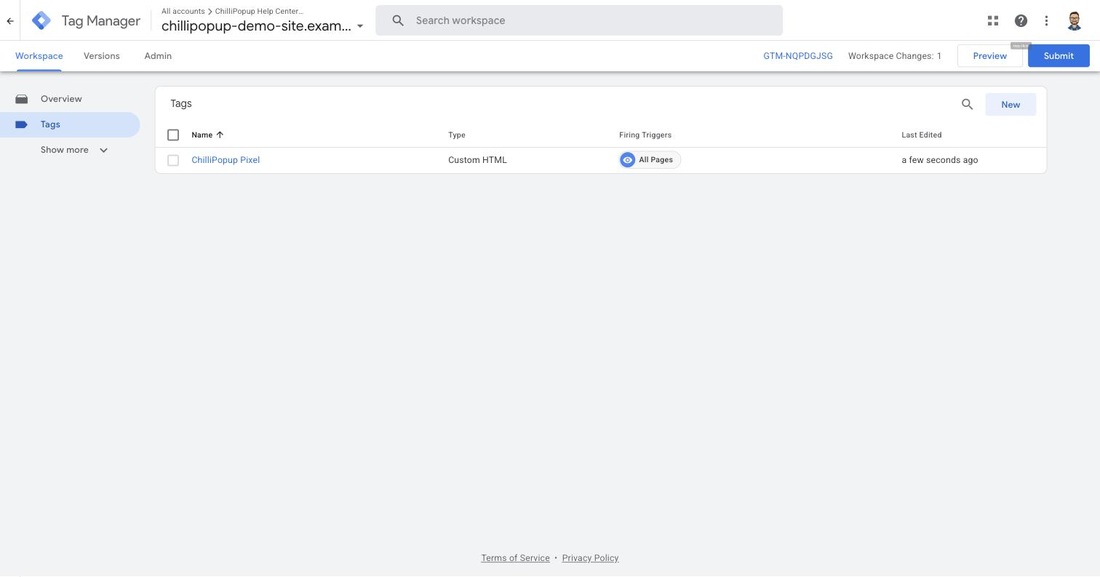
- Submit and Publish. Saving the tag isn't enough — the container must be published to go live.
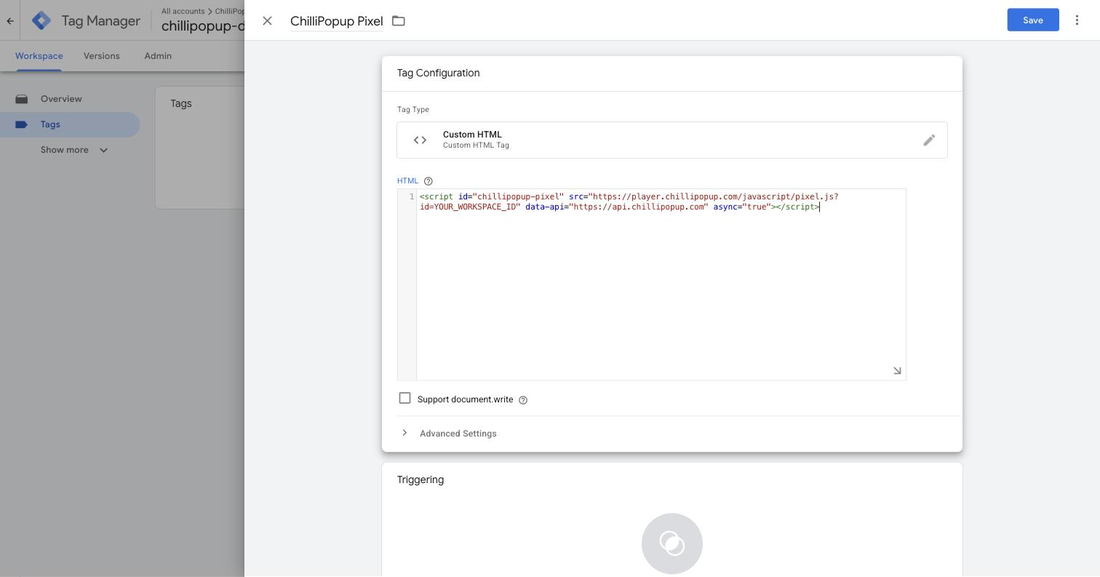
- Leave "Support document.write" off. The script is async and doesn't need it.
Install ChilliPopup via GTM in 4 steps
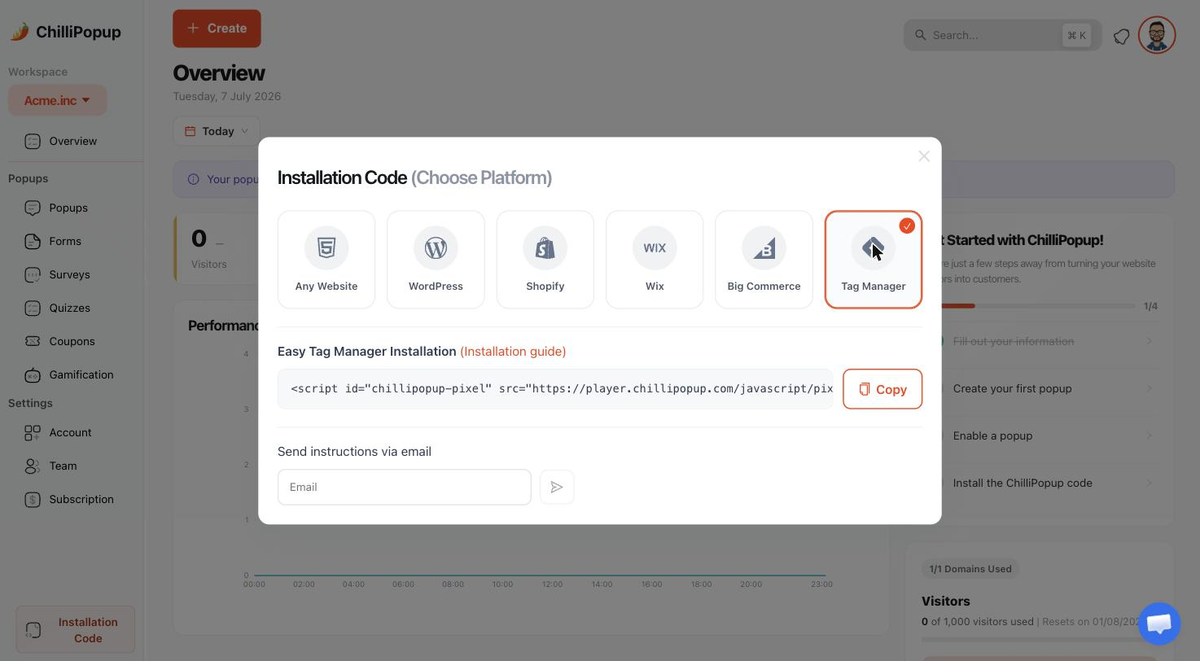
Copy your ChilliPopup code
In your ChilliPopup dashboard, open the Install screen and choose Tag Manager (the Any website tab has the same snippet). Click Copy. It's the one-line script below, with your Workspace ID already inside:
<script id="chillipopup-pixel"
  src="https://player.chillipopup.com/javascript/pixel.js?id=YOUR_WORKSPACE_ID"
  data-api="https://api.chillipopup.com"
async="true"></script>Create a Custom HTML tag
Open your Google Tag Manager container. Go to Tags → New, click Tag Configuration, and choose Custom HTML. Paste the ChilliPopup code into the HTML box. Give the tag a clear name like ChilliPopup Pixel.
Fire it on all pages
Click Triggering and select All Pages (the built-in Page View trigger). This makes the pixel load on every page of your site. Click Save.
Submit, publish, and verify
In the top-right of GTM, click Submit, then Publish to push the change live. Back in ChilliPopup, set your popup or form to Published, reload your site, and confirm it appears. The Install screen shows a green "Installed & live" check once the pixel is detected.
Tip: use GTM's Preview mode before publishing to confirm the ChilliPopup Pixel tag fires on a page load. It's the fastest way to catch a mis-set trigger.
Troubleshooting in GTM
You saved the tag but didn't publish the container
This is the number-one cause. In GTM, saving a tag only stages the change — you must click Submit → Publish for it to reach your live site. Check that the container version with the ChilliPopup tag is the published one.
The trigger isn't All Pages
If you attached a narrower trigger, the pixel only loads on some pages. Open the tag and confirm the trigger is All Pages, then re-publish.
A consent or blocking setting is stopping the tag
If you use GTM Consent Mode or a consent-management platform, the ChilliPopup tag may be held back until the visitor consents. Configure the tag's consent settings (or your CMP's tag rules) so it's allowed to fire.
The popup is still a draft
ChilliPopup only serves Published content. Publish the popup in the dashboard, then reload your site (test in incognito to avoid ad blockers hiding it on your machine).
Related install guides
Frequently asked questions
Which GTM tag type should I use for ChilliPopup?
Use a Custom HTML tag. Paste the ChilliPopup script into it exactly as copied from the dashboard and set the trigger to All Pages so it loads on every page of your site.
My ChilliPopup popup isn't showing after adding it to GTM. Why?
The most common cause is that the GTM container wasn't published — saving the tag isn't enough, you must click Submit then Publish. Also confirm the trigger is All Pages, the popup is Published in ChilliPopup, and no consent setting is blocking the tag.
Do I need Google Tag Manager already installed on my site?
Yes. This method assumes the GTM container snippet is already on your site. If it isn't, install GTM first, or use the standard one-line ChilliPopup install instead.
Should I enable "Support document.write" for the tag?
No. The ChilliPopup script loads asynchronously and doesn't use document.write, so leave that option off.
Does installing via GTM slow my site down?
No. The ChilliPopup pixel loads asynchronously whether you add it directly or through GTM, so it never blocks your page from rendering.