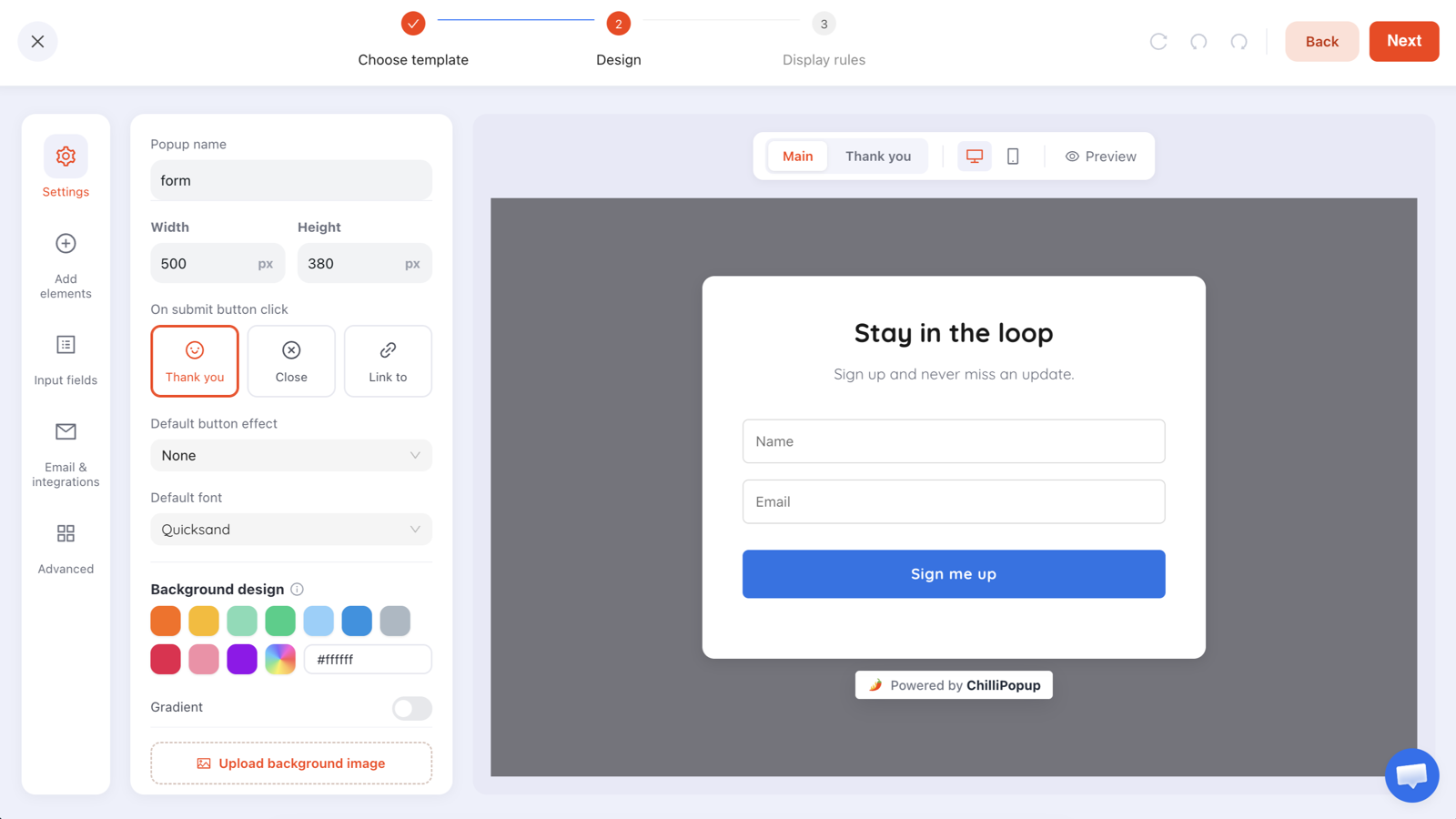
To embed a form on your website you install one small script once, then paste a short snippet where the form should appear. Everything after that is a choice about presentation: the form can render inline in the page, open from a button, take the screen in a lightbox, or slide in as a sidebar panel.
Those four modes are not decoration. They change who fills the form in, and by how much. This guide gives you the snippet for each, the page each one belongs on, and the honest trade-offs — including a fifth option that needs no button at all.
Key Takeaways
- One script, every form. Install the pixel once in
<head>and every form, popup, survey and quiz you build afterwards works with no new code. - Inline is a
<div>; the other three are a link. That is the entire difference in markup. - No iframe. The form renders into your own DOM, so it inherits your width and your responsive breakpoints.
- Match the mode to the page's intent — inline where the form is the page, lightbox where it is an offer.
- Publish before you embed. Draft content is never served to a live website, which is the single most common "why is it blank".
The one script you install first
Before any embed mode works, your site needs the pixel. It goes in <head>, once, on
every page — usually via your theme's header file or your site builder's "custom code"
box.
<script id="chillipopup-pixel"
  src="https://player.chillipopup.com/javascript/pixel.js?id=YOUR_WORKSPACE_ID"
  data-api="https://api.chillipopup.com" async="true"></script>
It is asynchronous, so it never blocks your page from rendering, and it is framework-free, so there is no library to keep in step with your site. There are step-by-step versions of this for WordPress, Shopify, Wix, Google Tag Manager and any other site.
Install it once, not per form. A second copy of the script on the same page is ignored, but it is still a request you didn't need. If you already run popups on the site, the script is there — skip straight to the snippet.
The four embed modes at a glance
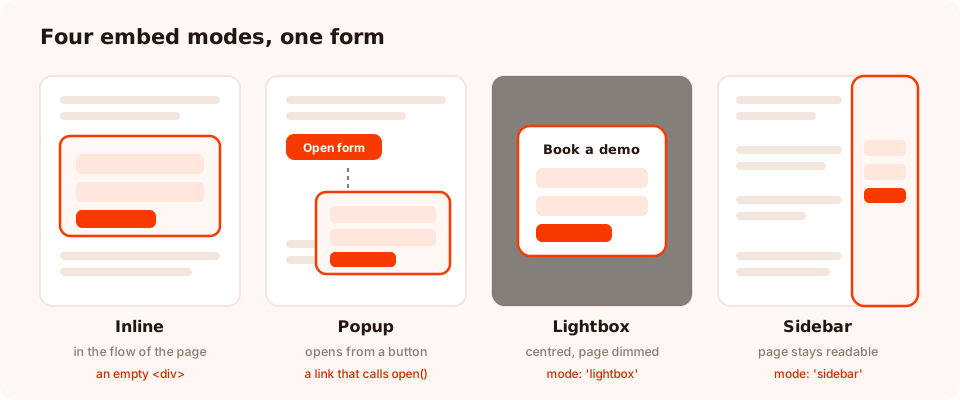
Same form, four presentations. Only the inline mode changes your page layout.
| Mode | What the visitor sees | Markup you paste | Best on |
|---|---|---|---|
| Inline | The form rendered in the flow of the page | An empty <div> where it should appear |
Contact pages, demo requests, application forms |
| Popup | Nothing until a link or button is clicked | A link that calls ChilliPopup.open() |
Navigation items, "Get in touch" buttons |
| Lightbox | The form centred over a dimmed page | The same link, with a mode option |
Offers on content pages, pricing pages |
| Sidebar | A panel sliding in from the edge | The same link, with a mode option |
Long pages where losing your place is costly |
1. Inline: the form in the page
The inline embed renders the form exactly where you drop the element. It is part of the page: it scrolls with the content, sits inside your container width, and is visible without anyone clicking anything.
<div class="chillipopup-inline" data-uuid="YOUR_FORM_ID"></div>That is the whole embed. The div starts empty and the script fills it. Because it is a real element in your DOM — not an iframe — it takes the width of its parent, respects your responsive breakpoints, and never needs a hard-coded height.
Use inline when the form is the reason the page exists:
- a contact or support page
- a "book a demo" or quote-request page
- an application, waitlist or registration page
- the bottom of a long article, as a deliberate resting place
The inline trade-off. An inline form converts brilliantly when people came to fill it in and terribly when they didn't — nobody scrolls to a form they weren't looking for. On content pages, a button that opens a lightbox almost always beats an inline block halfway down.
2, 3 and 4: popup, lightbox and sidebar
These three share one mechanic: an element on your page calls the open method, and the form appears. The only difference is how it arrives.
<!-- popup -->
<a href="#" onclick="ChilliPopup.open('YOUR_FORM_ID'); return false;">Open form</a>

<!-- centred lightbox over a dimmed page -->
<a href="#" onclick="ChilliPopup.open('YOUR_FORM_ID', { mode: 'lightbox' }); return false;">Open form</a>

<!-- panel docked to the edge of the page -->
<a href="#" onclick="ChilliPopup.open('YOUR_FORM_ID', { mode: 'sidebar' }); return false;">Open form</a>
It does not have to be an <a>. Any element that can carry a click handler works —
your existing styled button, a menu item, a card, an image. Wire the same call to your site's own button
component and the form inherits your design system for free.
Which of the three?
- Popup — the default. Good when the form is short and the page behind it is not being read at that moment.
- Lightbox — dims the page and centres the form. Use it when you want full attention: a demo request from a pricing page, a lead magnet from a blog post.
- Sidebar — slides in from the edge and leaves the page visible beside it. Use it when the visitor needs to keep reading the page while they answer — a spec sheet, a comparison table, a long article.
An opened form ignores its display rules on purpose. Clicking your button always opens the form, even if the visitor has already seen it today or already submitted it. That is what you want from a button — but it does mean a "once a day" frequency rule will not protect you from a badly placed auto-clicking script.
The fifth option: no button at all
A form does not need an element to open it. Give it display rules and it behaves like a popup — appearing on its own when the conditions are met, on whichever pages you allow.
The rules available are the same ones popups use:
- Triggers — exit intent, a time delay, a scroll percentage, page count, click count or inactivity.
- Page targeting — URL rules using contains, doesn't contain, equals, not equals, starts with or ends with.
- Audience and frequency — new or returning visitors, and how often the same person meets it.
- Device, browser, dates and a weekday schedule for the campaigns that need them.
In practice most sites use both: an inline form on the contact page for people who came to write to you, and the same form on display rules elsewhere for people who didn't.
Choosing the mode for the page
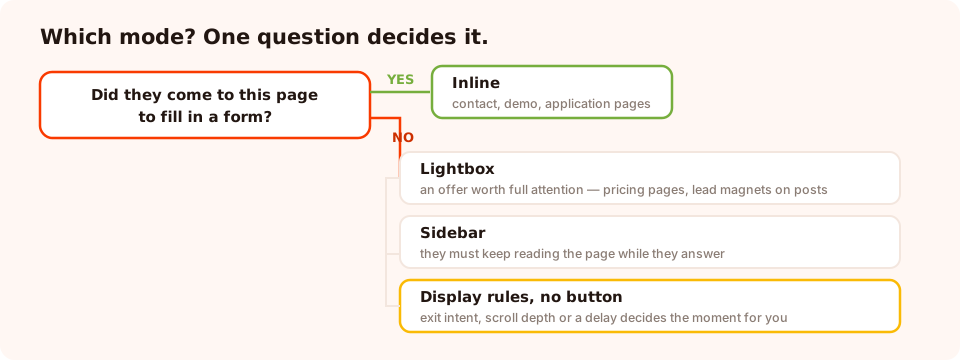
One question decides it: did the visitor come to this page to fill in a form?
| Page | Mode | Why |
|---|---|---|
| Contact / support | Inline | The form is the page. Hiding it behind a click adds friction for nothing. |
| Pricing | Lightbox from a button | The page's job is comparison; the form appears only when they have decided to talk. |
| Blog post | Lightbox, or display rules | Nobody came for a form. Earn the click, or trigger on scroll depth. |
| Product page | Sidebar | They need to keep looking at the product while answering. |
| Homepage | Popup from the nav button | One clear entry point beats a form competing with your hero. |
| Long documentation | Inline at the end | A calm "still stuck? tell us" where the reading finishes. |
What the form itself can collect
Presentation is half the job; the fields are the other half. The builder gives you eight input types — text, email, phone, number, long text, dropdown, date and checkbox — plus a set of ready-made fields (full name, email, phone, message, gender, country, state, city, address, ZIP, birthday and a marketing-consent checkbox) so you rarely start from scratch.
Three settings do most of the quality work:
- Required — blocks submission until the field is filled. Use it sparingly; every required field is a place to give up.
- Email validation — check the format, catch common typos like
gmial.comwith a "did you mean" prompt, restrict to business addresses, or turn it off entirely. - Field style — boxed or underline inputs, with your own colours, so the embedded form looks like it belongs to your site rather than to a tool.
Keep the embedded version shorter than you think. An inline form on a contact page can carry four fields. The same form in a lightbox on a blog post should carry one. The mode changes the budget.
Build a form and embed it today
Forms, popups, surveys, quizzes and games from one editor — and one script. Free plan, no credit card required. Paid plans from $29/month.
Start free →What happens after someone submits
Every submission lands in your workspace. The form's analytics page shows views, unique views, clicks, submissions, conversion rate and field inputs, a per-field completion breakdown, a device split, and a Collected input data table with one row per submission and one column per field.
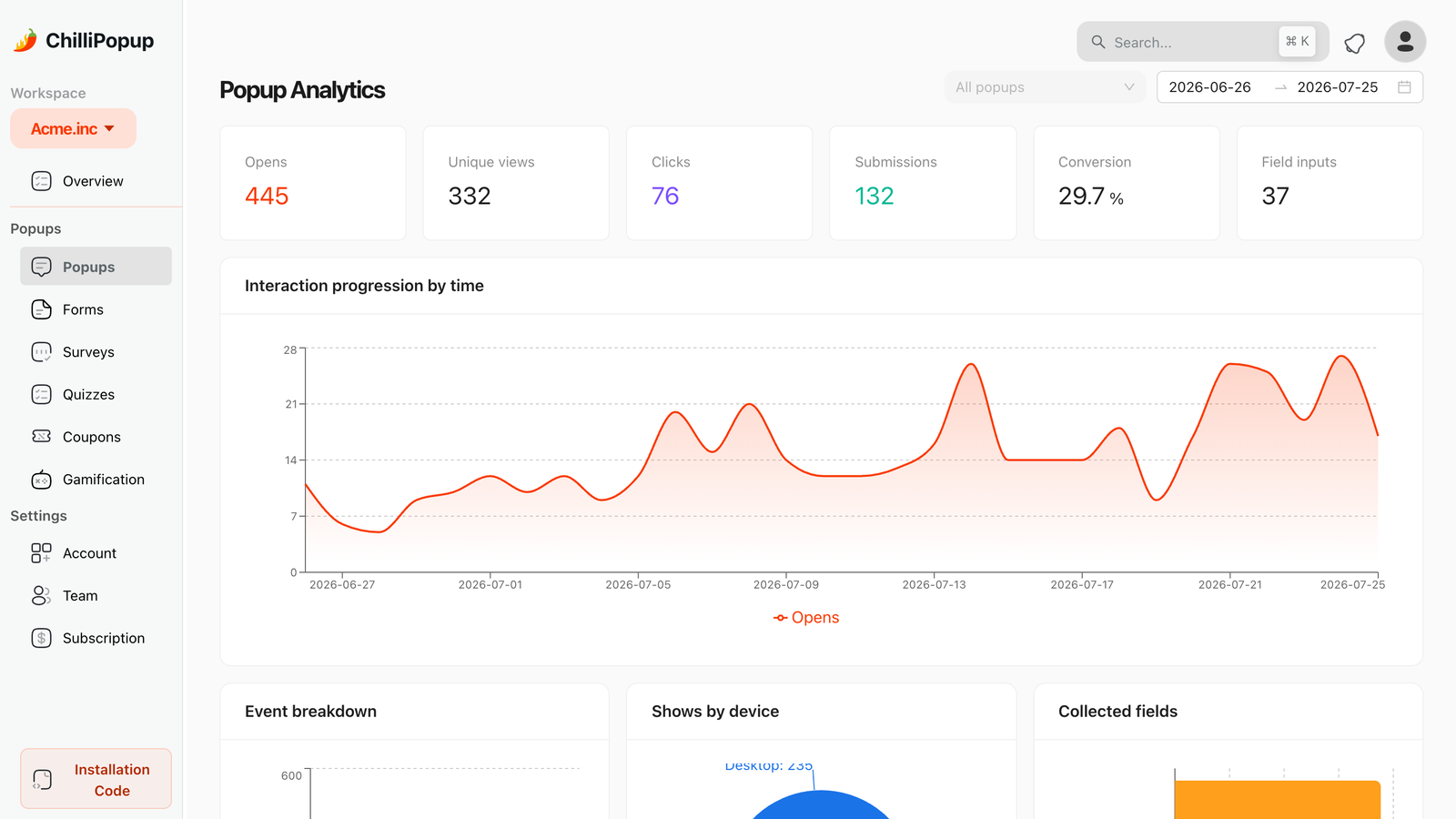
One row per submission, one column per field — readable without exporting anything.
The player also fires a browser event the moment a form is submitted, carrying the form's id and the submitted values. That is the hook for anything custom — pushing the lead into your own backend, firing a conversion event to your analytics, or triggering a thank-you flow of your own.
window.addEventListener('chillipopup:form_submit', function (e) {
  // e.detail = { formUuid: '…', data: { email: 'jo@example.com', … } }
  console.log('New lead:', e.detail.data);
});
Be honest about the boundary. There is no built-in connection to an email platform or CRM, no webhook, and no automatic notification email when a form is submitted — the "Email & integrations" panel in the editor says coming soon. Today you read the submissions in the dashboard, or you listen for that browser event and forward them yourself. Plan around it rather than discovering it after launch.
Seven embedding mistakes
- Embedding a draft. Only published content is served, so an unpublished form renders nothing at all. This is the number one cause of an empty inline div.
- Pasting the snippet without the pixel. The div or button is inert on its own; the script is what fills it.
- Putting the pixel in the body of one page only. Install it site-wide in
<head>, or forms on other pages will silently not work. - Using inline on a page nobody scrolls. If the form sits below three screens of marketing copy, it may as well not exist. Use a button.
- A lightbox that can't be closed easily. Keep the close control visible — a form the visitor cannot escape is a bounce, not a lead.
- Six fields in a lightbox. Overlay real estate is expensive. Move the extra questions to a later step or a later visit.
- Never submitting a test entry. Two minutes of checking beats a week of an embed quietly pointing at the wrong form id.
Embed your first form, step by step
Twenty minutes, five steps, no developer needed after the first script.
1. Build the form and publish it
Add your fields, mark the genuinely required ones, set email validation to catch typos, and publish. Publishing is what makes it available to your website.
2. Install the pixel once
Paste the script tag into <head> site-wide. If you already run any ChilliPopup
content, this is already done.
3. Pick the mode
Ask one question: did the visitor come to this page to fill in a form? Yes → inline. No → a button opening a lightbox, or display rules.
4. Paste the snippet in the right place
Inline goes exactly where the form should render. The link-based modes can go anywhere — nav, hero, footer, inside a card.
5. Submit a test entry
Load the live page, fill the form in, and confirm the row appears in Collected input data. Then delete nothing — that first row is your proof the whole chain works.
Related reading
Frequently asked questions
How do I embed a form on my website?
Install the pixel script once in your site's <head>, then paste a short snippet where the form should appear. For an inline form that is an empty <div> carrying the form's id; for a popup, lightbox or sidebar it is a link or button that calls ChilliPopup.open(). No iframe and no per-page script.
What is the difference between an inline form and a popup form?
An inline form is part of the page — it sits in the layout, scrolls with the content and is always visible. A popup form is hidden until something opens it: a button click, or a display rule such as exit intent or scroll depth. Inline suits pages people came to fill in; popups suit pages where the form is a secondary offer.
Do embedded forms use an iframe?
No. The form renders directly into your page's DOM, which means it inherits your page width, works with your responsive layout, and does not carry the sizing and scrolling problems iframes bring. One small script serves every form on the site.
Can I open the same form from a button and from a display rule?
Yes. A form can carry display rules that show it automatically — on exit intent, after a scroll percentage, on a time delay — and still be opened on demand by a button that calls the open method. A manual open bypasses the triggers and frequency caps by design, so a button always works.
Where do form submissions go?
Into your workspace, where the dashboard shows them in the Collected input data table alongside views, clicks, submissions and conversion rate. The player also fires a browser event on submit, which is the hook a developer can use to forward the data anywhere you like.
Will an embedded form slow down my website?
It shouldn't. The script is a single framework-free file loaded asynchronously, so it never blocks your page from rendering. Installing it once and reusing it for every form, popup, survey and quiz is also lighter than adding a separate embed script per tool.
Which embed mode converts best?
The one that matches why the visitor is on that page. On a contact or demo page, inline wins because the form is the reason they came. On a content page, a lightbox opened by a clear button beats an inline form nobody scrolls to. There is no mode that is best everywhere — match the page's intent.