Square Online is a genuinely good way to get a store online in an afternoon — and a frustrating one the moment you want to do serious marketing on it. There is no popup builder in the editor and no app store to install one from, so a Square Online popup means one thing: a script tag in the site's custom code, and a proper campaign tool behind it.
This guide covers exactly where that box lives, the six popups worth running on a Square store, how to target Square's URL patterns, and the platform quirks that catch people out.
Key Takeaways
- One paste, forever. The pixel goes in once; every popup you publish afterwards goes live without touching Square again.
- Custom code is a paid-plan feature on Square Online. If the option is not there, that is the reason.
- Test on the published URL, never in the editor preview — injected scripts do not run in the preview.
- Exclude the checkout in page targeting. Never interrupt someone who is already buying.
- Square's built-in banner is not a popup — no triggers, no audience rules, no conversion reporting.
What Square Online gives you out of the box
Square Online is not empty on this front, and it is worth knowing what you already have before adding anything:
- A site-wide announcement banner — a strip at the top of every page for a shipping deadline or a sale. Useful, permanent, and identical for every visitor.
- Email-capture sections you can drop into a page, feeding Square's own marketing tools.
- Square Marketing for sending the emails you collect.
What it does not give you is the part that actually moves conversion:
| Capability | Square Online built-ins | A popup tool |
|---|---|---|
| Appears on a trigger (exit intent, scroll, delay, inactivity) | No | Yes |
| Shown only to new or returning visitors | No | Yes |
| Restricted to certain pages | Limited | Yes, six URL conditions |
| Stops showing after someone converts | No | Yes, one switch |
| Its own views, submissions and conversion rate | No | Yes |
| Surveys, quizzes and prize games | No | Yes |
If all you need is "free shipping over $50" on every page forever, use the built-in banner and stop reading. If you want a welcome offer that only new visitors see, on browsing pages only, that disappears once someone signs up, you need a script.
How to add a popup to Square Online
Square Online has no app marketplace for this, so every third-party widget arrives through the site's custom code. You paste once and it covers every page — including pages you create next year.
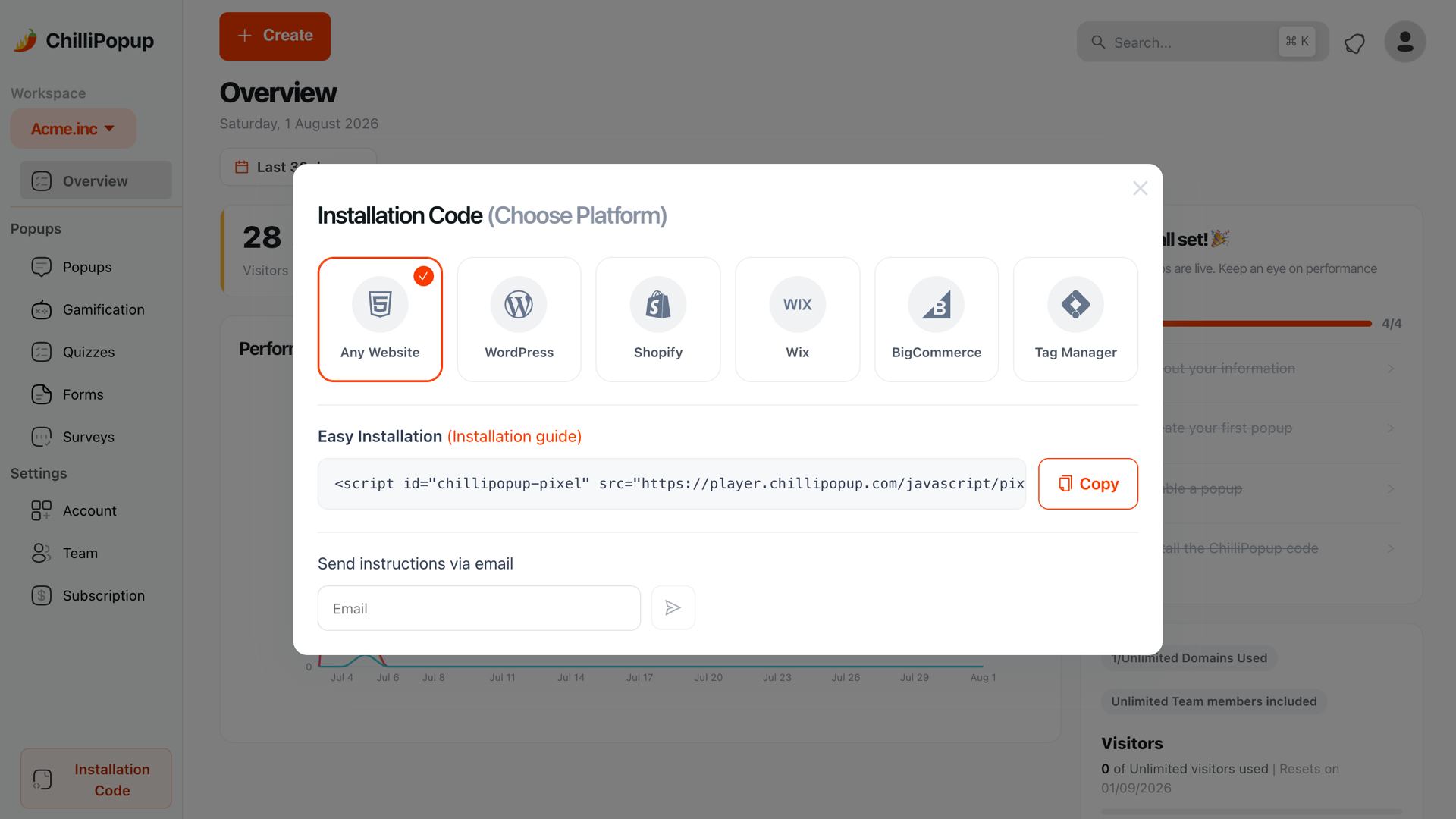
In ChilliPopup, open Installation Code in the left sidebar and choose Any Website. Copy the snippet — it already contains your workspace id.
In your Square dashboard, open the Online site editor for the store, go into the website settings and find the custom code section. Add a new snippet, set its placement to the head, and apply it to every page.
Paste the script, save, and publish the site. Custom code only runs on the published store, so nothing will show up while you are still in the editor.
<script id="chillipopup-pixel"
  src="https://player.chillipopup.com/javascript/pixel.js?id=YOUR_WORKSPACE_ID"
  data-api="https://api.chillipopup.com"
  async="true"></script>
Two things that trip people up. First, the Square Online editor preview does not run injected scripts — always test on the published URL in a private window. Second, custom code sits behind Square Online's paid site plans; if you cannot find the option at all, that is a billing question, not a missing checkbox. If you already run Google Tag Manager on the store, you can install through that instead — see the Tag Manager guide.
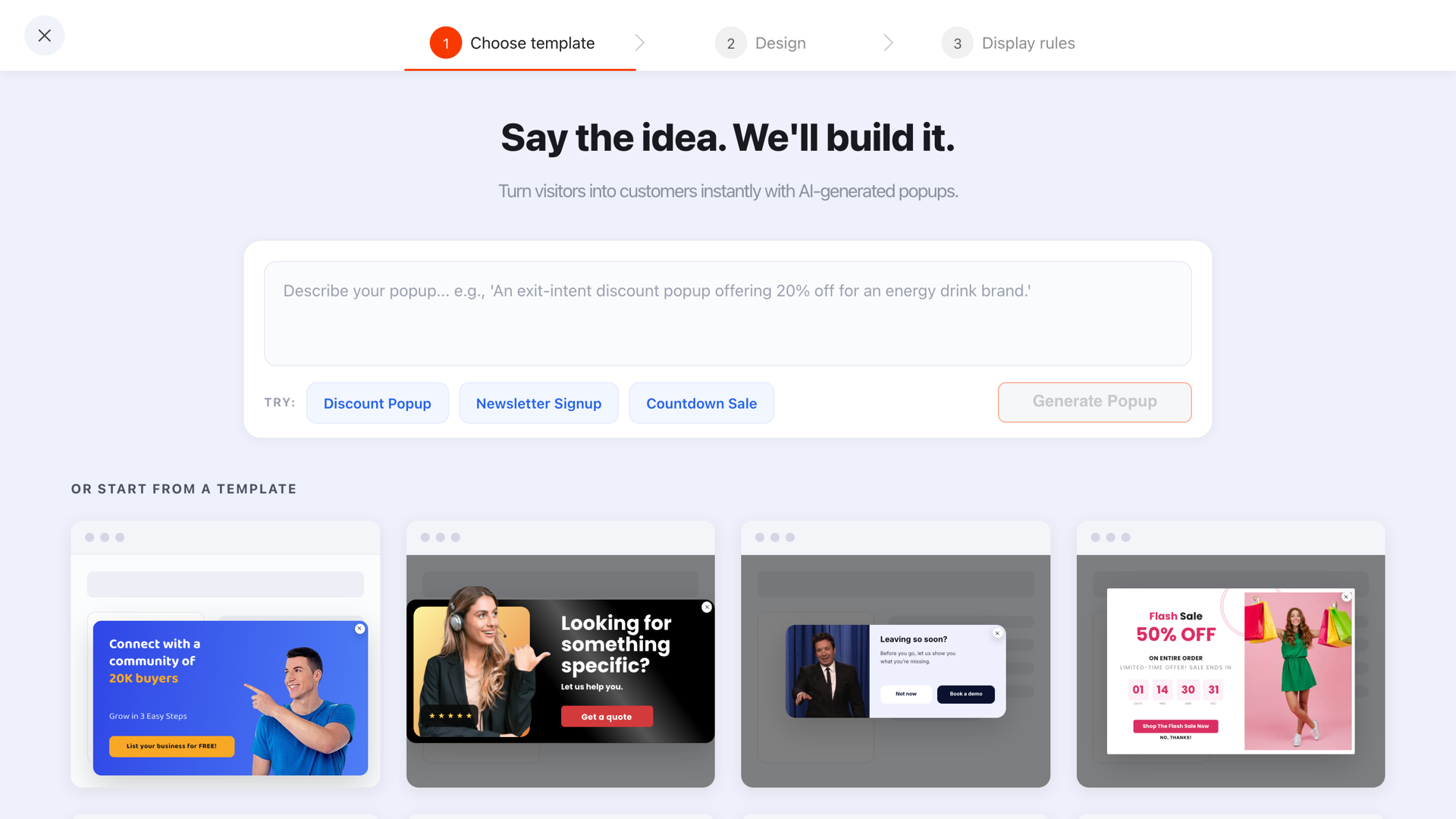
Start from a template or describe the popup you want — then edit it block by block.
Six popups worth running on a Square store
Square Online stores skew towards small independent retail, food and drink, services and local business — often with a physical Square point of sale behind them. These six suit that shape.
- The welcome offer. New visitors only, exit intent on desktop and roughly 50% scroll on mobile. One email field, one clear reward, one button. This is the campaign that pays for the whole exercise.
- The pickup-or-delivery nudge. Square stores very often do both, and visitors often do not realise it. A small corner popup on category pages saying "Order online, collect in 30 minutes" removes a real objection.
- The cart save. Exit intent on the cart page with the shipping threshold spelled out — "You're $8 away from free delivery" — converts far better than a generic discount.
- The announcement bar, but targeted. Same idea as Square's built-in banner, except you can point it at one collection, schedule its dates and stop showing it to people who have already acted.
- The post-purchase question. One CSAT rating on the confirmation page. Cheap to run, and the only reliable way to find out whether your checkout is annoying people.
- A prize game for a launch. A spin wheel or scratch card for a seasonal push. Loud on purpose, and retired by a date window when the campaign ends.
Targeting Square Online URLs
Square Online builds tidy, readable URLs, which makes page targeting straightforward. Check yours in the address bar, then use the conditions to carve out what you need.
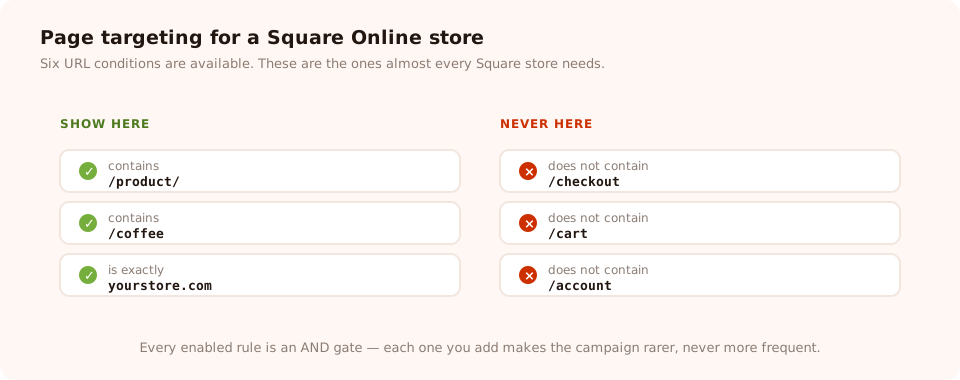
One rule set: fire on browsing pages, stay off the pages where someone is already buying.
| Goal | Condition | Value |
|---|---|---|
| Only on product pages | contains | /product/ |
| Only in one category | contains | the category slug, e.g. /coffee |
| Homepage only | is exactly | your store's root URL |
| Never over the checkout | does not contain | /checkout |
| Never on the cart | does not contain | /cart |
| Order confirmation only | contains | the confirmation path |
Every enabled rule is an AND gate, so each one you add narrows the campaign. Beyond URLs you can also restrict by device, by operating system and browser, by a date window with a GMT offset, and by a weekday-and-hour schedule — that last one is genuinely useful for a store attached to a physical shop with opening hours.
A worked example: a bakery with a Square store
The situation. A bakery sells boxes online and takes orders for collection. Most traffic comes from Instagram, on a phone, and bounces.
Campaign 1 — collection nudge. Bottom bar, all category pages, 6-second delay, mobile and desktop.
"Order by 4pm, collect tomorrow from 8am." No email field at all — this one exists purely to remove an objection.
Campaign 2 — welcome offer. New visitors, exit intent on desktop / 50% scroll on mobile, everywhere except cart and checkout.
"First box? Have 10% off — we'll send the code now." One email input, "show again after conversion" off.
Campaign 3 — Saturday-morning special. Weekday-and-hour schedule, Saturdays 07:00–11:00 only, homepage and category pages.
"Fresh out of the oven right now: sourdough, still warm."
Three campaigns, one pixel, no further changes to the Square site. The third one is the interesting one: it is the sort of thing a built-in banner can never do, because it needs a schedule.
Put a real popup on your Square store
One script tag, then popups, forms, surveys, quizzes and prize games from one editor — targeted, measured and published without touching Square again. Free plan, no credit card required. Paid plans from $29/month.
Start free →Square Online gotchas worth knowing
- The editor preview lies. Injected scripts do not run there. Every test happens on the published URL, in a private window.
- Publishing is a separate step. Saving custom code is not the same as publishing the site. Plenty of "it isn't working" reports end here.
- Square-hosted checkout pages are a different surface. Do not plan a campaign around appearing there — and you should not want one to.
- A custom domain changes your URLs. If you move from a Square subdomain to your own domain, re-check any page-targeting rule that used the full URL, and any per-campaign domain restriction.
- The mobile app editor is not the place for this. Do the custom-code work on a desktop browser.
Five mistakes with Square Online popups
- Firing immediately on arrival. On mobile, from a social link, this is the single fastest way to earn a bounce — and the exact pattern Google's interstitial guidance is aimed at.
- Running the popup on the checkout. You are interrupting a purchase to ask for an email. Exclude those URLs.
- Leaving "show again after conversion" on. Subscribers keep seeing the signup popup and conclude you have no idea who they are.
- Duplicating the built-in banner. Two strips saying different things at the top of the same page reads as a broken site.
- Never testing on a phone. Most Square Online traffic is mobile. Open your own store on your own phone before you call it done.
How to tell whether it worked
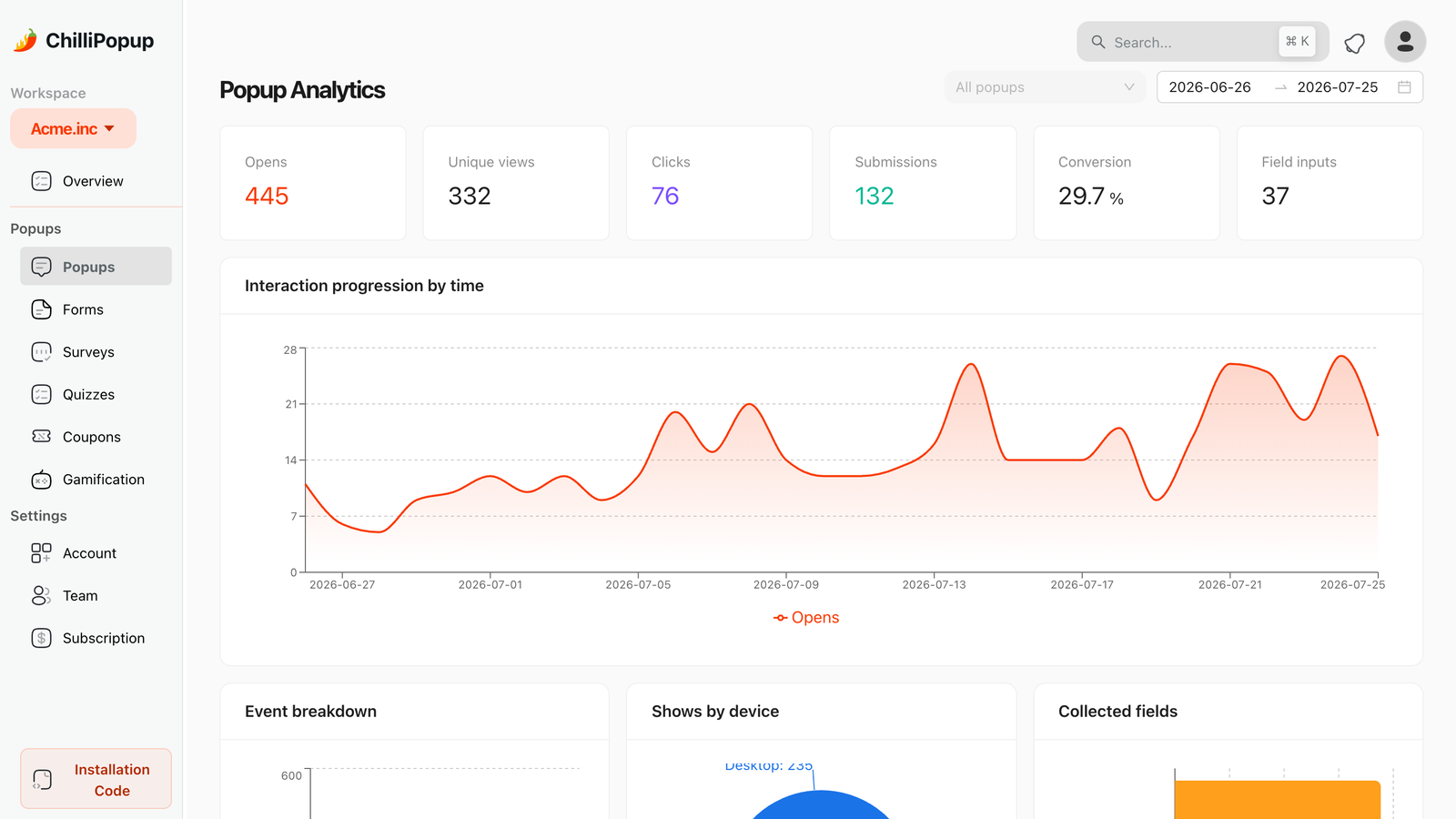
Every campaign reports its own views, submissions and conversion rate — the number Square's built-in banner never gives you.
Give it a fortnight, then read three things:
- Views. Low views means the rules are wrong, not the copy. Check the trigger and the URL conditions first.
- Conversion rate. Submissions over views. Compare a campaign against itself over time, never against someone else's benchmark.
- What happened next. Codes claimed but never used means the offer was not actually wanted. That is a merchandising finding, not a popup one.
Related reading
Frequently asked questions
Does Square Online have a built-in popup?
Square Online gives you site-wide announcement banners and email-collection sections you can place in a page, but it does not include a triggered popup builder — nothing that fires on exit intent, after a scroll depth or only for new visitors, and nothing with its own conversion reporting. For that you add a third-party script.
How do I add custom code to Square Online?
Open your site in the Square Online editor, go into the website settings and look for the custom code section. Add a snippet, choose to place it in the head and to run on every page, then save and publish. Custom code is part of Square Online's paid site plans — if you cannot see the option at all, that is a plan limitation rather than a missing setting.
Will a popup slow down my Square Online store?
The script loads asynchronously, so the browser never waits for it to render your page, and the bundle is a single small file served from a static host. It is one of the lighter things on a typical storefront — but measure your own site rather than taking anyone's word for it.
Can I show a popup only on certain Square Online pages?
Yes. Every campaign has page targeting with six conditions — contains, does not contain, is exactly, is not, starts with and ends with — matched against the page URL. Point a campaign at a category path, exclude the checkout, or restrict it to one product page.
Will popups hurt my Square Online store's SEO?
Not if you keep them off the first-load mobile experience. Google's intrusive-interstitial guidance targets popups that cover the content of a page a visitor has just arrived on from search. Trigger on exit intent or a scroll depth instead of immediately, keep the mobile version small, and make the close button obvious.
Do popups work on Square Online's checkout pages?
The script runs wherever you have placed it, but you should not want it to. A popup over a checkout distracts someone who is already buying — that is the worst possible trade. Exclude checkout and cart URLs in page targeting and keep your campaigns on the browsing pages.