
To add a popup to an OpenCart store you put one script tag on the storefront — either in your theme's header template or in the code field of OpenCart's analytics extension — and then build the popup in a separate editor. No extension to install, no core files to patch, and nothing to redo when you upgrade OpenCart.
Because OpenCart is self-hosted, you have more freedom here than merchants on a closed platform and slightly more rope to hang yourself with. This guide covers both install routes, the two things that make a script "disappear" on OpenCart, and how to target catalogue URLs whichever link format your shop uses.
Key Takeaways
- No extension required. One script tag on the storefront is the whole install.
- Two routes: the theme's header template (permanent, survives nothing but a theme change) or the analytics extension's code field (no file editing, scoped per store).
- The template cache is the usual culprit when a pasted tag does not appear in the page source.
- URL targeting depends on your link format. With SEO URLs off you match the route parameter; with them on you match the path.
- Coupons stay in OpenCart. The popup collects the email and reveals a code your store already validates at checkout.
What OpenCart does and does not give you
OpenCart is a complete shop. It is not a marketing suite, and the gap shows up in exactly one place: everything that happens before someone decides to buy.
| Capability | OpenCart on its own | With a popup script |
|---|---|---|
| Catalogue, cart, checkout, coupon codes | Yes | Unchanged |
| Newsletter subscribe box | A basic account preference, not a capture tool | A real offer, at a moment you choose |
| Exit intent, scroll, delay, inactivity triggers | No | Yes |
| New vs returning visitor rules | No | Yes, with your own definition in days |
| Stop showing after someone converts | No | Yes, one switch |
| Conversion reporting for a signup | No | Views, submissions, conversion rate |
| Surveys, quizzes and prize games | No | Yes, from the same script tag |
There are OpenCart extensions that do parts of this. The reason to prefer a plain script tag is upgrade cost: an extension is PHP running inside your store that has to keep working across OpenCart versions, and a marketing extension is exactly the kind of thing that quietly breaks on an upgrade weekend. A script tag has no version to be compatible with.
The two ways to install it

Pick one. Installing both ways loads the pixel twice, which is worse than not installing it at all.
Route A — the theme header template
Every storefront page in OpenCart is rendered through a shared header template in your active
theme. That file contains the closing </head> tag, which makes it the correct
home for any site-wide script.
In ChilliPopup, open Installation Code and choose Any Website. Copy the snippet — your workspace id is already in it.
Open the header template of your active theme — through the admin's theme
editor, or over SFTP in
catalog/view/theme/<your-theme>/template/common/. Work on the file that
belongs to the theme your shop is actually using, not the default one you inherited from.
Paste the snippet immediately before </head>, save, then clear the theme and
template caches from the admin. Load the storefront in a private window and check the page
source.
<script id="chillipopup-pixel"
  src="https://player.chillipopup.com/javascript/pixel.js?id=YOUR_WORKSPACE_ID"
  data-api="https://api.chillipopup.com"
  async="true"></script>
</head>
Route B — the analytics extension's code field
If you would rather not touch a template, OpenCart already has a mechanism designed for exactly this: the built-in analytics extension takes a block of code and prints it on every storefront page. Paste the snippet there, set the extension's status to enabled, and you are done — no files, no SFTP, and on a multi-store setup you can scope it to one store rather than all of them.
Two things to double-check on route B. First, the extension has to be enabled, not merely saved — a disabled analytics module prints nothing and gives no warning. Second, if your theme is heavily customised, confirm it actually renders the analytics output; a hand-built theme that dropped that block will silently swallow the tag.
Why a pasted script "disappears" on OpenCart
Three causes, in the order you should check them. This section will save you an afternoon.
- The template cache. OpenCart compiles and caches theme templates. Your edit is saved, the storefront is serving yesterday's compiled version, and nothing anywhere tells you so. Clear the theme and template caches from the admin, then reload with a hard refresh.
- The wrong theme. Stores often carry a default theme plus the one they actually use. Editing the wrong header template produces a perfectly saved change that no visitor will ever load. Confirm the active theme in your store settings first.
- A minifier or page cache in front. If you run a caching extension, a CDN or a server-side page cache, purge it after the edit. A cached HTML page is a photograph of your site before the script existed.
The test that settles it: open your storefront in a private window, view source, and search for
chillipopup-pixel. If the tag is in the HTML, the install worked and any remaining
problem is a display-rule problem —
the troubleshooting guide
walks the rest.
Targeting OpenCart URLs
This is where OpenCart differs most from hosted platforms, because your link format is a setting rather than a given. Page targeting supports six operators — contains, does not contain, is exactly, is not, starts with and ends with — and which one you reach for depends on whether SEO URLs are switched on.

Same store, two link formats. Write the rule against the URLs your shop actually serves.
| You want to reach | SEO URLs off | SEO URLs on |
|---|---|---|
| Every product page | contains the product route parameter | contains your product path segment |
| One category | contains that category's id in the query string | contains the category slug |
| The homepage only | is exactly your domain root | is exactly your domain root |
| Everywhere except cart and checkout | does not contain the checkout route | does not contain /checkout |
Write the rule from a real URL. Open the page you want to target, copy the address out of the bar, and build the rule from that string. Guessing your own URL format is the single most common reason a correctly installed popup never appears.
One more OpenCart quirk worth planning for: if you later switch SEO URLs on, every rule written against query-string routes stops matching. Put "review popup targeting" on the checklist for that change, the same way you would for redirects.
Five popups worth running on a catalogue store
OpenCart shops tend to be broad — hundreds or thousands of SKUs, a lot of category traffic, and long research visits. That shapes which popups pay.
1. First-order discount on exit intent, catalogue pages only
"Before you go — 10% off your first order." Create the coupon in OpenCart, reveal the code on the popup's thank-you screen, and let your store validate it at checkout as normal. Exclude cart and checkout URLs so you never interrupt a payment.
2. A price-drop or back-in-stock alert
Broad catalogues have a lot of out-of-stock and "thinking about it" traffic. Capturing an address against a product someone actually wants beats a generic newsletter every time — the back-in-stock guide shows how to record which product without any inventory integration.
3. A one-question category quiz
On a big catalogue, the most useful thing a visitor can tell you is what they came for. Three or four tappable options give you a clean, normalised value to segment on later — see the quiz builder.
4. A trade or wholesale enquiry form
Many OpenCart stores sell B2B as well as retail. A short form on your wholesale page, with business-email validation switched on, filters the enquiries you actually want.
5. A spin-to-win wheel for sale weekends
A prize game earns attention that a plain form does not. The prize is decided server-side, so the result cannot be rigged from the browser, and the claim screen is where the email gets collected — after the win, not before.
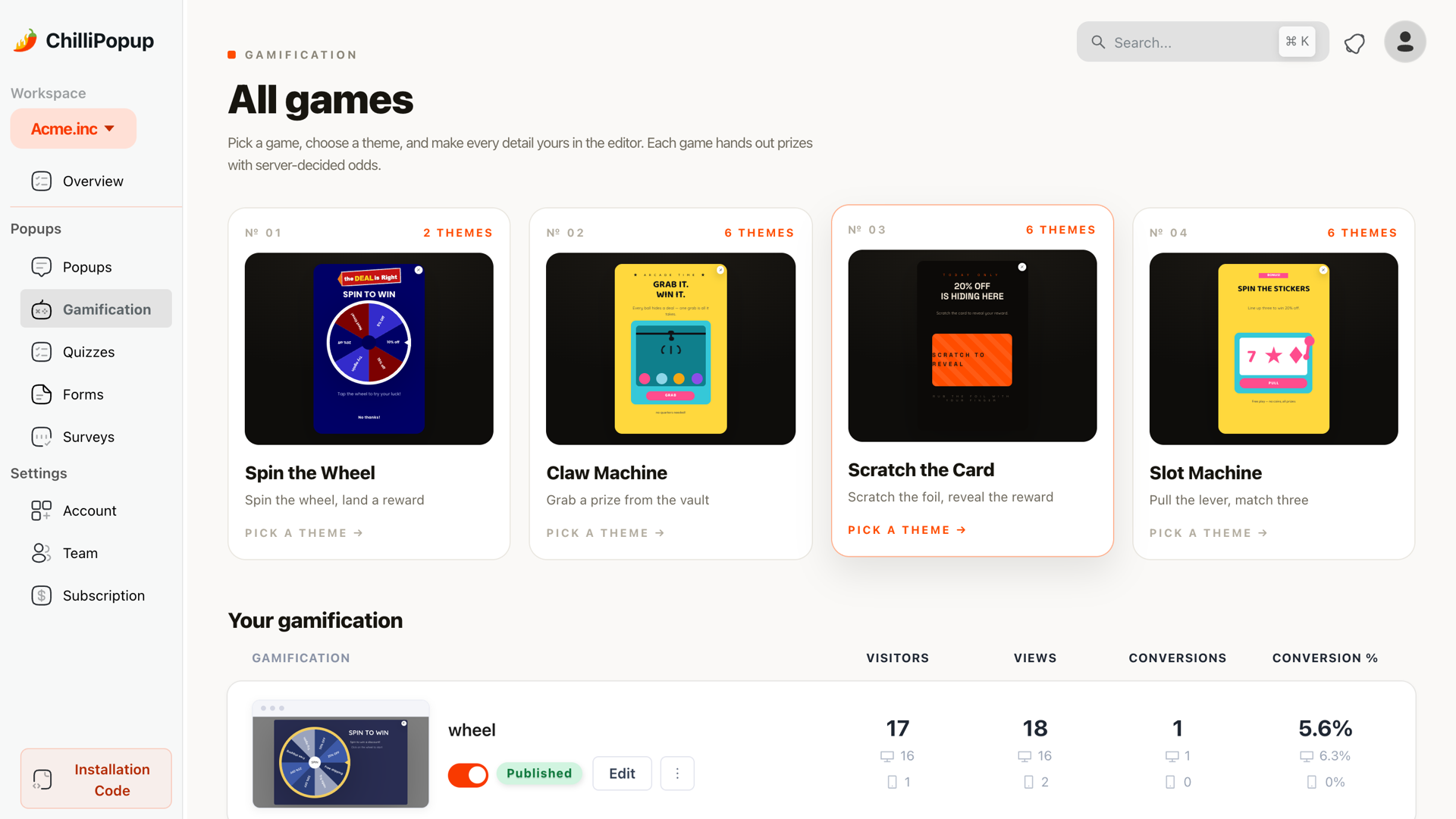
Prize games run from the same script tag as everything else — nothing extra to install on the store.
A worked example: a 900-SKU parts store
Self-hosted OpenCart, SEO URLs on, one store, about 20,000 visits a month split between category browsing and long-tail product searches. Three campaigns, installed once through the theme header.
| Campaign | Where | Trigger & frequency | The ask |
|---|---|---|---|
| First-order code | Everywhere except /checkout and /cart |
Exit intent desktop, 50% scroll mobile; new visitors, once every 7 days | Email only |
| Fitment help | Category pages | Inactivity, 25 seconds; everyone, once a day | One choice question, then a link to the fitment guide |
| Trade account | The wholesale page | Time delay, 8 seconds; everyone, every visit | Name, business email, company |
Note what is not in that table: a popup on the checkout, a second campaign competing on the same page, and any campaign asking for six fields. Three campaigns is plenty for a store this size, and the fitment prompt is the interesting one — it converts badly as a signup and works beautifully as a service, which is exactly why it earns the right to ask for an address later.
Give your OpenCart store a marketing layer
Popups, forms, surveys, quizzes and prize games from one editor — installed with a single script tag. Free plan, no credit card required. Paid plans from $29/month.
Start free →Six mistakes on self-hosted stores
- Installing both ways. Theme template and analytics module means the pixel loads twice. Pick one and write down which.
- Editing the wrong theme. Confirm the active theme before you edit anything.
- Forgetting the cache after every change. Template cache, page cache, CDN — in that order.
- Popping up on checkout. Exclude the cart and checkout routes. Always.
- Writing URL rules from memory. Copy the real address out of the browser.
- Not re-checking after an OpenCart upgrade. A major upgrade can replace theme files. Keep the snippet in your deployment notes and verify the storefront source afterwards.
What to measure
Your store reports orders and coupon use. The popup reports its own funnel — views, clicks, submissions and conversion rate per campaign — and you need both halves to judge whether a campaign is worth keeping.
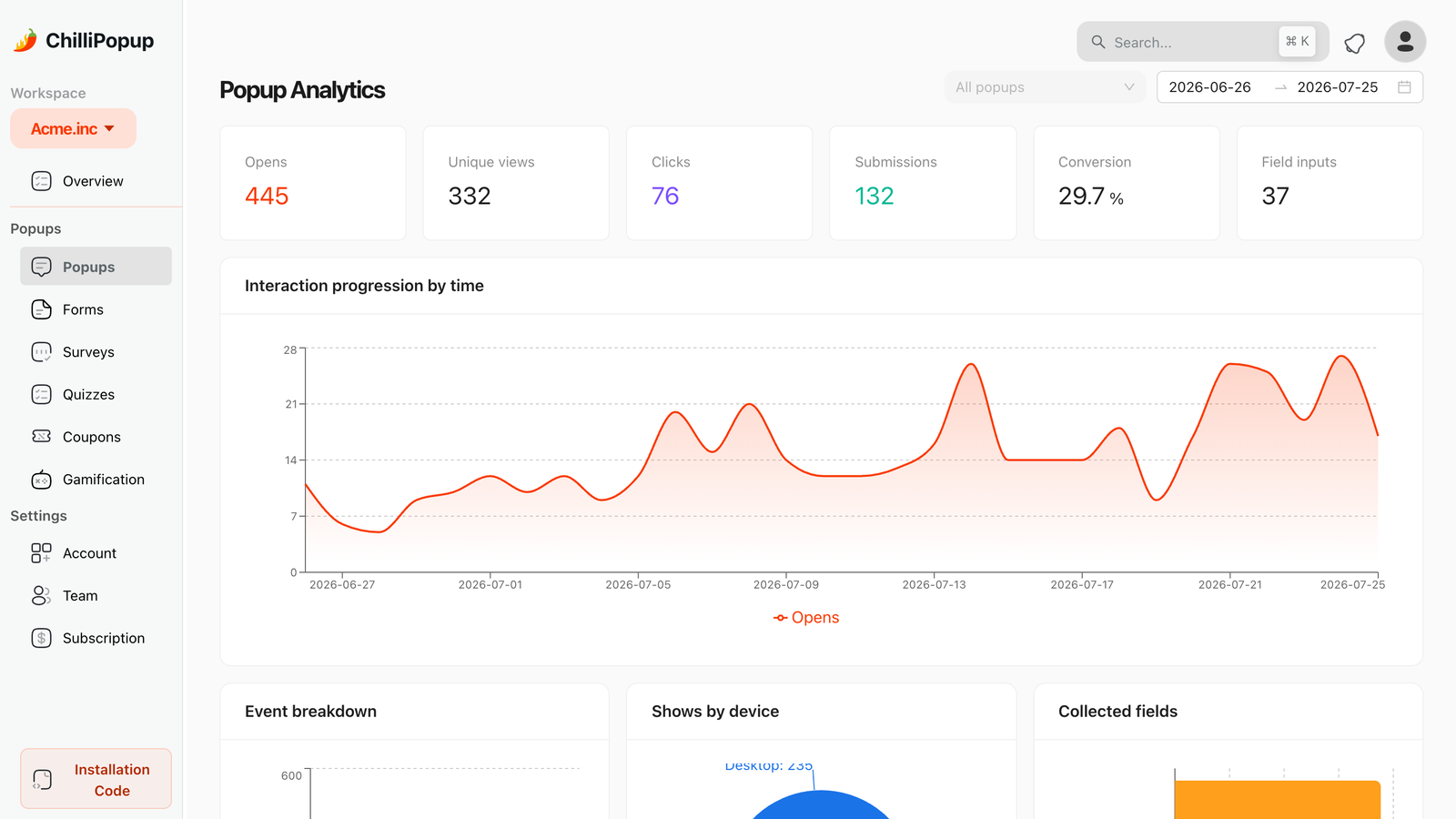
Per-campaign reporting is the piece a self-hosted store does not give you for free.
- Views first. A low view count is a rules problem — usually a URL rule written against the wrong link format. No amount of copywriting fixes it.
- Conversion rate — submissions divided by views, compared against the same campaign last month rather than someone else's benchmark.
- Subscribers per 1,000 visits — the number that stays honest when traffic moves.
- Coupon redemptions in OpenCart — the end of the chain. Addresses that never spend are a list, not revenue.
If you want to compare two versions properly rather than by feel, what to A/B test on a popup covers which changes are big enough to be worth measuring.
Related reading
Frequently asked questions
Does OpenCart have a built-in popup?
No. OpenCart ships with the catalogue, cart, checkout and coupon engine, but no targeted popup builder — there is no exit-intent trigger, no new-versus-returning visitor rule and no conversion reporting for a newsletter signup. You add those with one script tag on the storefront.
Do I need an OpenCart extension to run popups?
No. Any popup tool that works with a plain script tag works with OpenCart, because you control the theme. Adding the tag through the theme header template or the analytics module avoids installing an extension you would then have to maintain across OpenCart upgrades.
Where exactly does the script go in OpenCart?
The cleanest place is the header template in your active theme — the file that every storefront page includes, containing the closing head tag. If you would rather not edit a file, paste it into the code field of OpenCart's built-in analytics extension, which outputs on every storefront page.
My popup script is not appearing on the storefront. Why?
Almost always the template cache. OpenCart compiles and caches theme templates, so a header edit can sit invisible until the cache is cleared from the admin. After that, check you edited the theme that is actually active, and that the analytics extension is enabled if you used that route.
How do I target product pages when SEO URLs are off?
Use a URL rule that matches the query string instead of a pretty path. With SEO URLs disabled, product pages carry a recognisable route parameter, so a "contains" rule on that route reaches every product page. With SEO URLs on, match the path segment your store uses instead.
Will a popup work across a multi-store OpenCart setup?
Yes, and you control the blast radius. Installing through a shared header template puts the script on every store; installing through the analytics extension lets you scope it per store. Either way, page targeting rules can narrow a campaign to one domain's URLs.