To create a popup on a Wix website you have two options: Wix's built-in lightbox, designed inside the Wix editor and shown when a page loads, or a popup app that adds real display rules — exit intent, scroll depth, frequency capping, new-versus-returning targeting — plus per-popup analytics.
Both are legitimate. The lightbox is right for a simple announcement; the app is right the moment you want the popup to react to visitor behaviour and to tell you whether it converted. This guide walks through both paths, the four popup types that earn their place on a Wix site, a worked welcome-offer example with copy you can steal, and the rules and numbers that make a popup convert.
Key Takeaways
- Wix's built-in lightbox handles announcements well — it fires on page load, optionally delayed, and that's roughly the extent of its triggering.
- You outgrow it the day you want behaviour-based rules: exit intent, scroll depth, frequency caps, new-versus-returning targeting, or per-popup conversion numbers.
- Adding a popup app takes no code at all. The ChilliPopup Wix app adds the script to every page for you and connects your site automatically.
- Four popup types fit most Wix sites: a welcome offer, a contact or lead form, an announcement bar-style notice, and a short survey.
- One trigger, one popup, capped frequency. The display rules matter more than the design — a beautiful popup with lazy rules still reads as spam.
What Wix gives you out of the box
Wix's answer to popups is the lightbox — a native element you design directly in the Wix editor, with the same fonts, colours and drag-and-drop feel as the rest of your site. You can open it from a button click, or show it automatically when a page loads, optionally after a delay, with basic control over how often it reappears.
That's genuinely useful, and for some jobs it's all you need:
- A launch or holiday notice — "We're closed August 12–19" doesn't need targeting logic.
- A legal or age notice that every visitor must see once.
- A click-triggered detail card — a size guide or bio that opens from a button.
The built-in lightbox is free, lives inside the editor you already know, and matches your theme automatically. If your popup's job is "say one thing to everyone," build it there and stop reading — sincerely.
When you outgrow the built-in lightbox
The limits appear the first time you ask the popup to react to a visitor rather than just appear. Wix's built-in lightbox has no exit-intent trigger, no scroll-depth trigger, no inactivity or page-count triggers, no way to treat new and returning visitors differently, and no per-popup report telling you how many people saw it, clicked it, and converted. It shows up on page load, to everyone, and you never learn what happened next.
That's not a flaw — it's a scoping decision. Lightboxes are a site-design feature, not a conversion tool. But the popups that convert best fire on a behavioural moment — the visitor is about to leave, has read half the page, has gone idle — not merely the moment the page finished loading.
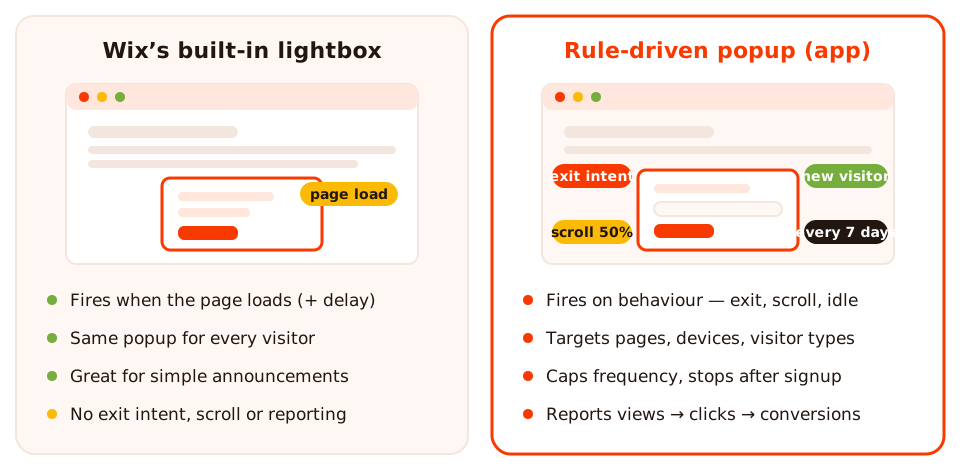
Same popup card, different brains: the lightbox fires on page load for everyone; a rule-driven popup picks its moment and reports back.
| Capability | Wix built-in lightbox | Popup app (ChilliPopup) |
|---|---|---|
| Triggers | Page load, optional delay, button click | Exit intent, time delay, scroll %, pages viewed, click count, inactivity, immediate |
| Audience targeting | Everyone | New vs returning visitors, device, OS & browser, URL rules, date ranges, weekly schedule |
| Frequency control | Basic (e.g. show once) | Every N days or visits, per session, stop after conversion |
| Analytics | No per-popup conversion reporting | Views, clicks, submissions, conversion rate per campaign; A/B testing built in |
| Content types | One designed overlay | Popups, forms, surveys, quizzes, spin wheels and other games |
| Best for | Announcements, notices, click-to-open cards | Email capture, lead generation, offers, feedback — anything you measure |
The honest decision rule: if you'll never ask "did it work?", use the built-in lightbox. The moment the popup has a conversion goal — an email, a booking enquiry, a coupon redemption — you need triggers, targeting and numbers, and that means an app.
Four popup types that fit Wix sites
Most Wix sites are service businesses, portfolios, restaurants and small stores. These four popup types map onto how those sites make money:
1. The welcome offer
A discount or perk in exchange for an email — the classic, and still the workhorse. For a store it's "10% off your first order"; for a service business, "10% off your first session" or a free consultation. Fire it on exit intent or after 50% scroll — never instantly — and stop showing it to anyone who signed up.
2. The contact / lead popup
Service businesses live and die on enquiries. A small popup with a name field, an email field and one message box — shown to a visitor who has read most of a service page — often out-collects the contact page buried in your menu, because it arrives at the moment of interest. A ChilliPopup form uses the same trigger and targeting rules as a popup, and the submissions land in the same dashboard.
3. The announcement
New menu, seasonal closure, a workshop with three seats left. The built-in lightbox can do this — the app version adds a date range so the campaign switches itself off, a countdown timer block for genuine deadlines, and a frequency cap so regulars don't see the same notice five times a week.
4. The short survey
One or two questions — "What almost stopped you booking today?" — shown to visitors who are leaving. The answers tell you what to fix, and the survey's results view shows the completion funnel and drop-off per question.
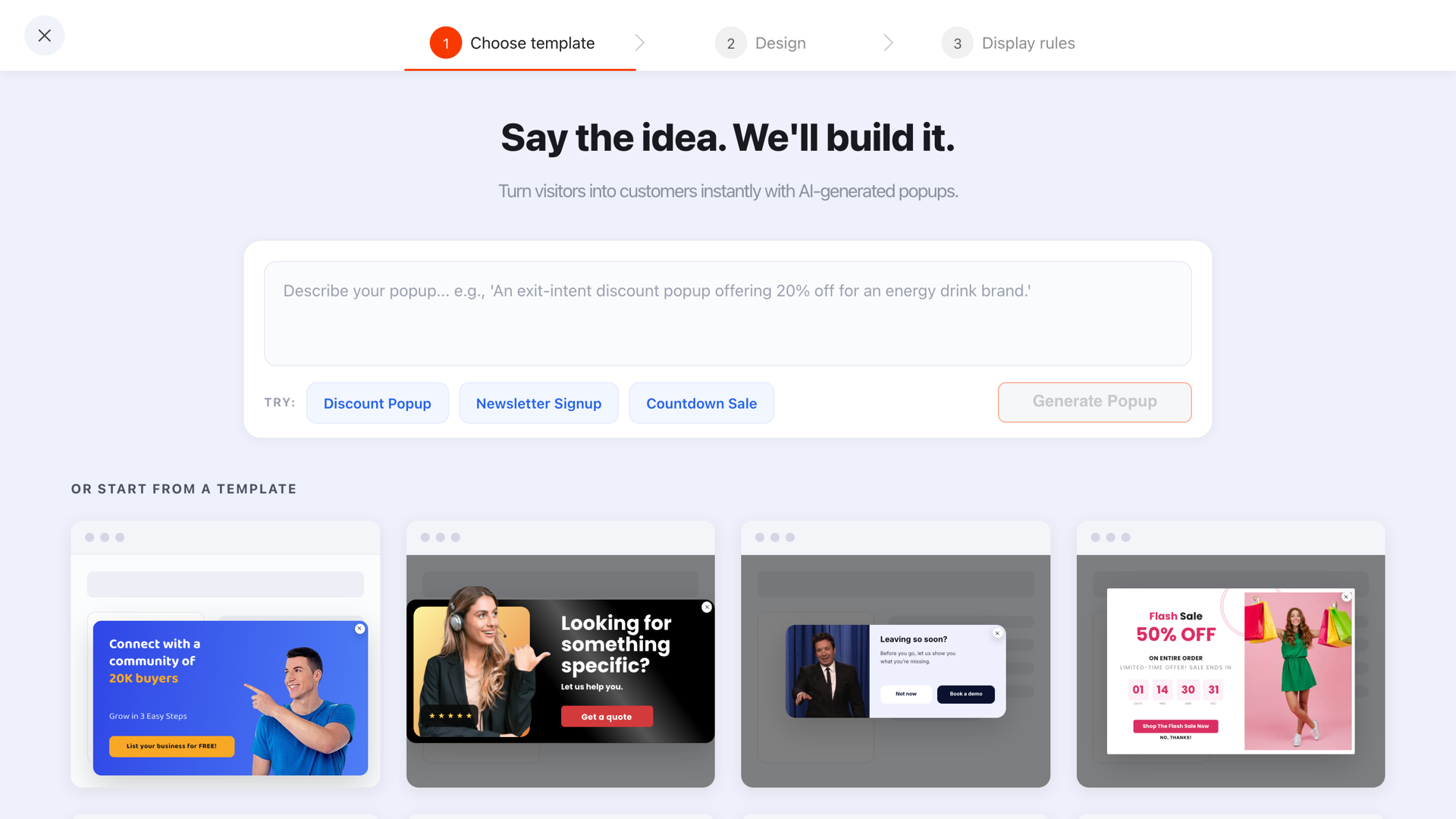
Start from a template — every one of these can be published to a Wix site unchanged, or restyled to match your theme first.
How to add ChilliPopup to your Wix site
The full walkthrough with screenshots lives in the Wix install guide; here's the short version. No Velo, no Custom Code — the free app works on any Wix plan.
1. Install the ChilliPopup app on your Wix site
Open the ChilliPopup Wix install link (it's in the install guide above), click Add to Site, choose the Wix site you want popups on, and approve the permissions Wix asks for. Wix opens the app's page in your Wix dashboard.
2. Let the app connect your site
The app creates your ChilliPopup account and adds the script to every page of your site on its own. After a few seconds its page shows a green Active badge and You're all set. There's no Workspace ID to copy and no code to paste, and the script loads asynchronously, so it doesn't slow the page down.
3. Open ChilliPopup from your Wix dashboard
On the ChilliPopup page in your Wix dashboard (Apps → ChilliPopup), click Open ChilliPopup. Your ChilliPopup dashboard opens in a new tab, already signed in. That's where you build everything that follows.
4. Build your popup and set its display rules
Create a popup from a template, or describe what you want to the AI generator and edit the draft it returns. Write your offer, then open the display rules and set a trigger, page targeting and a display frequency — the next section walks through exactly which rules to pick.
5. Publish and verify on your live site
Set the popup to Published, publish your Wix site, then open the live site — not the editor preview, which doesn't load app scripts the same way — and confirm the popup fires when its trigger condition is met. Drafts never serve, so an unpublished popup will never appear no matter how correct the rules are.
Already use ChilliPopup at chillipopup.com? The Wix app always creates a new account for the site, billed through Wix. To keep your existing account instead, skip the app and paste your account's snippet into Settings → Custom Code, set to load on all pages in the head. Wix offers Custom Code on sites with a Premium plan and a connected domain.
<script id="chillipopup-pixel"
  src="https://player.chillipopup.com/javascript/pixel.js?id=YOUR_WORKSPACE_ID"
  data-api="https://api.chillipopup.com"
  async="true"></script>
Use the app or Custom Code — never both. Loading the pixel twice can cause a popup to be rendered or counted twice. If you install the app, remove any manually pasted snippet first.
Worked example: a welcome offer for a Wix studio
Say you run a ceramics studio on Wix — you sell workshop seats and a small shelf of finished pieces. Here's a complete first popup, copy included:
- Headline: "First time here? Take 10% off your first workshop."
- Body line: "Join the list and we'll send your code — plus one email a month with new class dates. No spam, ever."
- Field: one email input, placeholder "you@example.com". Nothing else — every extra field costs signups.
- Button: "Send me my code" — first person, specific, not "Submit".
- Decline link: "No thanks, I'm just browsing" — a visible, honest way out. It makes the yes more likely, not less.
The design takes ten minutes in the drag-and-drop editor: match your site's two main colours, use one image at most, and keep the popup small enough that the page stays visible behind it.
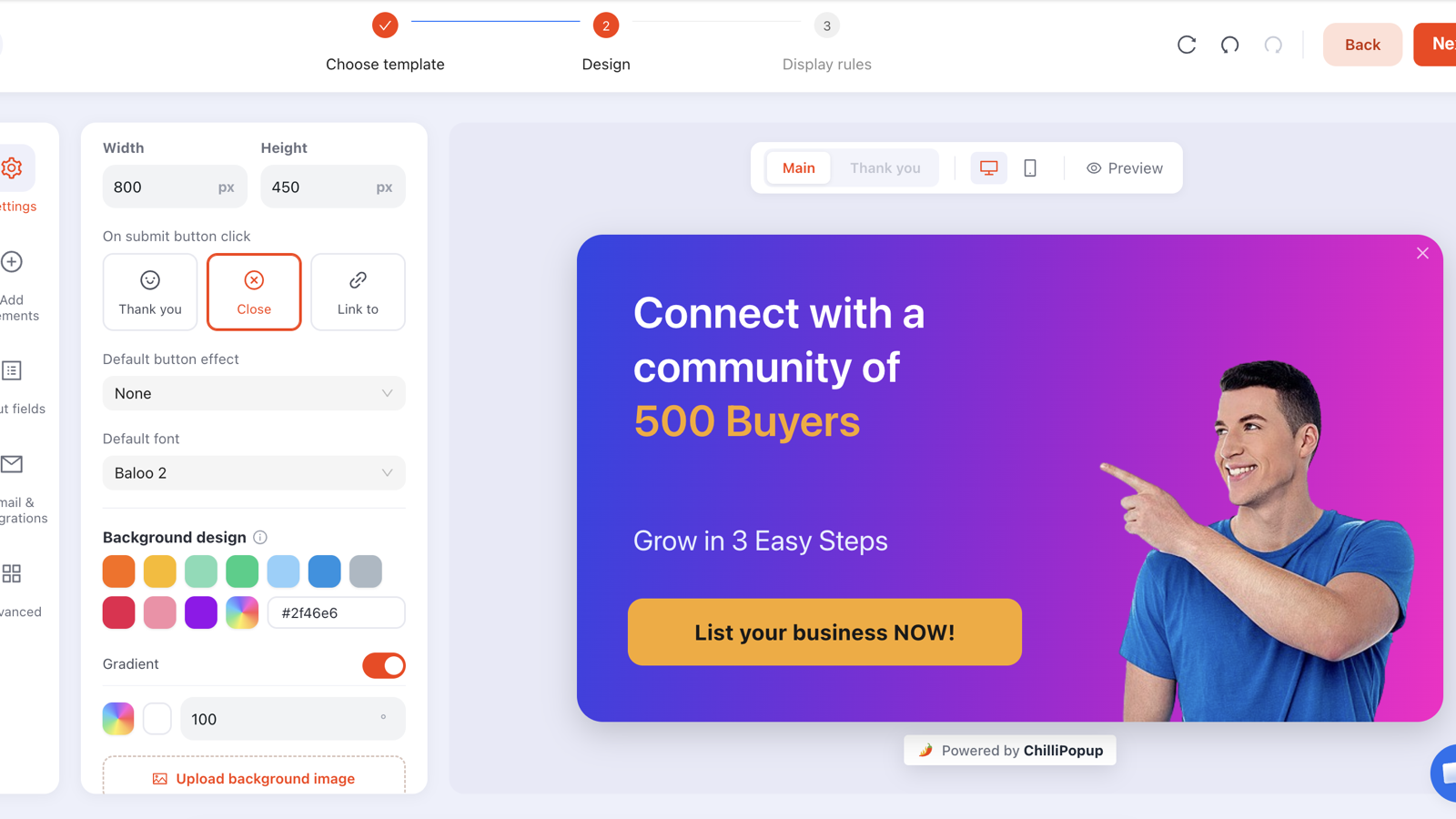
The whole welcome offer is five blocks: headline, body line, email input, button, decline link.
And the rules that make it behave:
- Trigger: exit intent on desktop; 50% scroll for mobile, where there's no cursor to read.
- Audience: new visitors only — regulars already know about the list.
- Pages: URL does not contain
/booking— never interrupt someone mid-checkout. - Frequency: once every 7 days, and stop showing after conversion so subscribers never see it again.
Display rules: showing the popup at the right moment
This is the part the built-in lightbox can't do, and it's where popups are won or lost. Every campaign carries its own display rules; start with the three big trigger moments in a single visit:
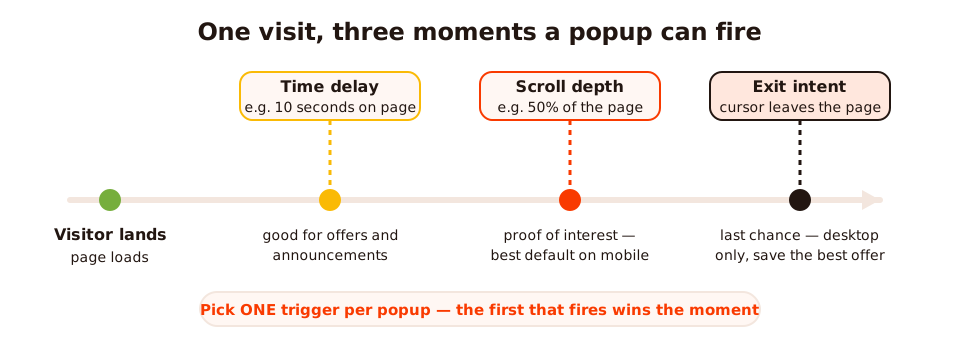
Three moments, three different messages. A visitor 10 seconds in hasn't earned the same popup as one halfway down the page or one about to leave.
- Time delay — fires after N seconds on the page (counted per page or per session). Good default for announcements and offers; 8–15 seconds respects the visitor's first look around.
- Scroll percentage — fires once the visitor has read a share of the page. Scrolling is proof of interest, which makes this the best default for lead forms and the safest trigger on mobile.
- Exit intent — fires when the cursor moves toward the browser bar. It's your last chance, so it carries your best offer. It's desktop-only by nature; our exit-intent guide covers the mobile stand-ins in depth.
- Pages viewed, click count, inactivity — the specialist triggers: reward the engaged multi-page visitor, react to repeated clicks, or nudge someone who's gone idle.
Then narrow who and how often. Every enabled rule combines as an AND gate:
- Page targeting — URL contains, is exactly, starts with, ends with and their negatives. Keep the welcome offer off your booking flow and legal pages.
- New vs returning visitors — you define what "returning" means in days. Welcome offers go to new visitors; "welcome back" nudges go to returning ones.
- Device, OS and browser — run a desktop exit-intent popup and a separate mobile scroll popup rather than forcing one to do both jobs.
- Frequency — once a day, every N days or visits, per session. A dismissal is an answer; respect it for at least a week.
- Date ranges and weekly schedules — a seasonal campaign with an end date switches itself off; a lunch-offer popup can run weekdays 11:00–14:00 only.
- Stop after conversion — the single most important switch. Someone who signed up should never meet the signup popup again.
For a deeper treatment of choosing between triggers — with the decision table — see the full popup triggers guide.
Building a Wix email popup that gets signups
Email capture is the most common reason Wix owners add a popup app, so it gets its own rules of thumb:
- One field. Email only. Ask for a name later, once they're on the list — not in the popup.
- Name the trade. "Join our newsletter" gives the visitor nothing. "Get the code" / "Get the checklist" / "Get first pick of workshop dates" names what they receive.
- Show the value immediately. Put the coupon code on the popup's thank-you screen so the reward is instant. ChilliPopup collects submissions in your dashboard — you send the emails from whatever email tool you already use, so copy the addresses across as a weekly routine.
- Respect mobile. Roughly half your Wix traffic is on a phone: bigger tap targets, shorter headline, scroll trigger instead of exit intent.
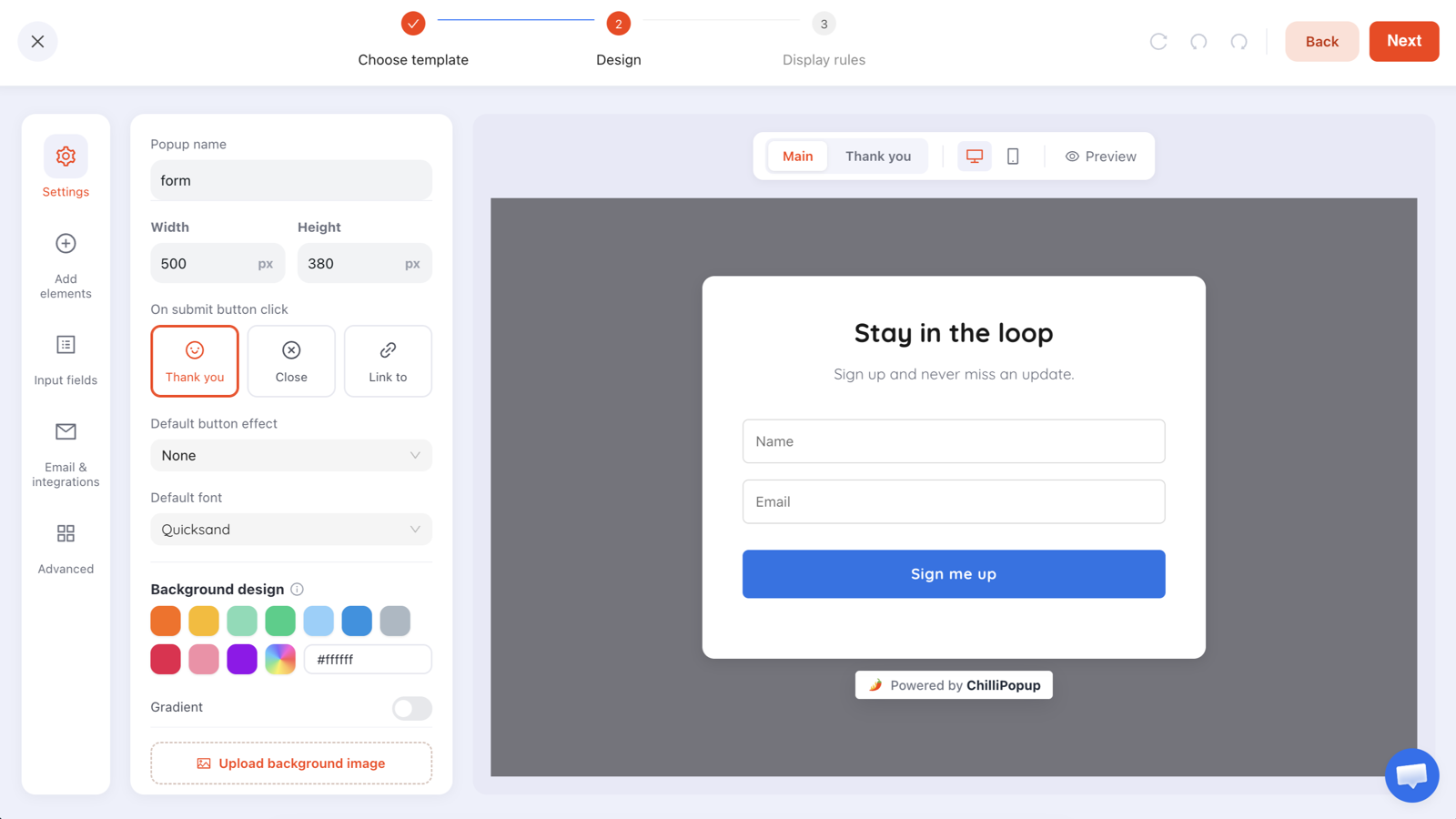
One email field, one button, one named reward — the whole anatomy of an email popup that converts.
Common mistakes with Wix popups
- Firing instantly on page load. The visitor hasn't seen your site yet — the popup interrupts nothing but their first impression. Give it 10 seconds or 50% scroll.
- Testing in the Wix editor preview. App scripts don't run there the way they do on the live site. Publish, then test the real URL — ideally in an incognito window.
- Installing the pixel twice. App plus Custom Code means double rendering and double counting. Pick one.
- No frequency cap. The same popup on every page view turns one small ask into harassment. Once every 7 days is a civilised default.
- Leaving it on after conversion. Subscribers who keep seeing "join our list" learn that your site doesn't know who they are.
- Running it on the booking or checkout flow. A visitor who is already converting should never be interrupted — exclude those URLs explicitly.
- Forgetting mobile. A desktop popup with an exit-intent trigger never fires on a phone — or renders too big to close. Build a mobile variant with its own trigger; the mobile popup best practices cover the details.
Measuring whether your Wix popup works
The other thing an app adds: numbers. Every campaign reports views, clicks, submissions and the conversion rate — submissions divided by views.
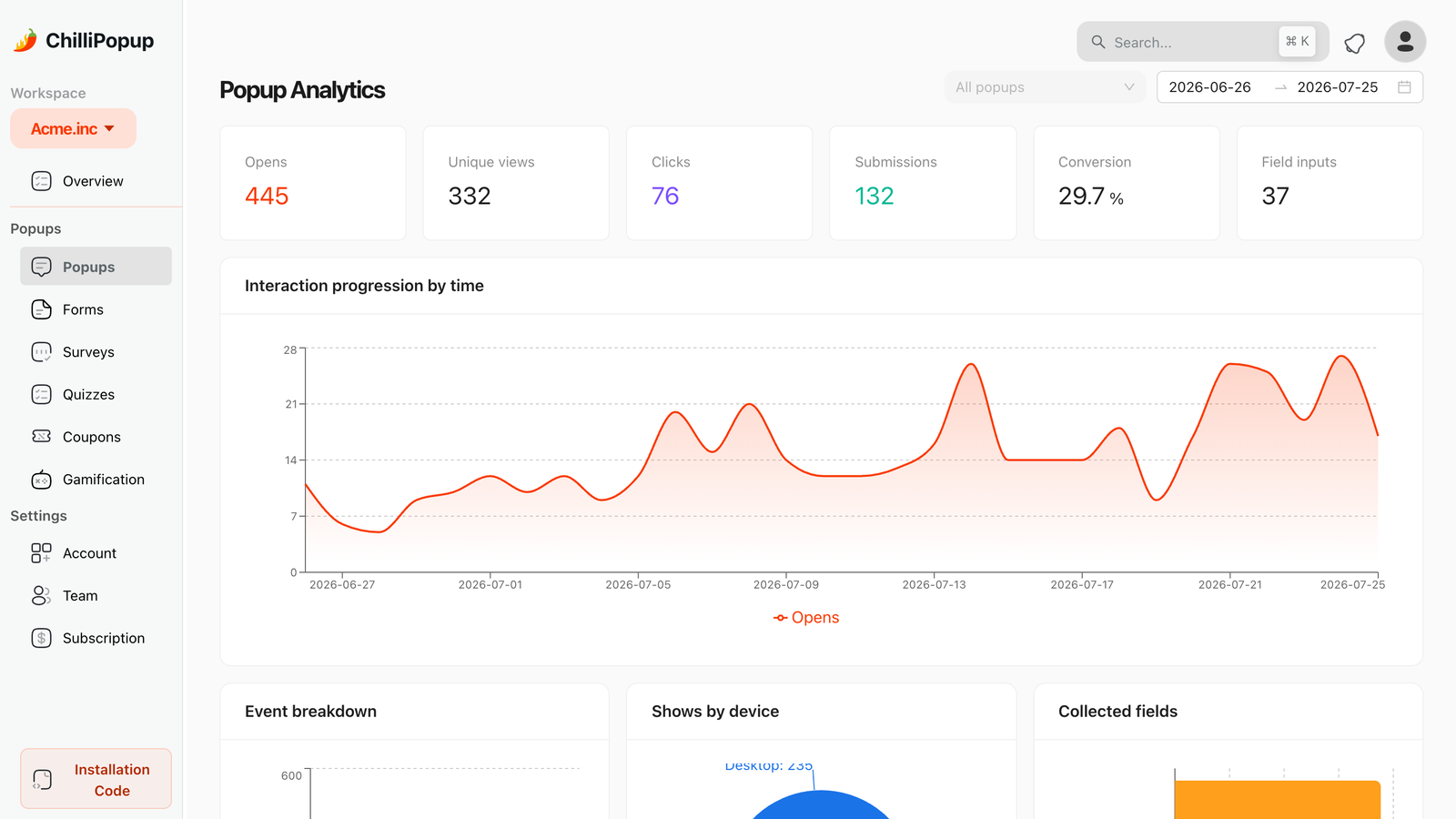
Views → clicks → submissions per campaign. If views are low the rules are wrong; if views are high and submissions are low, the offer or copy is.
Read it in this order:
- Low views? A rules problem — the trigger is too strict, the page targeting too narrow, or the frequency cap is doing its job. Fix the rules before touching the design.
- Views but no submissions? An offer problem. Rewrite the headline, name a better trade, shrink the ask to one field.
- Not sure which fix worked? Don't guess — A/B test it. Traffic splits between the two versions automatically and the dashboard shows which converts better.
Give any change two weeks of data before judging it, and change one thing at a time — a typical Wix site's traffic needs that patience for the numbers to be readable.
Put a smarter popup on your Wix site today
Install the free Wix app, let it connect your site automatically, and publish popups, forms, surveys and games with real display rules. Free plan, no credit card required. Paid plans from $29/month.
Start free →Related reading
Frequently asked questions
Does Wix have built-in popups?
Yes. Wix includes a built-in lightbox feature: you design a popup in the Wix editor and show it automatically when a page loads, optionally after a short delay. It works well for simple announcements. It does not offer behavioural triggers such as exit intent or scroll depth, new-versus-returning visitor targeting, or per-popup conversion reporting — for those you add a popup app such as ChilliPopup.
How do I create an exit intent popup on Wix?
Wix's built-in lightbox cannot trigger on exit intent, so you need a popup app. Install the free ChilliPopup app on your Wix site, which connects your site automatically, then build a popup in the ChilliPopup dashboard and set its trigger to exit intent. Exit intent fires when the cursor leaves toward the browser bar, so it is a desktop trigger — give mobile visitors a scroll or time-delay trigger instead.
Do I need Velo or code to add a popup app to Wix?
No. The ChilliPopup Wix app adds the script for you: when you install it, it creates your ChilliPopup account and connects your site automatically. If you already have a ChilliPopup account, you can paste its one-line script with Wix Custom Code instead, which needs a Wix Premium plan and a connected domain. The app is the simpler path and works on any Wix plan.
Can I show a popup only on certain pages of my Wix site?
Yes. ChilliPopup's page targeting matches your URLs with rules like contains, does not contain, is exactly, starts with and ends with. That is how you keep a welcome offer on your homepage and blog but off your booking, checkout and legal pages — one popup can carry several URL rules at once.
Why is my popup not showing on my Wix site?
Check four things: the popup is set to Published in ChilliPopup (drafts never serve), the ChilliPopup page in your Wix dashboard shows an Active badge, you are testing the live published site rather than the Wix editor preview, and the display rules can actually fire for you — a popup capped at once every 7 days will not show again on your own machine until the window resets. Also test in an incognito window with ad blockers disabled.
Can I A/B test popups on Wix?
Yes, through the popup app rather than Wix itself. ChilliPopup has built-in A/B testing: you create a variant of your popup, traffic on your Wix site is split between version A and version B, and the analytics show which one converts better. Test one change at a time — the headline, the offer or the trigger — so you know what made the difference.