To add a popup to a Magento store, paste one script tag into Content → Design → Configuration → HTML Head → Scripts and Style Sheets, save, and flush the cache. No extension, no module, no composer dependency — which on Magento is the whole point.
This guide covers the install for Magento Open Source and Adobe Commerce, how popups interact with full-page cache, how to scope them per store view, and the URL rules that target product, cart and order-confirmation pages without editing a single template.
Key Takeaways
- One tag in HTML Head beats an extension — nothing to maintain across Magento upgrades.
- Design configuration is per store view, so multi-store and multi-locale scoping is free.
- Full-page cache is not a problem. The popup renders client-side, so offers change without a cache flush.
- Target by URL:
.htmlfor products,/checkout/cart,/checkout/onepage/success. - Flush the cache after the install — nine times out of ten that's why "it isn't working".
Extension or script tag?
Magento merchants have been trained to reach for an extension, and on a platform where every module is a future upgrade negotiation, that instinct deserves questioning. A popup is entirely a front-end concern: it decides what to show a browser, based on what that browser has already done. Nothing about it needs to run on your PHP stack.
| A server-side extension | A script tag | |
|---|---|---|
| Install effort | Composer, setup:upgrade, di:compile, deploy | Paste into admin, flush cache |
| Magento upgrade risk | Compatibility to re-test every release | None — nothing server-side |
| Page speed | Adds PHP work per request | Async script; no render blocking |
| Full-page cache | Often needs hole-punching | Unaffected — rendered in the browser |
| Changing an offer | Depends on the module's admin | Edit and publish; no deploy |
| Access to server-side data | Yes | No — targeting is behaviour and URL based |
That last row is the honest trade. A client-side popup does not know your customer's lifetime value or which segment Magento put them in. It knows what page they are on, what they have done in this session, whether they are new or returning, their device, and whether they already converted — which turns out to be enough for almost every campaign a store actually runs.
Step 1 — Install the script in Magento's HTML head
In the Magento admin:
- Go to Content → Design → Configuration.
- Find the row for the scope you want — Default, a website, or a single store view — and click Edit.
- Expand HTML Head.
- Paste the snippet into Scripts and Style Sheets.
- Save Configuration, then flush the cache under System → Cache Management.
<script id="chillipopup-pixel"
  src="https://player.chillipopup.com/javascript/pixel.js?id=YOUR_WORKSPACE_ID"
  data-api="https://api.chillipopup.com"
  async="true"></script>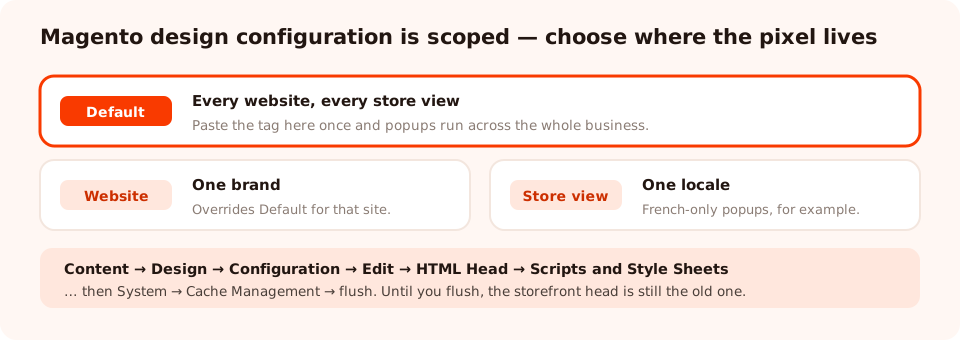
Design configuration is scoped. Install at Default for the whole business, or per store view to run popups on one storefront only.
Replace YOUR_WORKSPACE_ID with the ID from your dashboard, or copy the whole line from the
install screen where it is already filled in — the
install guide
walks through it.
Flush the cache. Magento serves the head from a cached layout, so a saved configuration you have not flushed simply is not on the storefront yet. If the script tag is missing from View Source, this is almost always why.
The alternatives, and when they are better
- Google Tag Manager. If GTM is already on the storefront, a Custom HTML tag firing on All Pages is the fastest install and keeps marketing tags in one place. See the GTM guide.
- A theme layout XML update. Adding the tag to
default_head_blocks.xmlin a custom theme puts it in version control, which some teams require. It also means a deploy for every change — though after the initial install there are no changes. - Page Builder HTML element. Fine for testing a popup on one landing page. Not the way to run a storefront-wide campaign.
Step 2 — Build the popup
Everything after the install happens outside Magento, which is the main practical win: your offer, your copy and your discount code stop being a deploy.
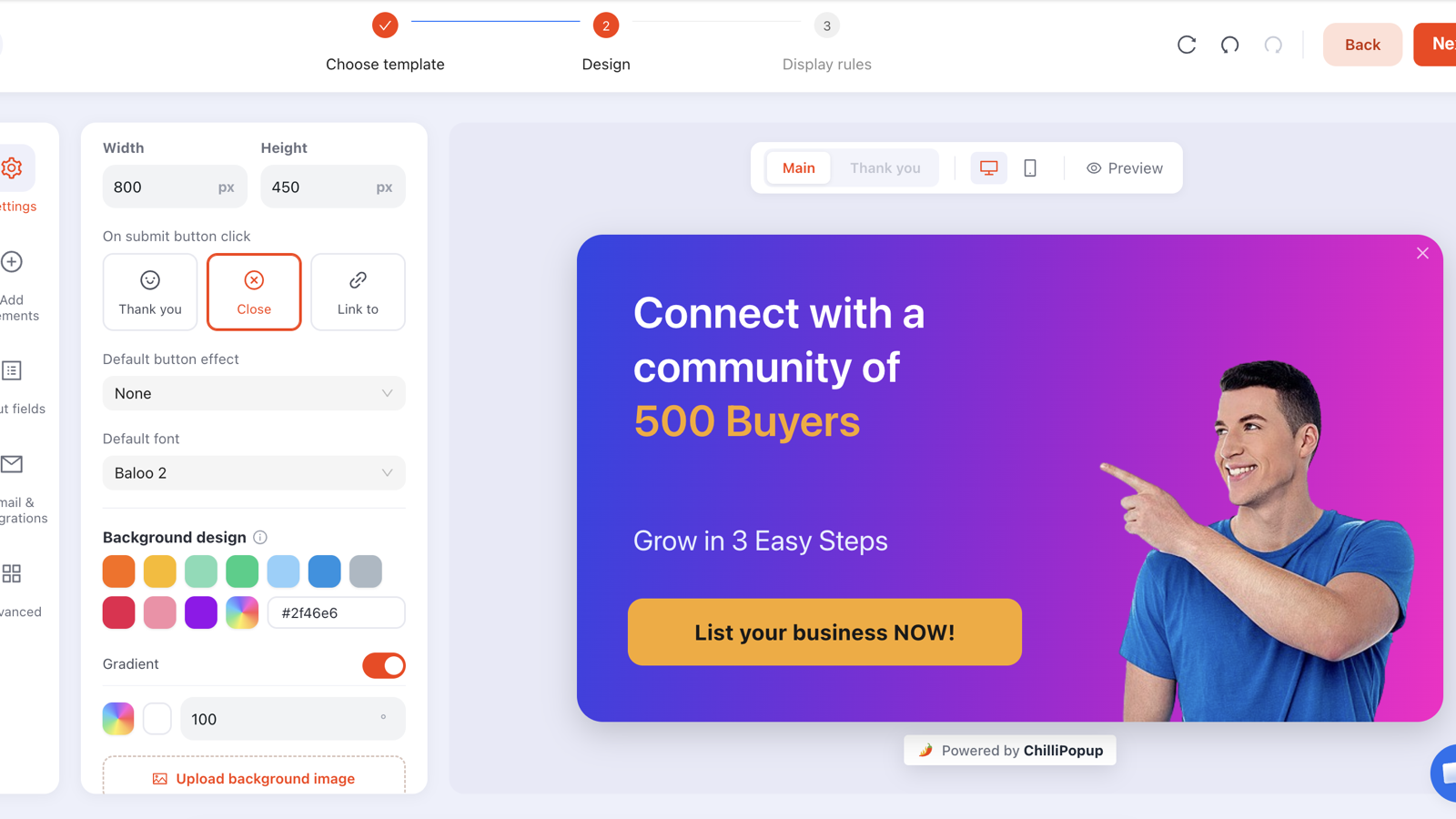
Blocks for text, buttons, inputs, images, countdown timers and coupon codes — the pieces a store popup actually needs.
Two blocks earn their place on a Magento storefront in particular. A countdown timer gives a sale popup a real deadline instead of an implied one. A coupon block reveals the code on the thank-you screen, so the customer has it in hand the moment they submit — which matters, because a code that only arrives by email loses the session you just captured.
Test the code in a real Magento cart before you publish. Cart price rules have conditions, websites, customer groups and dates attached; a popup promising a code that your rule quietly excludes costs more trust than the popup earns.
Step 3 — Target Magento's URL patterns
Magento's URLs are predictable, which makes page targeting easy once you know the shapes. Use contains, starts with, ends with, is exactly, is not and does not contain.
| Where you want the popup | Typical Magento URL | Rule |
|---|---|---|
| Product pages | /blue-cotton-shirt.html | URL ends with .html |
| One category | /men/shirts.html | URL contains /men/ |
| Cart page | /checkout/cart/ | URL contains /checkout/cart |
| Order confirmation | /checkout/onepage/success/ | URL contains /onepage/success |
| Everywhere but checkout | /checkout/ | URL does not contain /checkout |
| Homepage only | / | URL is exactly / |
| Customer account area | /customer/account/ | URL does not contain /customer/account |
Always exclude checkout. A popup over a payment step is the most expensive
interruption on the entire site. Add URL does not contain /checkout to every
marketing campaign, and make the single exception the order-confirmation page, where the customer has
already paid.
Then set the behavioural rules: trigger, audience, frequency, and — the one most stores miss — turn off "show again after conversion" so existing subscribers stop meeting your signup popup. The targeting rules guide covers the full set.
Run popups on your Magento store without an extension
Build popups, forms, surveys, quizzes and games from one editor — and one script tag. Free plan, no credit card required. Paid plans from $29/month.
Start free →Four campaigns worth running on a Magento store
1. First-order capture on category pages
Target URL contains your top category path, trigger at 50% scroll on mobile and exit intent on desktop, audience new visitors. One email field, one reward, code revealed on the thank-you screen.
2. Cart rescue
Target /checkout/cart, trigger on exit intent, and offer the thing that actually blocks
Magento carts — shipping. "Free shipping on orders over €50 — you're €7
away." If you cannot compute the gap client-side, state the threshold; it still works. See the
cart-abandonment guide.
3. Post-purchase survey on the success page
Target /onepage/success with a five-second delay and a
one-question survey: "How did you find
us?" The customer has already paid, goodwill is at its peak, and the answer is attribution data
your analytics cannot give you.
4. A gamified signup for peak season
A spin wheel or scratch card converts a flat discount into something people play. The winning outcome is decided server-side, so it cannot be rigged from the browser, and the prize codes never reach the page until they are won.
Magento-specific problems and fixes
| Symptom | Usual cause | Fix |
|---|---|---|
| Script missing from View Source | Cache not flushed after saving | System → Cache Management → flush invalidated caches |
| Works on one storefront, not another | Design config saved on a single store view | Move the tag to the Default scope, or repeat it per store view |
| Nothing on category pages | URL rule written for the .html product suffix | Add a second rule with contains for the category path |
| Popup appears during checkout | No exclusion rule | Add URL does not contain /checkout |
| Fired once, never again | The frequency rule is working | Test in a private window or reset the campaign's seen state |
| Discount code rejected at checkout | Cart price rule conditions or website scope | Test the code end to end before publishing the popup |
| Popup looks wrong on mobile | Theme viewport differs from the editor preview | Check the mobile canvas; keep the button reachable above the keyboard |
Add a popup to Magento, step by step
1. Copy the snippet
From your dashboard's install screen — the Workspace ID is already in the line.
2. Open Content → Design → Configuration
Click Edit on the scope you want: Default for everything, or a single store view.
3. Paste into HTML Head → Scripts and Style Sheets
Save Configuration.
4. Flush the cache
System → Cache Management. Until you do, the storefront head is still the old one.
5. Build and publish the popup
Design it, set the trigger, publish it — drafts never serve.
6. Add URL rules and test
Target products, cart or the success page, exclude checkout, and confirm on the storefront in a private window.
Related reading
Frequently asked questions
How do I add a popup to a Magento store?
Paste one script tag into the theme's HTML head. In the Magento admin that is Content → Design → Configuration, edit the design theme for your store view, open the HTML Head section, and put the tag in "Scripts and Style Sheets". Save, flush the cache, and the popup appears on every page of that store view.
Do I need a Magento extension to run popups?
No. A popup runs entirely in the browser, so a single script tag is enough — there is no module to install, no dependency to keep compatible across Magento upgrades, and nothing added to your PHP stack. That is usually the safest option on a platform where every extension is a future upgrade problem.
Will a popup work with Magento's full-page cache?
Yes, and this is one of the reasons to keep it client-side. The script tag sits in the cached HTML and the popup itself is fetched and drawn in the browser, so what visitors see is never frozen into a Varnish or built-in full-page cache entry. You can change the offer without invalidating a single cache.
Where do I put the script for a multi-store Magento setup?
Design configuration is set per store view, so you can scope the script exactly where you want it. Add it at the default level for all store views, or edit an individual store view's design configuration to run popups on one brand, locale or storefront only.
How do I show a popup only on Magento product or cart pages?
Use URL rules rather than a per-page install. Magento product URLs usually end in .html, the cart is /checkout/cart/ and the order confirmation is /checkout/onepage/success/. A rule like "URL contains /checkout/cart" targets the cart everywhere without touching a template.
Does this work on Adobe Commerce as well as Magento Open Source?
Yes. The install path through Content → Design → Configuration is the same on both, and because nothing is installed server-side there is no edition-specific dependency. Adobe Commerce merchants running Page Builder can also drop the same snippet into an HTML element if they prefer a page-scoped install.