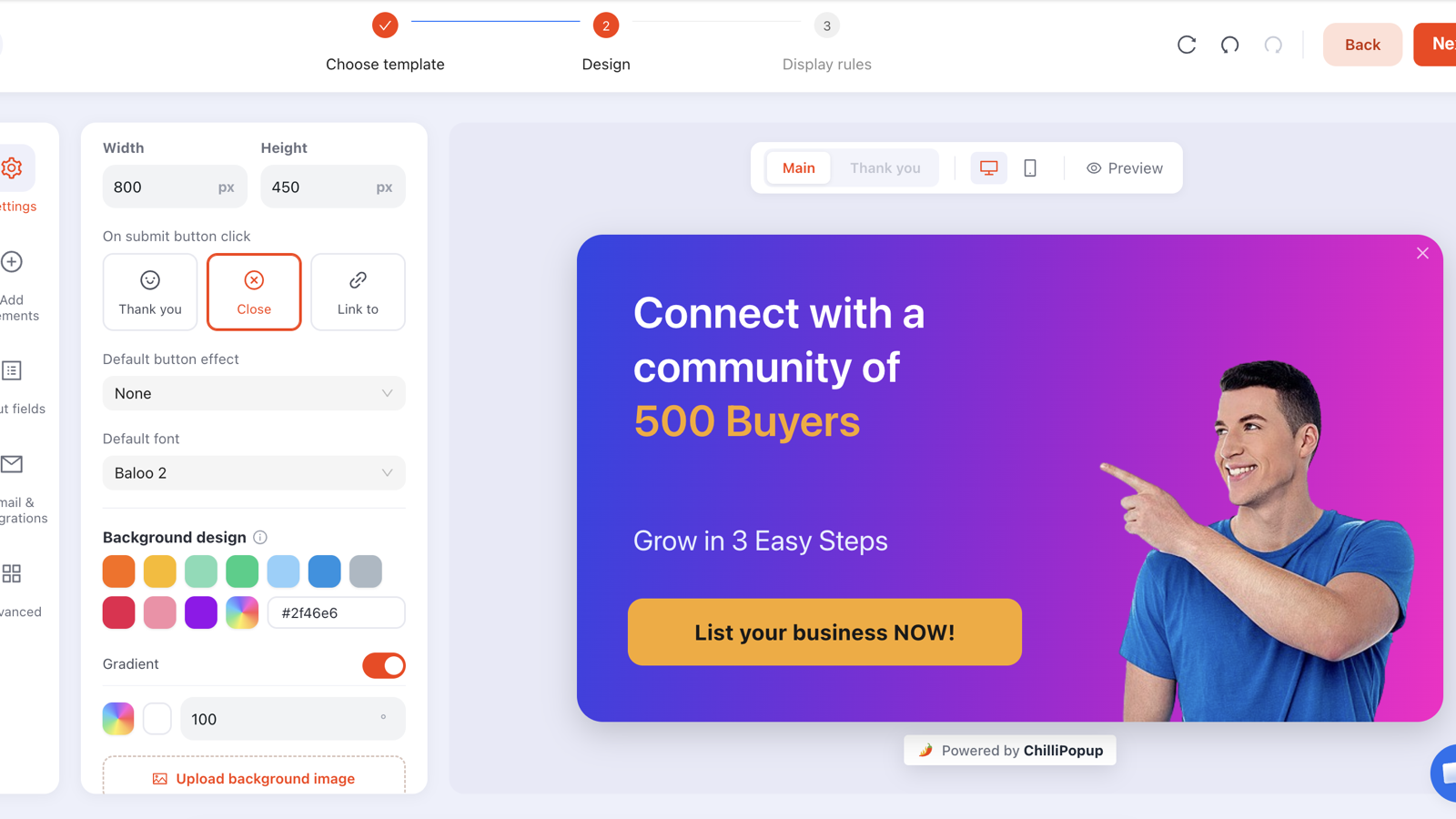
WooCommerce has no popup of its own. It gives you products, a cart, a checkout and orders — the email capture, the cart rescue and the post-purchase ask are all yours to build. The good news is that WooCommerce lays its pages out at completely predictable addresses, which makes targeting a popup to exactly the right moment easier here than on almost any other platform.
This guide maps the eight campaigns worth running onto WooCommerce's four page types, gives you the URL rule for each, and covers the two things store owners get burned by: leaking coupon codes, and popups that fire on the order-received page after someone has already paid.
Key Takeaways
- Two campaigns first. A welcome offer on product pages, an exit catch on cart and checkout. Build the rest later.
- WooCommerce URLs do the targeting for you —
/shop,/product,/cart,/checkout,order-received. - Never let a popup fire after payment. Rule the checkout campaign ends with /checkout/, or you'll discount an order you already won.
- Every coupon you hand out needs a usage limit and an expiry set in WooCommerce, not just a nice headline.
- Read the mobile split before rewriting copy. Most weak store popups are a rules problem on phones, not a wording problem.
Why a WooCommerce store needs popups at all
A typical small store converts a low single-digit percentage of its visitors. That isn't a broken store — it's normal. What it means is that the overwhelming majority of the traffic you paid for or earned leaves without buying and without leaving a way to be contacted again. Every one of those visits is bought twice: once to acquire, once more to re-acquire later through ads.
A popup is the cheapest instrument that changes that ratio, because it works on two different leaks:
- The identity leak — browsers who were never going to buy today but would happily take 10% off in exchange for an email address you can market to for years.
- The intent leak — shoppers who put something in the cart and stalled. These are the expensive ones, and they need a different message entirely.

One campaign per page type. The URL rule does the rest.
Installing a popup on WooCommerce
WooCommerce runs on WordPress, so installation is a WordPress job: a plugin, or a script in your theme's header. The plugin route is the one to take unless you have a reason not to.
In your WordPress admin, go to Plugins → Add New, search for ChilliPopup, install and activate it.
Copy your workspace ID from the ChilliPopup dashboard and paste it into the plugin's settings screen. That is the whole configuration.
Publish a popup and check it on the live store in a private window. Every campaign you create afterwards goes live without touching WordPress again.
Prefer not to add a plugin? Paste the script into your theme's header through your theme options or a code-snippets plugin instead — the WordPress install guide covers both routes and the caching-plugin troubleshooting.
<script id="chillipopup-pixel"
  src="https://player.chillipopup.com/javascript/pixel.js?id=YOUR_WORKSPACE_ID"
  data-api="https://api.chillipopup.com"
  async="true"></script>
Caching and optimisation plugins are the usual suspect. If your popup never appears on the live store, check whether a performance plugin is deferring, combining or minifying third-party scripts, and add the pixel to its exclusion list. Then clear the cache before you test again — you are often looking at a page that was generated before you installed anything.
The URL rules for every WooCommerce page
WooCommerce installs its pages at standard addresses. Unless someone renamed them, these rules will hit exactly what you expect — check your own permalinks once and then reuse this table forever.
| Page | Rule | Value | What belongs there |
|---|---|---|---|
| Shop and category | URL contains | /shop | Welcome offer, announcement bar |
| Product pages | URL contains | /product | Welcome offer, back-in-stock capture |
| Cart | URL contains | /cart | Exit catch, free-shipping nudge |
| Checkout, but not the thank-you page | URL ends with | /checkout/ | Reassurance, exit catch |
| After payment | URL contains | order-received | Review request, referral, profile question |
| Everywhere but the checkout | URL does not contain | /checkout | Anything that must never interrupt a payment |
The rule people forget. The order-received page sits inside /checkout on a
default WooCommerce install — the URL looks like /checkout/order-received/1234/. A campaign
ruled "URL contains /checkout" will therefore fire at the customer who has just paid you. Use
ends with /checkout/ instead: it matches the checkout page itself and nothing
underneath it.
Page rules widen, they don't narrow. Add two page-targeting rules to one campaign and it shows where either matches, not where both do. So "contains /cart" plus "does not contain order-received" matches your whole site. When you need precision, use one well-chosen rule — or split the campaign in two.
Eight WooCommerce popup campaigns worth building
1. The welcome offer
New visitors, product and shop pages, exit intent on desktop and around 50% scroll on mobile. "First order? Take 10% off — the code lands on the next screen." One email field. Turn "show again after conversion" off so subscribers stop meeting it.
2. The cart exit catch
The highest-value campaign on the store. On /cart, on exit intent. Lead with the objection,
not the discount: "Still deciding? Free returns for 30 days, and we'll hold your basket." Keep a
discount version in reserve for the second test — if a coupon converts the same shoppers who would have
bought anyway, you just paid for your own sales.
3. The free-shipping nudge
A slim bar on cart and product pages that names the threshold: "You're $12 away from free shipping." Popups can't read the WooCommerce cart total, so write it as a fixed threshold rather than a live counter — "Free shipping over $50" works and never displays a wrong number.
4. The checkout reassurance
Not a discount. A small, corner-anchored panel restating returns, delivery times and payment security, on
/checkout, after a delay of 20–30 seconds — long enough to only reach the people who
have stalled. Never cover the payment fields.
5. Back-in-stock capture
On sold-out product pages: "Tell us where to reach you when this is back." Be honest about the mechanics — the popup collects the address; sending the alert is a manual job unless you have a notification plugin. A short list of people who want one specific product is still one of the most valuable lists you own.
6. The post-purchase ask
On the order-received page only. This is where the expensive questions become cheap, because the customer has already paid: a one-question quiz on how they found you, a birthday field for next year's campaign, or a referral offer. Use a delay so it lands after they've read the confirmation.
7. The prize game
When a plain discount box stops pulling, a spin wheel or scratch card gives the same offer a reason to be looked at. The outcome is decided on the server rather than in the browser, so nobody can rig the prize from the console, and the claim screen collects the email before revealing what they won.
8. The sale announcement
A top bar with a date window and a schedule, so your Black Friday message switches itself on and off without anyone remembering to log in. Combine it with an expiry on the WooCommerce coupon and the whole promotion is self-terminating.
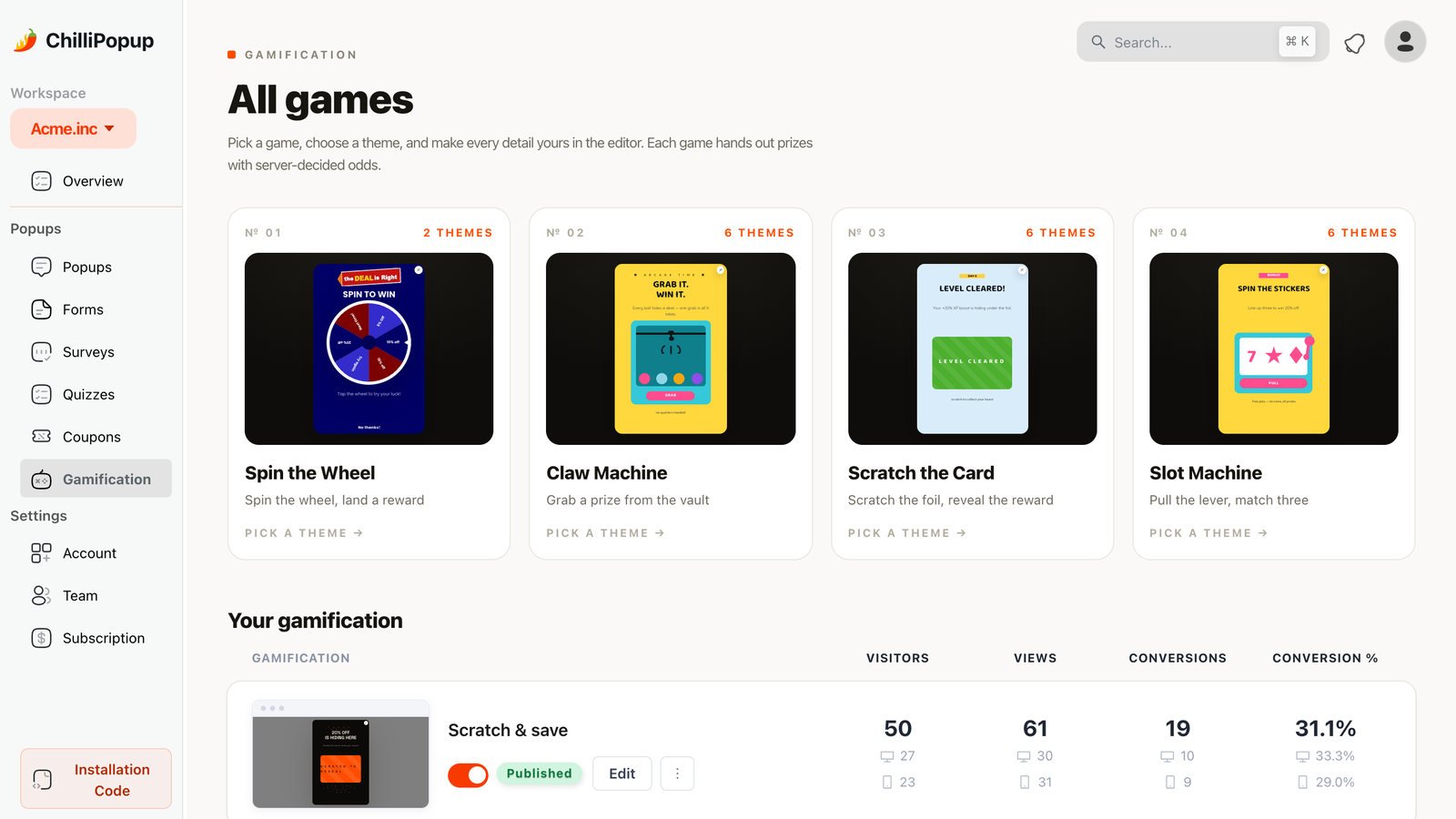
Games work on stores that already discount — the offer is the same, the engagement isn't.
Handing out coupon codes without leaking them
Create the coupon in WooCommerce under Marketing → Coupons, then have the popup show it. Three settings on the WooCommerce side do the protecting:
- Usage limit per coupon — caps total damage if the code escapes.
- Usage limit per user — one redemption per customer, which stops the same person re-subscribing with disposable addresses.
- Expiry date — a welcome code should die in 7–14 days. It also gives your follow-up email something honest to say.
Assume any code you display publicly will end up on a coupon-listing site eventually. That is fine when it's capped and dated; it's expensive when it's an uncapped "WELCOME10" that still works two years later. If you need codes that can't be shared, generate unique ones in WooCommerce and rotate the one your popup shows.
Show the code on the thank-you screen. A shopper who has to leave your checkout, open their inbox and come back has been given a perfect opportunity to not come back. Put the code on screen immediately, then repeat it by email.
Mobile rules for a WooCommerce store
Most WooCommerce traffic is mobile, and mobile is where store popups most often go wrong.
- Exit intent doesn't exist on phones. It reads a cursor heading for the browser chrome. Build the mobile version as a separate campaign on scroll or a time delay.
- Keep it small. A popup that covers a product page on a phone is exactly the intrusive interstitial pattern search engines dislike — and it is also just annoying.
- One field. Each extra input on mobile means a keyboard, a scroll jump and a lost place in the page.
- Check the close button with a thumb, not a mouse. If it takes two attempts, you are training people to leave the site.
Seven mistakes that cost WooCommerce stores money
- Discounting people who were already buying. A cart popup that appears for everyone converts shoppers you had. Trigger it on exit, not on arrival.
- Firing on the order-received page. One "ends with /checkout/" rule instead of "contains /checkout" saves a margin point on every order.
- An uncapped coupon. No usage limit, no expiry, and the code lives forever.
- Interrupting the checkout. Anything that covers a payment field is a refund waiting to happen. Reassure from the corner or not at all.
- Same popup on every page. If your shop popup also shows on the cart, the cart shopper is being sold something they've already decided to buy.
- Leaving "show again after conversion" on. Existing subscribers get asked to subscribe, forever.
- Never testing after a caching plugin update. Store performance plugins change their script handling regularly. Re-check that your popup still shows after every big update.
Measuring whether it worked
Each campaign reports its own views, clicks, submissions and conversion rate (submissions divided by views), plus a desktop-versus-mobile split. Read them in that order, per campaign, never as a store-wide average — a welcome offer and a checkout reassurance panel have no business being compared to each other.
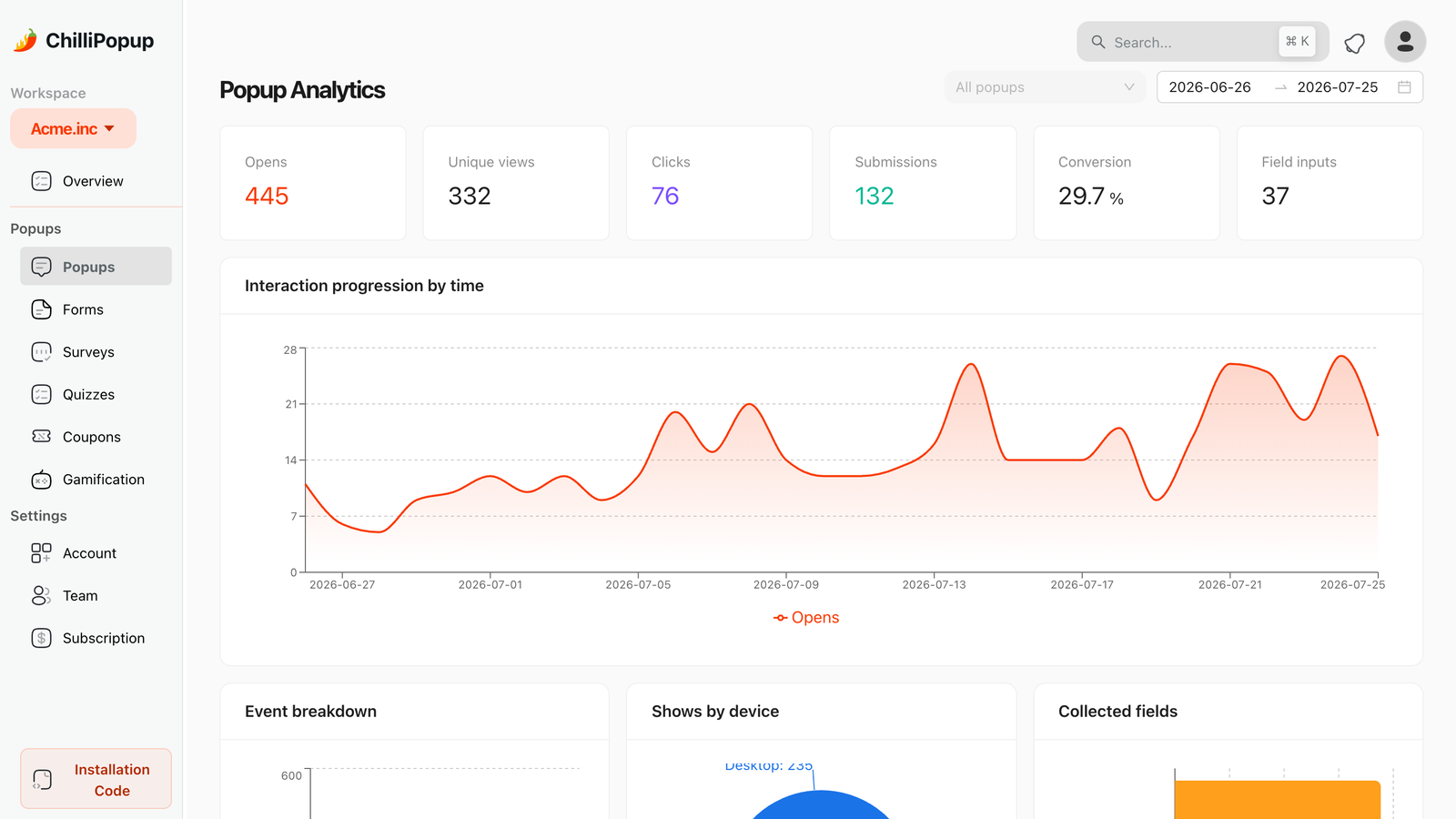
Per-campaign numbers, plus the device split that explains most disappointing results.
Then tie it back to the store. The number that decides whether the cart campaign stays is not its conversion rate — it's whether coupon redemptions and recovered orders exceed the margin you gave away. WooCommerce's own coupon report tells you the redemption half; the popup dashboard tells you the capture half. Read both before you call anything a win. For the wider view, our popup analytics guide walks through the diagnosis ladder.
Build your first two WooCommerce popups
Forty minutes for both, and the install only happens once.
1. Install the plugin
Plugins → Add New → ChilliPopup → activate, then paste your workspace ID. Create the account first if you don't have one.
2. Build the welcome offer
One email field, one reward. Rules: URL contains /product, new visitors, exit intent (plus a
mobile twin on scroll), frequency every 7 days, show-again-after-conversion off.
3. Build the cart catch
URL contains /cart, exit intent, everyone. Lead with reassurance; keep the discount as the
variant you test against it. For the checkout twin, rule it ends with /checkout/ so it
never reaches the thank-you page.
4. Create the coupon properly
WooCommerce → Marketing → Coupons: usage limit per coupon, usage limit per user, expiry date. Then put the code on the popup's thank-you screen.
5. Read it in two weeks
Views, submissions, conversion rate, device split — then change exactly one thing and give it another two weeks.
Put the right popup on every WooCommerce page
One plugin, then a campaign for the shop, the cart, the checkout and the thank-you page. Free plan, no credit card required. Paid plans from $29/month.
Start free →Related reading
Frequently asked questions
Does WooCommerce have a built-in popup?
No. WooCommerce handles products, cart, checkout and orders; it has no popup or email-capture layer of its own. WordPress does not add one either, so any popup on a WooCommerce store comes from a plugin or a pasted script.
What is the best popup to run on a WooCommerce store?
Start with two. A welcome offer on product and shop pages for new visitors, which builds the list, and an exit-intent catch on the cart and checkout pages, which protects revenue you have already earned. Everything else — announcement bars, back-in-stock capture, post-purchase asks — is worth adding only once those two are working.
How do I show a popup only on WooCommerce cart and checkout pages?
Use URL targeting. WooCommerce installs its pages at predictable addresses, so a rule of “URL contains /cart” hits the cart exactly. For the checkout, rule it “URL ends with /checkout/” instead, because the order-received page lives underneath /checkout and a “contains” rule would fire it at customers who have already paid.
Can a popup apply a WooCommerce coupon automatically?
Not by itself. A popup collects the email and shows the code; the customer pastes it at checkout, or you use a WooCommerce coupon URL that applies the discount when clicked. Keep a usage limit and an expiry on every coupon you hand out this way, because a code shown on a website will eventually end up on a coupon-listing site.
Will popups slow down my WooCommerce store?
Not if the script loads asynchronously, which keeps it off the critical rendering path so the page paints without waiting for it. WooCommerce stores are usually slowed by images, page builders and heavy plugins long before a small async script matters. Do check your caching plugin is not deferring or minifying the script into oblivion.
Do popups on WooCommerce need cookie consent?
A popup that only shows content does not, but the moment it collects an email address you are processing personal data, so you need a lawful basis, a visible purpose and — for marketing email in the EU and UK — explicit consent. Add a consent checkbox to the popup, link your privacy policy from it, and never pre-tick the box.