Installing ChilliPopup on BigCommerce takes two things: installing the free ChilliPopup app from your control panel, and pasting your Workspace ID into it once. After that, every popup, form and spin-to-win wheel you publish shows on your storefront automatically.
Key Takeaways
- Two steps that matter: install the app, then paste your Workspace ID and click Activate.
- Storefront only. ChilliPopup never loads on checkout or order confirmation — by design, not a bug.
- Give it a minute. BigCommerce can take up to 60 seconds to propagate a newly activated script.
- Cookie banner? Stores with cookie consent enabled hold the pixel until the shopper accepts — expected behavior, covered below.
Install and connect ChilliPopup
Install the ChilliPopup app
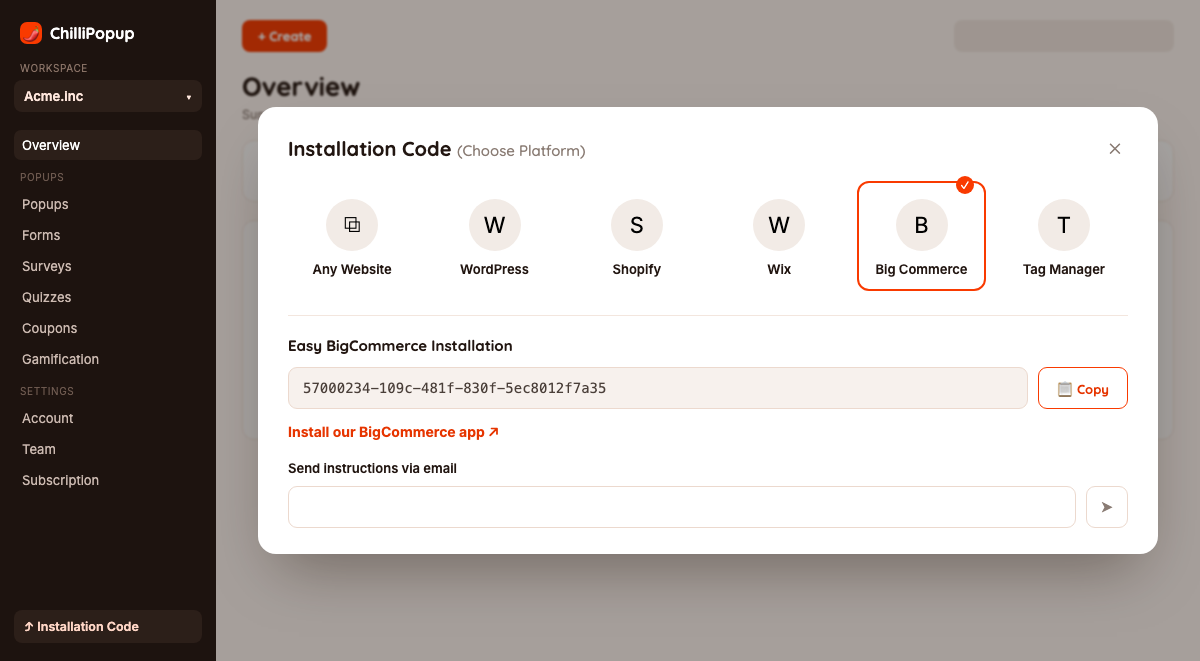
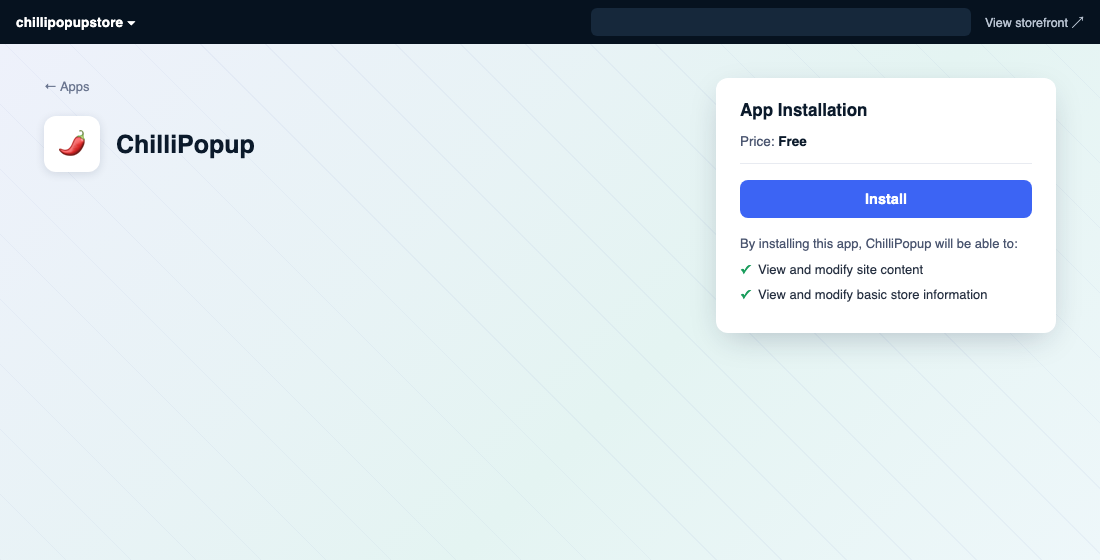
In your ChilliPopup dashboard, open the Installation Code screen and select BigCommerce, then click Install our BigCommerce app. You'll land on the app's install screen in your BigCommerce control panel — click Install and approve the requested permissions (ChilliPopup only asks to view and modify site content, to add its script, and to read basic store information).
Copy your Workspace ID
Back in your ChilliPopup dashboard's Installation Code → BigCommerce screen, copy your Workspace ID (the same UUID shown on the install screen with a Copy button).
Paste the ID and activate
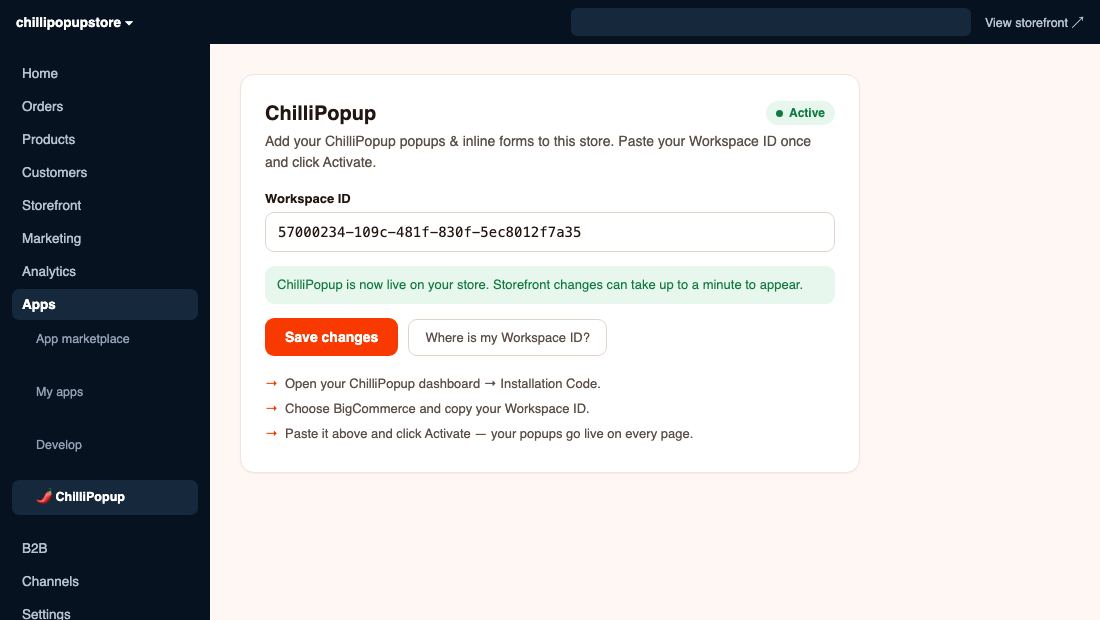
After installing, BigCommerce opens the ChilliPopup app's settings page in your control panel (find it again anytime under Apps → My apps → ChilliPopup). Paste your Workspace ID into the field and click Activate ChilliPopup. This injects the ChilliPopup pixel into your storefront via BigCommerce's own Script Manager.
Publish your content and verify
In ChilliPopup, set the popup or form you want to show to Published. Give BigCommerce up to a minute to propagate the script, then open your live storefront in an incognito window and confirm it appears.
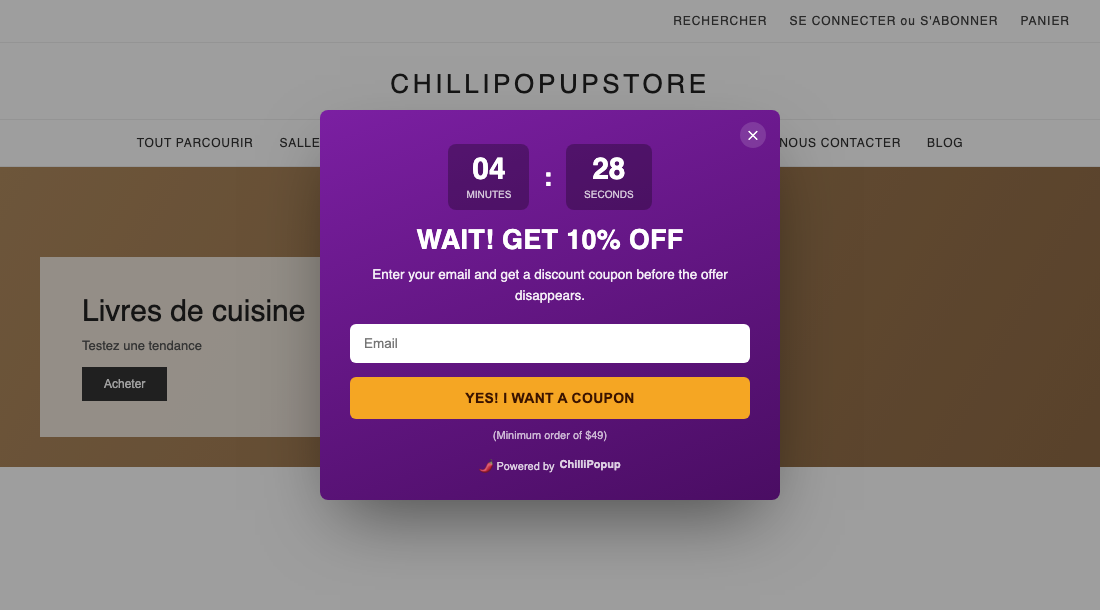
You're done. Add or edit popups anytime in the ChilliPopup dashboard — the connection stays active, so new content appears on your storefront automatically. To pause ChilliPopup later, clear the Workspace ID field in the app and save.
How to verify it's live
| Check | How | What you should see |
|---|---|---|
| App status | Apps → My apps → ChilliPopup in your BigCommerce control panel | An "Active" badge with your Workspace ID saved |
| Script Manager | Storefront → Script Manager in your control panel | A script named "ChilliPopup" listed and enabled |
| Your popup shows | Open your storefront in an incognito window and trigger the rule | The published popup appears (accept cookies first if your store has a consent banner) |
Troubleshooting on BigCommerce
Your storefront has a cookie banner and nothing shows until you accept it
This is expected, not a bug. If your store has cookie consent enabled, BigCommerce holds non-essential scripts — including the ChilliPopup pixel — until the shopper accepts cookies for that category. Once accepted, the pixel loads and your popup can trigger normally. This protects your store's compliance; ChilliPopup never bypasses it.
The popup doesn't appear at checkout
By design. ChilliPopup only injects on your storefront pages, never on checkout or order confirmation, so it can't interfere with payment. If your popup isn't showing on a regular product or category page, that's a separate issue — see the checks below.
The popup still isn't showing on regular pages
Make sure the popup is Published in ChilliPopup (drafts never serve), the app shows an Active badge with the correct Workspace ID saved, and the popup's display rule has actually triggered. Also give it a minute after activating — Script Manager changes aren't always instant.
You're on a legacy Blueprint theme
ChilliPopup's app installs via BigCommerce's Script Manager, which is supported on modern Stencil and Catalyst storefronts but not on legacy Blueprint themes. If your store still runs Blueprint, use the manual "Any website" install instead.
You're testing in your own browser
Ad-blocking or privacy extensions can hide the popup on your machine only. Test in an incognito window with extensions disabled to see what shoppers actually get.
Related install guides
Frequently asked questions
Do I need to paste a Workspace ID on BigCommerce?
Yes. Unlike some platforms where a store connects automatically, BigCommerce apps run inside your control panel and need your ChilliPopup Workspace ID pasted once into the app's settings screen. It's a single copy-paste step, then you click Activate.
Why doesn't my popup show on the checkout page?
By design. ChilliPopup only injects on your storefront pages, not on checkout or the order confirmation page, so it never interferes with payment. If you need a popup earlier in the funnel (cart, product pages), that's already covered — only the final checkout step is excluded.
I activated ChilliPopup but the popup didn't appear right away. Why?
BigCommerce can take up to a minute to propagate a newly installed script to your storefront. Wait a minute, then reload in an incognito window. If it still doesn't appear, check that the popup is Published in ChilliPopup and that your browser has no ad blocker interfering.
My storefront has a cookie banner and the popup only shows after I accept cookies. Is that a bug?
No, that's expected. If your store has cookie consent enabled, BigCommerce defers non-essential scripts — including the ChilliPopup pixel — until the shopper accepts cookies for that category. It's part of BigCommerce's own consent manager, not a ChilliPopup issue, and it protects your store's compliance.
Is the ChilliPopup BigCommerce app free to install?
Yes, installing the app is free. Your ChilliPopup plan is managed separately in your ChilliPopup dashboard, where the Starter plan covers up to 1,000 visitors a month and includes a 14-day free trial.
Does ChilliPopup work with any BigCommerce theme?
It works with modern Stencil and Catalyst storefronts, which cover the vast majority of BigCommerce stores. Legacy Blueprint themes don't support the Script Manager the app uses — on a Blueprint theme, use the manual "Any website" install method instead.